Notifications in WellNav
Notifications in WellNav inform the rig crew when the bit is approaching important depth-based entries such as risks, events, or geological markers. This information improves operational awareness and reduces the chance of surprises during drilling and tripping activities. Notifications are shown both visually and through the RigFlow interface.
How it looks
Notifications panel
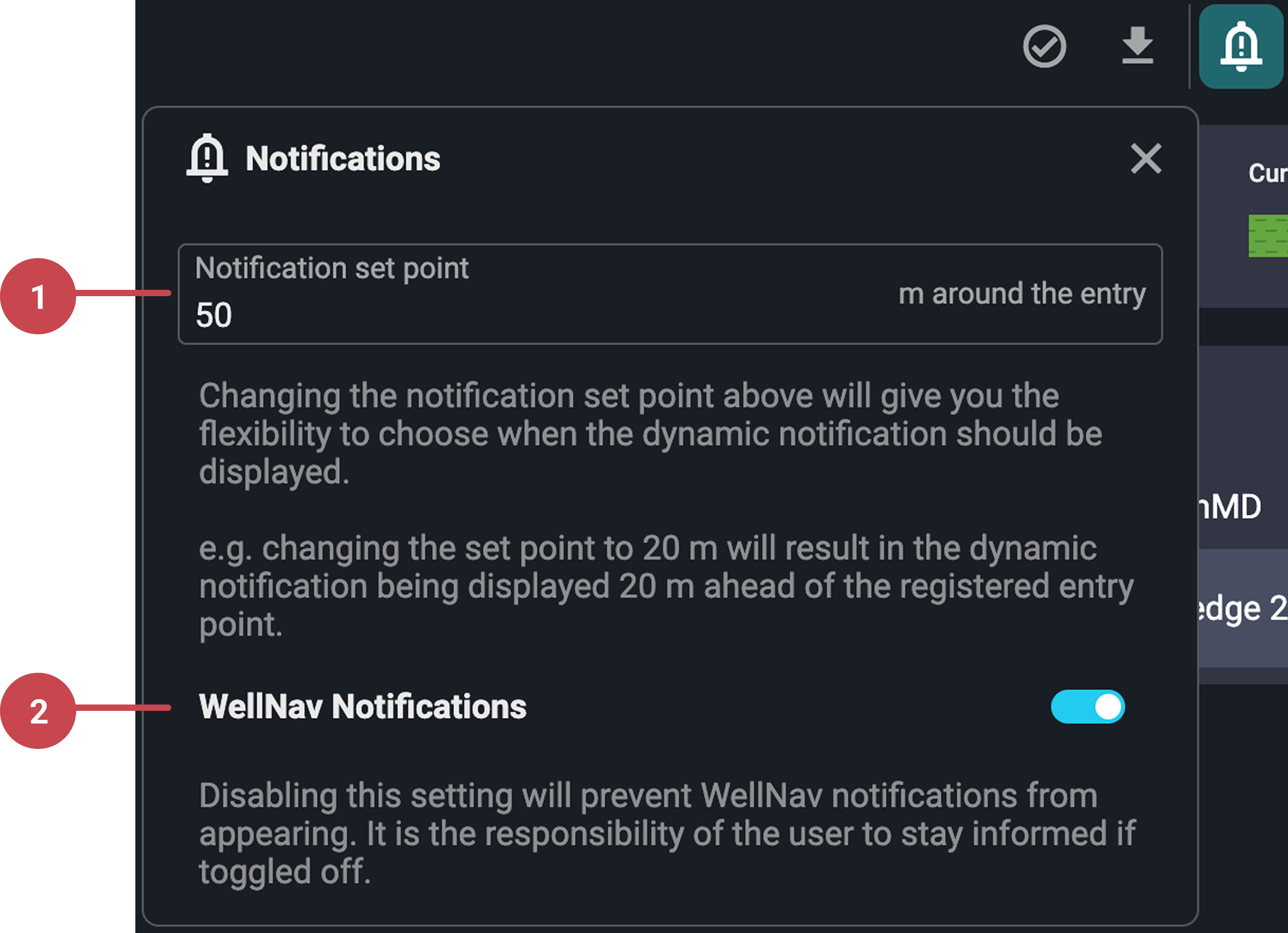
Notification set point: Lets you choose how far ahead of an entry the notification will appear. For example, setting it to 20 m means you will get notified when the bit is 20 m from the entry.
Warning
Be cautious of potential inaccuracies in bit depth readings at low string weights.
WellNav notifications: Also a part of the
 Notifications panel, it allows you to activate or deactivate WellNav notification alerts. It is on by default but can be turned off to reduce distractions. When toggled off, WellNav notifications won't appear on the Global Action Bar, but all active entries will remain visible in the Well view display.
WellNav alerts
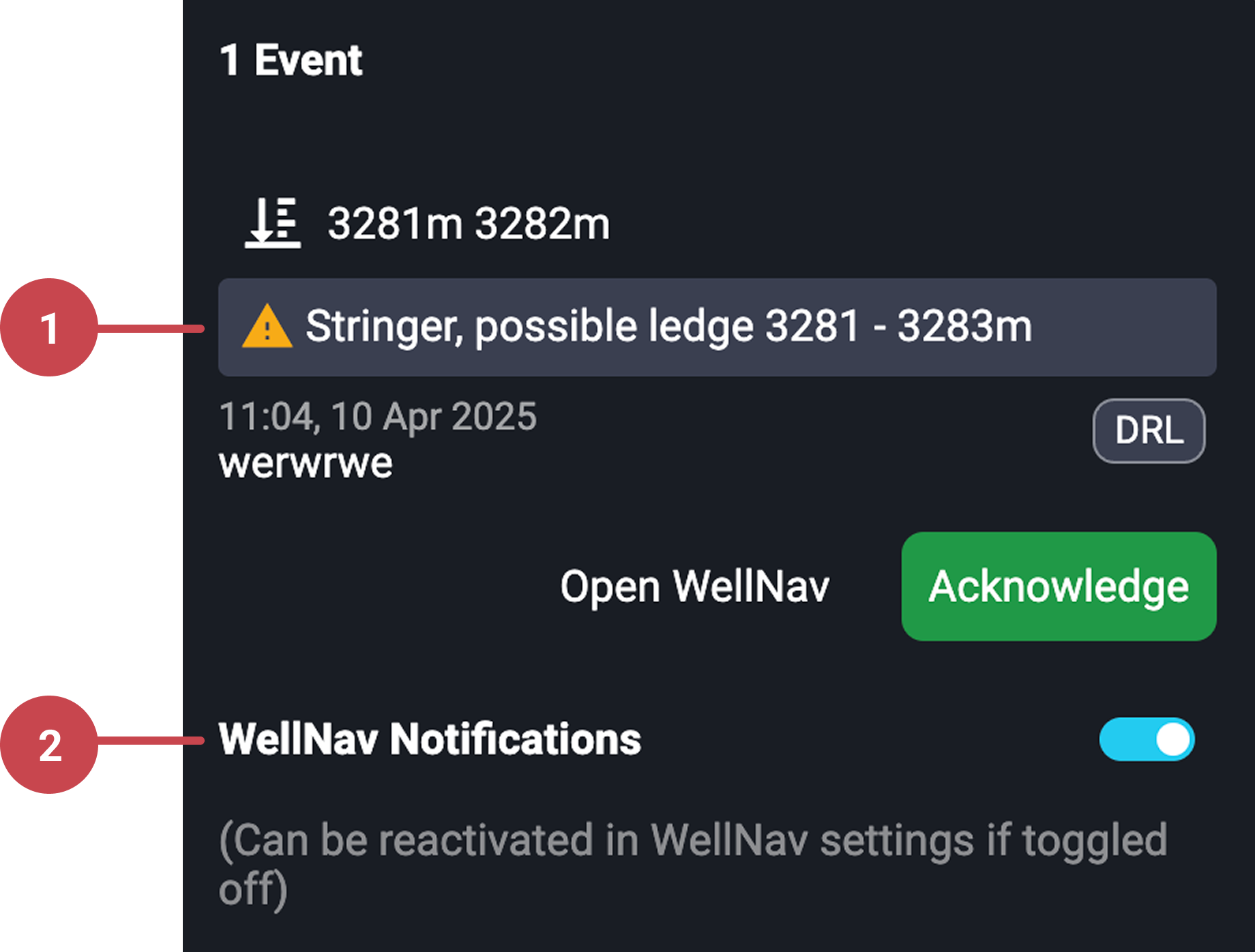
Notification alerts: Appear on the Global Action Bar for the driller in RigFlow.
Tip
When you acknowledge a notification, it will only disappear from the computer you are using. This will not hide the notification on other logged in users.
WellNav notifications: You can quickly enable or disable notifications using the toggle shown directly in the alert panel. If notifications are turned off here, they can still be reactivated at any time through the main
Notifications panel.
Well view display
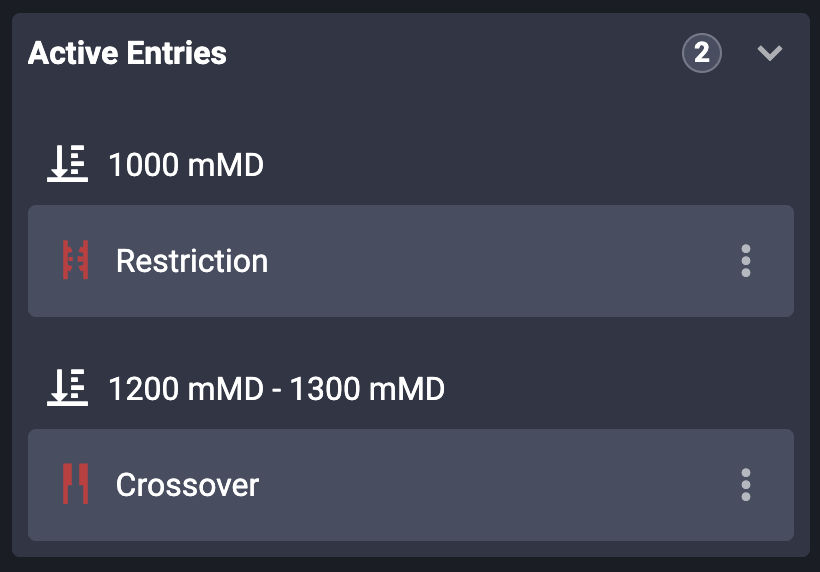
Well view display: Visually highlights active entries near the bit depth. This will show next to the wellbore visualization on Well view display.
Step-by-step instructions
Modify open hole start point
Adjusting the open hole start point is essential since only entries in the open hole are flagged. Risks above this point are assumed to be mitigated by casing, so no notifications are generated for such entries, except for RigFlow entries.
You can modify the open hole start point value to suit your operational requirements.
Locate the correct well and plan: Find the appropriate well and plan.
Update depth and save: Use the
 Edit icon on the Open hole startpoint row to adjust the depth where the open hole section begins.
Note
Only entries below this depth are considered for notifications, except RigFlow entries, which remain always visible.
How to snooze notifications
During reaming operations, the bit's movement up and down the wellbore can trigger unnecessary notifications. Here is how to snooze those kinds of notifications for 1 hour at a time.
Locate the entry: Find the entry you want to snooze.
Access the entry menu: Click on the
 More menu icon.
Snooze for 1 hour: Select
 Snooze entry for 1 hour. This is available only for Geology Team and RigFlow entries.
How to disable notifications
If you need to reduce on-screen distractions or focus on other tasks, WellNav allows you to disable pop-up notifications. This does not remove active entries from the Well view; it only stops visual alerts from appearing in RigFlow.
From the notifications panel
Open the notifications panel: On the WellNav feature, click the
Notifications icon to open the panel.Toggle off the WellNav notifications: Find the toggle labeled WellNav notifications and click on it to disable pop-up alerts. The toggle will appear inactive or greyed out when disabled.
From WellNav alert pop-ups
Wait for a WellNav alert to appear: A visual notification will show on the Global Action Bar when the bit approaches a flagged depth.
Use the WellNav notifications toggle: Inside the alert box, toggle the WellNav notifications switch to disable alerts instantly.
Reactivate if needed: If you disable alerts here, you can later turn them back on from the main
Notifications panel on the WellNav Right sidebar feature.
Examples
Notifications warn drillers when the bit nears a known tight hole or casing shoe.
During reaming, snoozing prevents repetitive alerts as the bit moves up and down.
Tips and tricks
Set broader ranges during fast tripping for better awareness.
Always verify the open hole start point to ensure the correct entries trigger notifications.
Use Snooze during non-critical depth changes to reduce noise.
Adjust the Notification set point based on string movement speed and operational needs.