Procedures in RigFlow
The Procedures feature in RigFlow ensures that critical operational steps are followed and documented correctly during rig activities. This feature supports both planned tasks and unexpected on-the-fly operations. It consolidates safety and operational requirements directly into RigFlow, eliminating the need to switch between systems.
Procedures can either be linked directly to plans and steps, or accessed independently through the Right sidebar. This article will focus on the functionality of the  planned and
  archived procedures on the Right sidebar.
How it looks
Procedures in RigFlow are accessible from the Right sidebar. It allows users to manage procedures outside the plan context and is divided into: Planned procedures, Archived procedures and the  Procedure library.
Planned procedures
The Planned procedures feature display procedures that are actively being used and assigned to the user's current role.
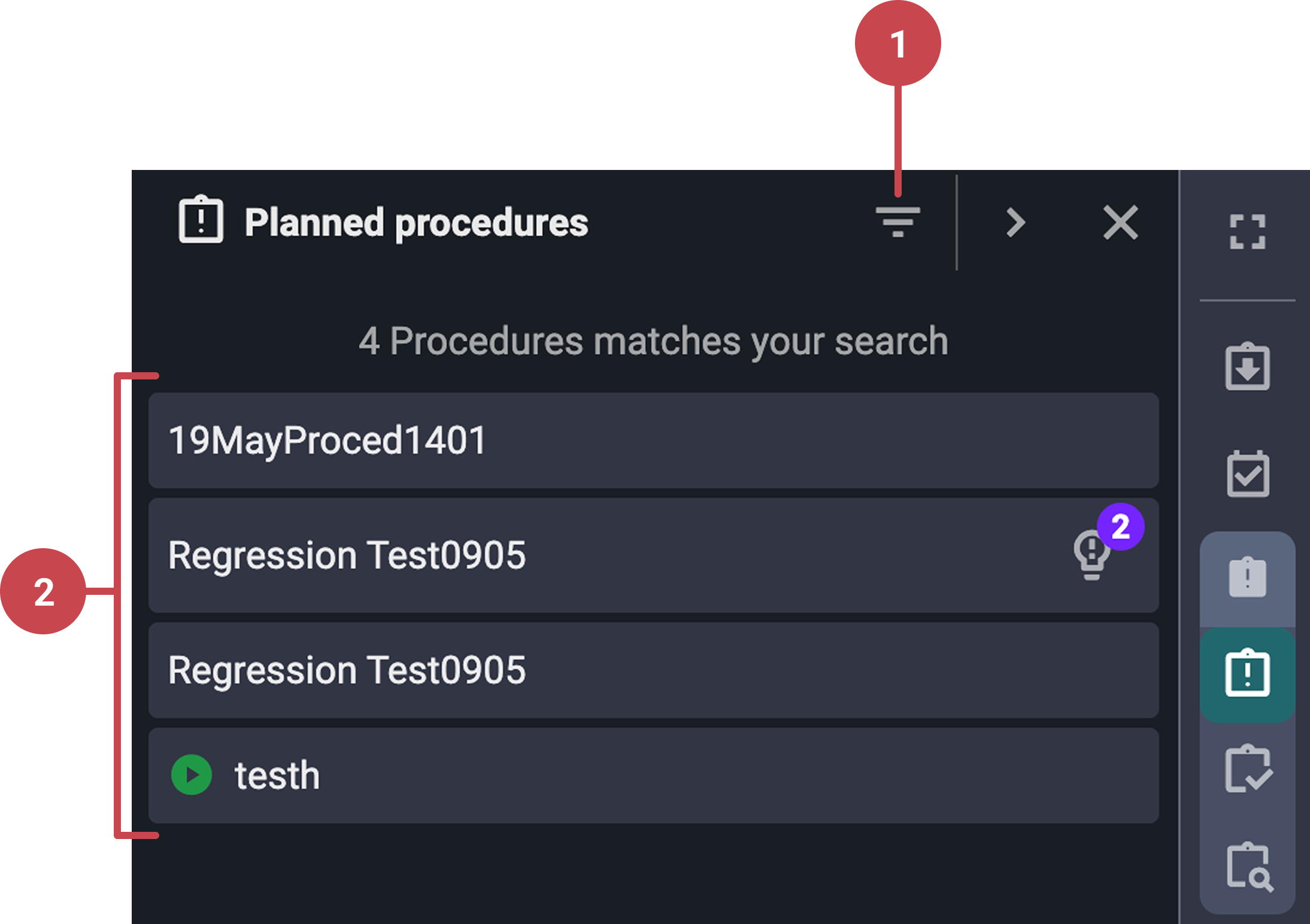
 Search/ Filter: On this icon, users can find the Show all planned procedures toggle to view procedures assigned to any role.
Procedure cards: Each procedure card opens a detailed view with
 Operation,
  Information, and
  Attachments tabs where users can complete individual steps, add comments, and get access to more information about the procedure.
On each Procedure card header, users can also find:
 Participant icon: Shows assigned roles and allows you to add and remove participants.
 Options button: A dropdown with options to complete or remove the procedure.
 Download button: It generates a PDF version with options to include attachments and adjust text size.
 Insights: If the procedure contains insights, an icon with a counter will appear on both the procedure card and its header. You can access those insights by clicking on the icon.
Important
Procedures shown here are those where participants have been assigned. Linked procedures that are not assigned to any participant will not appear in this section.
Archived procedures
The Archived procedures sub-app contains all completed procedures.
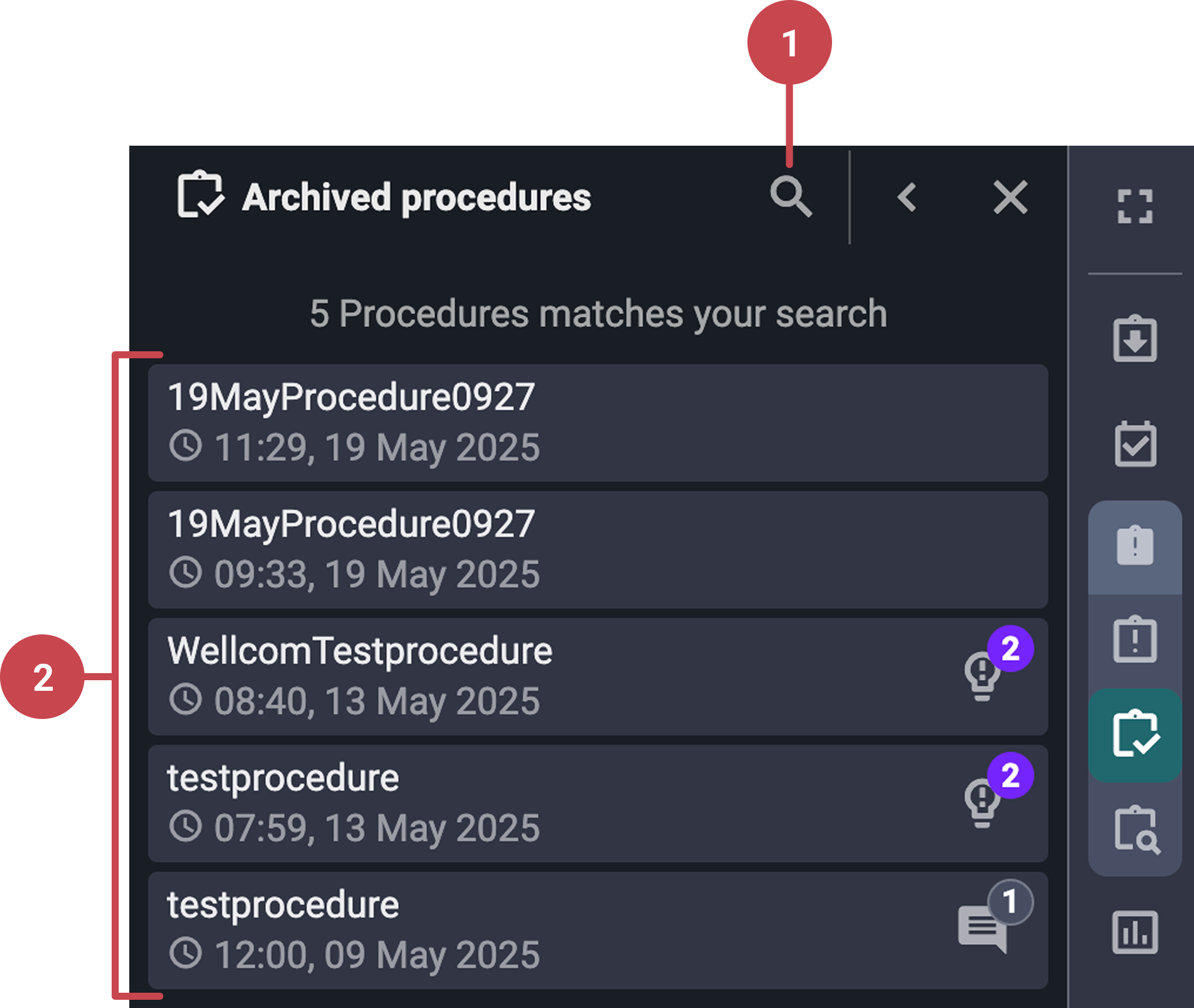
 Search and filter: This icon allows you to search and filter the archived plans by title, date range, operation, workgroup, and other metadata.
 Procedure cards: Clicking on a procedure card displays
Operation, Information, and Attachments tabs where users can find as-run data, including:When each step was completed.
Any report backs, comments, or insights.
Step-by-step instructions
Accessing Procedures from the Right sidebar
Click on the procedures icon: In RigFlow, go to the Right sidebar and open the
Procedures icon.Select the desired option: Once open, you will see three icons representing three different options. Click the one that fits your needs:
- Planned procedures
- Archived procedures
- Procedure library (Read more about it here: Procedure library)
Planned procedures
Select an activated procedure: Go to the
Planned procedures tab and select an activated procedure.Review the procedure's tabs: Inside the procedure view, you'll see the following tabs:
 Operation
- Information
- Attachments
Perform the step: Perform each step as instructed, which may include report backs, checks, or comments. To access the full view, use the
 expand arrows.
Complete the step: After completing a step, click the colored complete button.
Complete the entire procedure: Once all steps are completed, a modal will appear asking if you want to complete the entire procedure or keep it active.
Manually complete the procedure: You can also manually complete or remove the procedure by clicking on the
options button and choose Complete procedure or Remove procedure.Important
If removing, choose whether to remove it only for yourself or for all participants.
Archived procedures
Find an archived procedure: Open the
Archived procedures tab and use filters to search by:Title
Date range
Operation
Workgroup
Review archived procedure: Click on a procedure card to view all as-run data, including completion timestamps, report backs, comments, and insights.
Notice
Although archived procedures are read-only, you can still add comments.
Examples
A Driller filters by operation to find the “Tripping In Hole” procedure, verifies the steps, and performs it directly from Planned Procedures.
A user reviews an archived procedure for a previously completed pressure test to check report backs and timestamped actions for audit purposes.
Tips and tricks
Always check both linked procedures and planned procedures: Linked procedures in the plan might not appear in the Right sidebar procedures unless participants are assigned. To avoid missing critical steps, review both locations.
Filter effectively: Use
filters in the archived procedures to quickly locate relevant procedures by operation, workgroup, or date.