Preparations
The  Preparations tab in RigFlow is essential for managing and tracking preparations that need to be completed before executing the plan.
How it looks
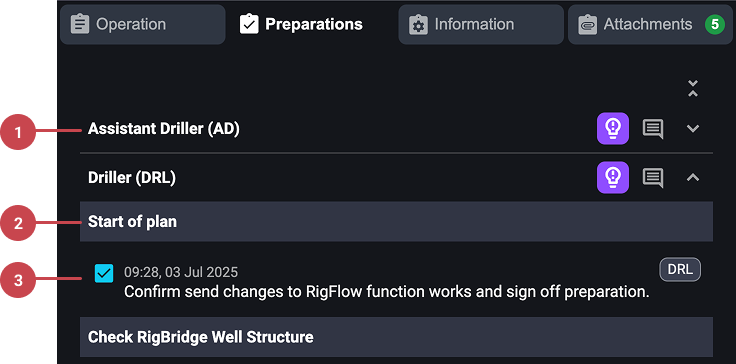
Job role: Indicates which job role is responsible for each check.
Task title: Displays the list of preparatory tasks.
Status checkbox: Checklist of tasks that need to be completed before the plan is executed. They can be checked as complete, incomplete, or not applicable.
Notice
You can only perform or comment on the checks associated with your current login credentials.
Step-by-step instructions
Accessing the preparations checklist
Select a plan: Navigate to
 Execution,
  Draft or
  Contingency in the Left sidebar and open a plan.
Open the preparations tab: On the selected plan, click on the
Preparations tab to access the checklist.Adjust your viewing preferences: Click on the
 expanding or
  collapsing buttons to adapt the checklist view to your needs.
Completing preparations
Complete a task: To mark a task as complete, click on the checkbox next to the task.
Set a task as not applicable: If a task does not apply to your operation, click the checkbox a second time to change its status to not applicable.
Undo a status: If you need to change a task back from complete or not applicable, click the checkbox again until it returns to the desired status.
Note
Once a plan has started in execution, an  Error icon will appear next to the responsible/step name if their corresponding preparation has not been marked as completed or not applicable.
Adding insights and comments
Add an insight: To add an insight to a task, click the
 Insight icon next to it, type your note in the text box, and then click the submit icon to save.
Add comments: To leave a comment on a task, click the
 Comments icon, type your message in the text box, and click
  Submit. If needed, you can edit or delete your comment later by opening the comment’s
  menu.
menu.
Important notes
Real-time updates
When a preparation is completed or commented on, the status is updated immediately and visible to all users.
User permissions
Only users with the appropriate permissions can perform or comment on certain preparations. Some users have broader rights to complete or comment on any preparation.
Cloud users can complete preparations assigned to their own job role. Some roles, have extended permissions and can complete preparations for any role in Cloud RigFlow.
Starting operations
RigFlow does not restrict the start of the plan. Use your judgment, supervisor’s advice, or procedural guidance to decide when to start operations.