Logistics
The  Logistics provides a combined overview of vessel and helicopter movements for a specific rig. It centralizes information that was previously split across separate systems, giving users quick access to upcoming arrivals and departures.
This tool is read-only and is designed to improve operational visibility, especially for planners and crew members coordinating daily activities.
Note
The Logistics app displays only the data made available through the API from the source systems. Any missing or inconsistent information should be reported directly to the respective logistics software provider.
How it looks
The Logistics in RigFlow is accessible through the Right sidebar. The app provides two display modes for vessel and helicopter movements:
List view
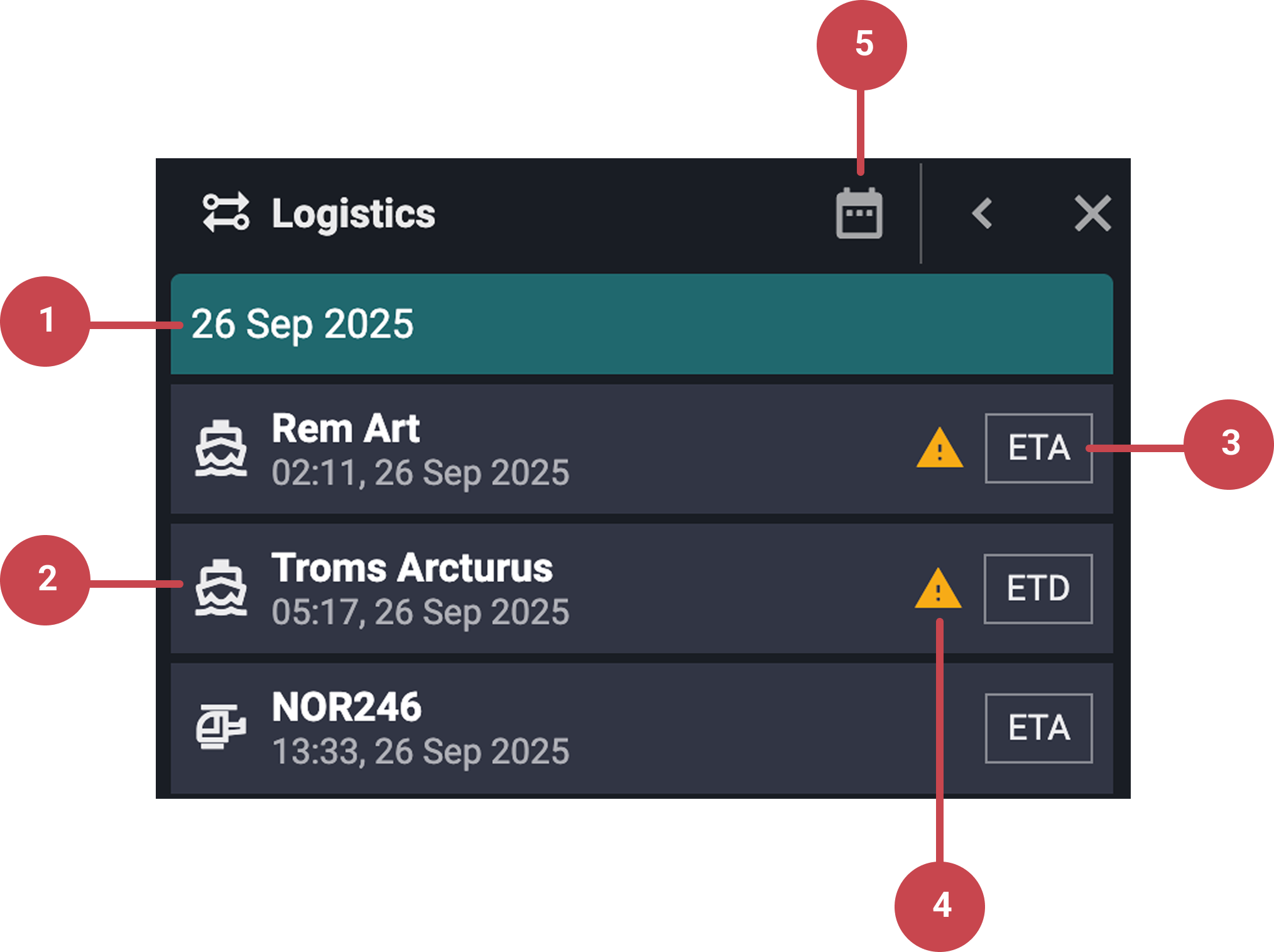
The  List view is a compact list of vessels and helicopters arriving at or departing from the rig. It is sorted by date, starting from the current day.
Date: Entries are grouped and sorted in chronological order by date, starting from the running day.
Vessel and helicopter entries: Under each date header, entries are listed in chronological order. Each entry includes an icon indicating whether it’s a
 vessel or
  helicopter, the name of the vessel or helicopter, and its expected arrival and/or departure time.
ETA/ETD labels: Show whether the transport information refers to the estimated time of arrival (ETA) or the estimated time of departure (ETD).
 Warning sign: Appears when there is a discrepancy between the planned ETA (estimated time of arrival) and the actual updated time of arrival (e.g., delays). Clicking the entry shows both times and details of the delay.
 Time view icon: Click this icon to switch from List View to Time View, displaying the schedule in a calendar-style format with a vertical time axis.
Time view
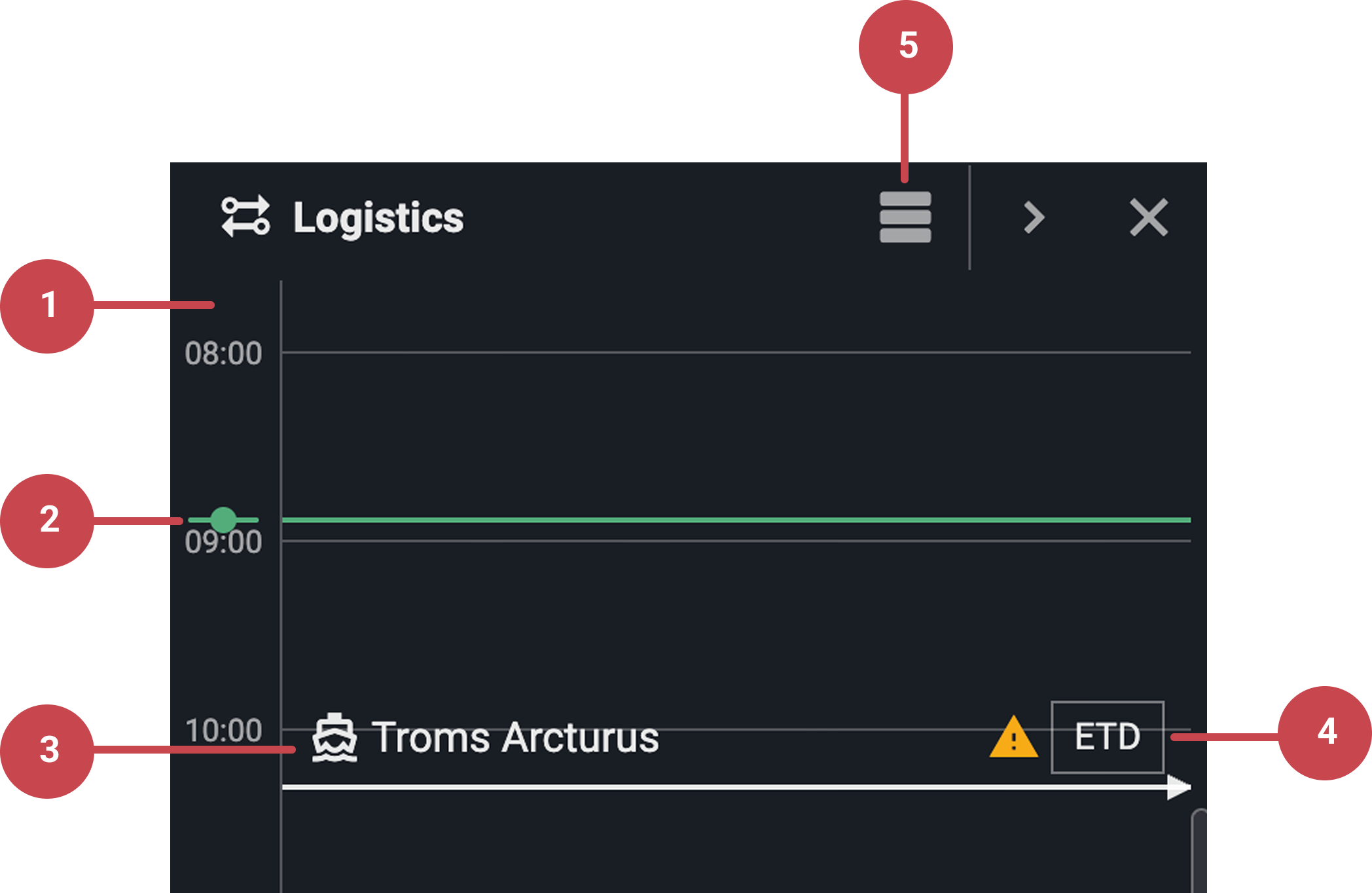
The Time view is a calendar-style display with a vertical time axis that visually positions each arrival and departure within the day’s schedule, making it easy to see when vessels and helicopters are expected throughout the day.
 Time column: Vertical time axis showing the hours of the day
Time markers: A green horizontal line marks the current time, while a thick white line indicates midnight on the schedule.
Vessel or helicopter information: Each entry line includes a small icon identifying whether it’s a
vessel or a helicopter, displayed next to its name. This area can also show warning icons if there is a discrepancy between the planned and updated arrival times.Vessel and helicopter entries: Clickable tags placed along the time axis to show the estimated times of arrival (ETA) or departure (ETD).
- List view icon: Click this icon to switch from Time View to List View, a compact, date-organized list that displays vessel and helicopter movement entries in chronological order.
Step-by-step instructions
List view
Using the list view
Open the Logistics app: Click the
Logistics icon in the Right sidebar to open the app.Go to the list view: Ensure you are viewing the logistics data in List view. If another view is active, switch by clicking the
List View icon in the header.Review the daily list of movements: Entries are grouped under each date and arranged in chronological order. Each entry shows an arrow indicating whether the
vessel or helicopter is  arriving or
  departing, along with its name, expected arrival time, and expected departure time.
Identify delay warnings: A warning indicates a delay or discrepancy between planned and updated ETAs. You can click into an entry to see more information, while the original ETA remains shown on the board.
Access entry details
Open details for an entry: Click any entry in the
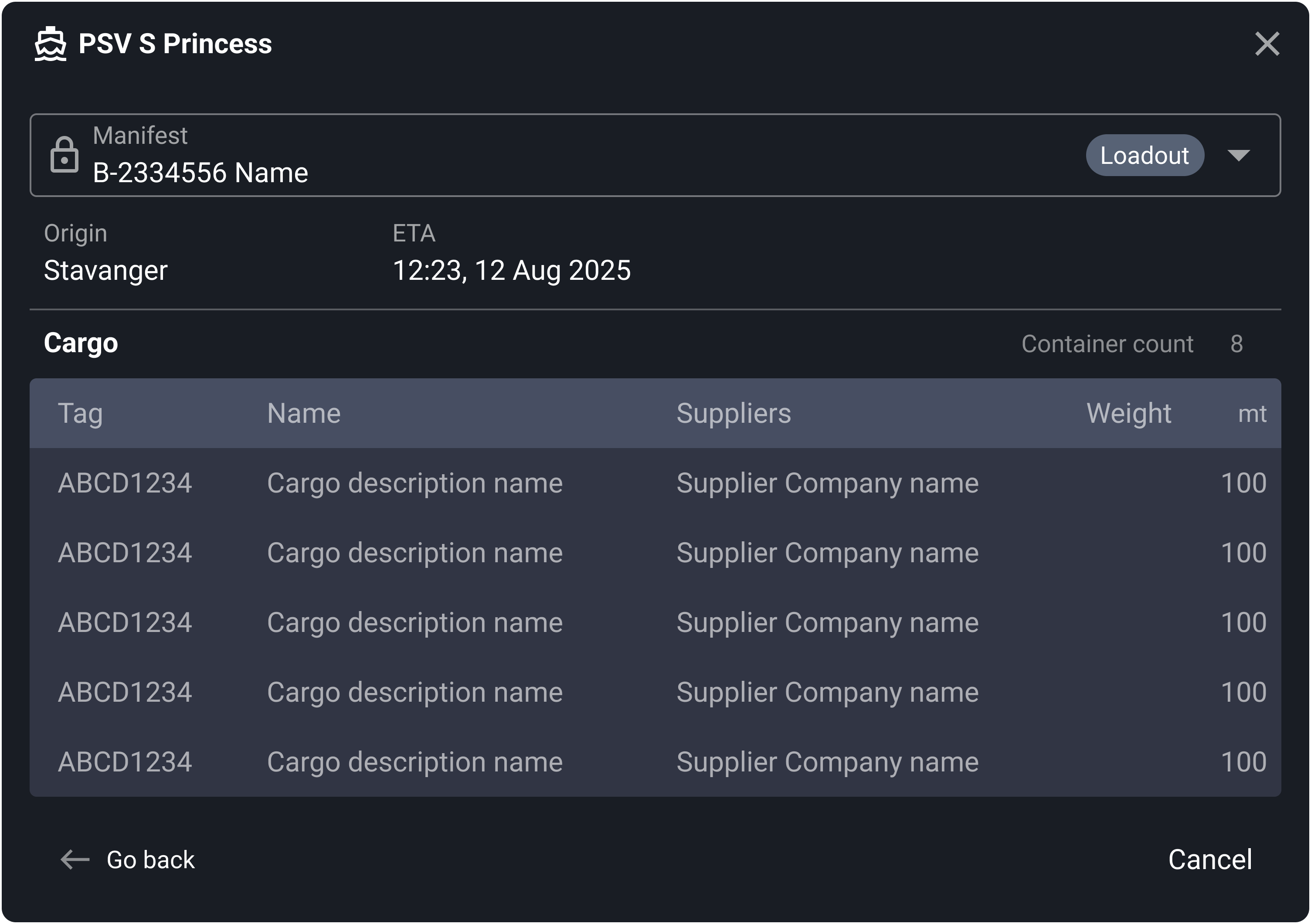
List view or the calendar view to open more information for any vessel or helicopter.View a vessel's manifests and cargo details: Access the vessel's manifests (load out or backload) and details by clicking on a vessel entry. You can also click a manifest to see more detailed cargo info (e.g., serial numbers, description, supplier, dimensions/weight).
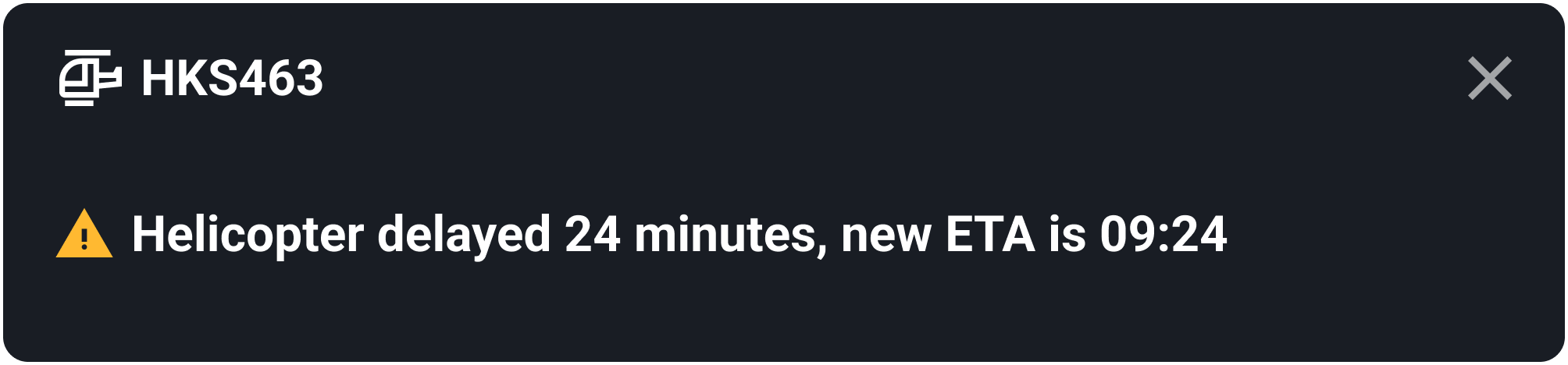
Access more helicopter details: Clicking a helicopter entry displays its ETA and, if applicable, any delay information. Manifest data is not available for helicopters through the API.
Time view
Open the Logistics app: Click the
Logistics icon in the Right sidebar to open the app.Select the time view: Ensure you are viewing the logistics data in Time view. If another view is active, switch by clicking the
Time View icon in the header.Locate the real-time bar: A green horizontal line indicates the current time, helping you quickly orient yourself within the day’s schedule. You can also identify
Read scheduled entries on the timeline:
Vessel and helicopter entries appear at their expected times along the timeline, with tags indicating if they are arriving (ETA) or departing (ETD) the rig. This view is helpful when planning operations that could be affected by logistics. Identify delay warnings (and details): A warning indicates a delay or discrepancy between planned and updated ETAs. You can click into an entry to see more information, while the original ETA remains shown on the board.
Examples
You open the widget on the Rig Page and see that a helicopter is scheduled to arrive at 09:15 and depart at 13:00, with no warnings.
You see a vessel with a yellow warning icon. Clicking it shows the original ETA was 14:00, but the updated ETA is 17:30 due to weather.
Tips and tricks
Delay Awareness: Warnings do not overwrite the original ETA; both are shown for transparency.
Updates: The Logistics displays data retrieved directly from the source systems via their APIs. Vessels data (Kabal) refreshes approximately every 15 minutes. While helicopter data (DaVinci) update frequency depends on the request type:
One-day transportation data – refreshed every 15 minutes
Yesterday’s data – refreshed every 24 hours.
Two-week data – refreshed every 24 hours.
Use as a Widget: Keep the Logistics widget open on Rig Page during daily planning meetings for real-time awareness.
Troubleshooting
Data Quality: Manifest details depend on accurate entries in the integrations (e.g., Kabal for vessels, DaVinci for helicopters). If details are missing, contact the responsible data entry personnel.