Notifications
Notifications in RigFlow are essential for keeping you informed about important updates, alerts, and actions that require attention.
Notifications typically appear as alerts or messages within the user interface. They are designed to be easily noticeable, often displayed as pop-up alerts or within the notification panel.
How it looks
Notifications appear in multiple ways within RigFlow:
Pop-up alerts: Appear in the upper-left corner when a notification is triggered.
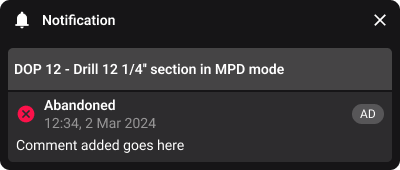
Notification panel: Click the
 Notifications icon in the left sidebar to view all notifications. A number next to the icon indicates the count of unread notifications.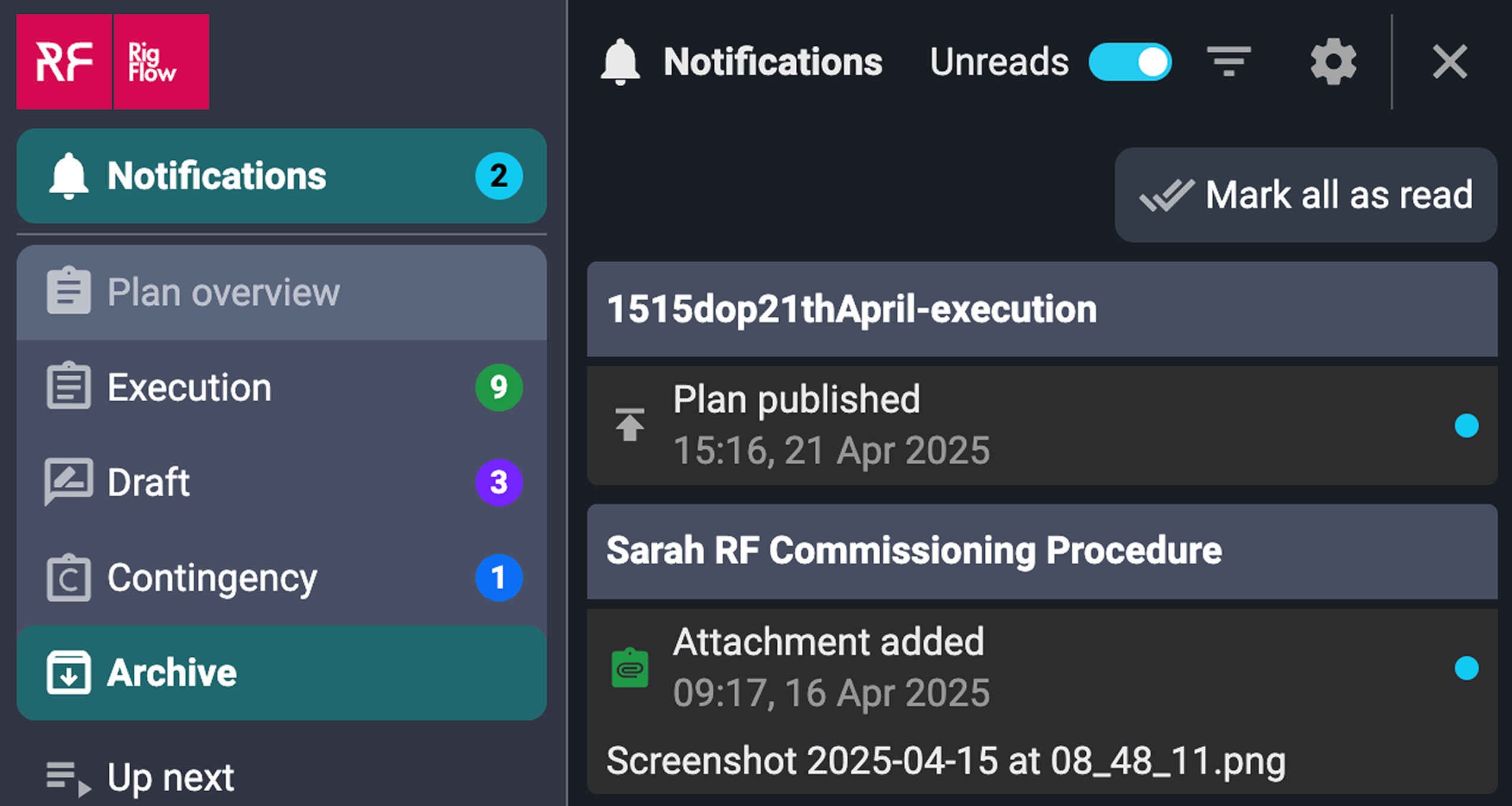
Notifications header: Customize what you see in the notification panels header:
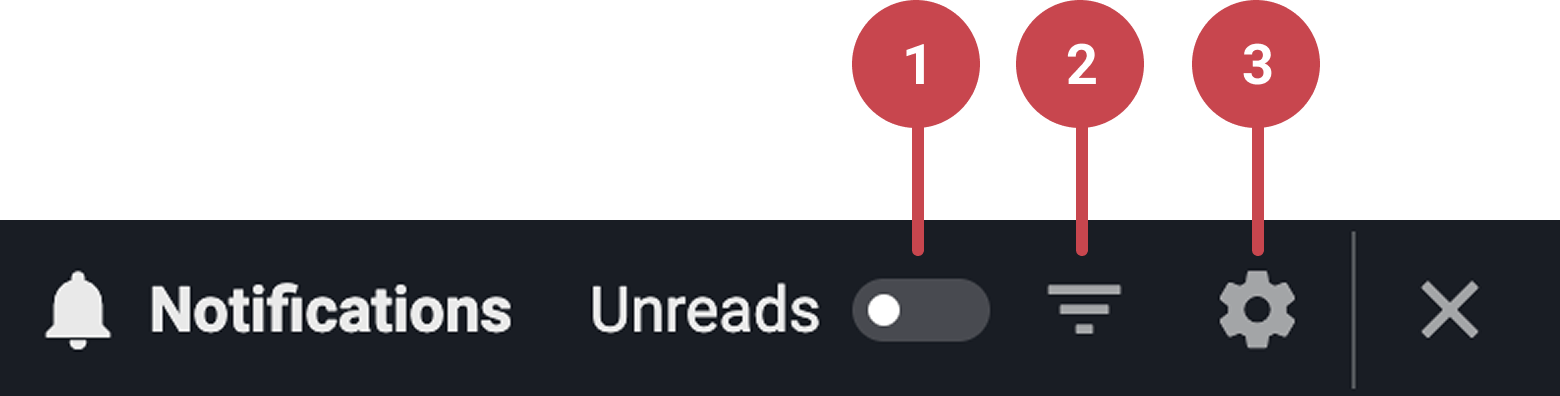
Show unread notifications: Toggle this on/off to display only unread messages or all notifications.
 Filter notifications: Apply filters to limit displayed notifications in the Notification panel, based on relevance.
 Set notification alerts: Define which notifications should trigger pop-up alerts.
Notification details: Each notification includes more or all of the following:
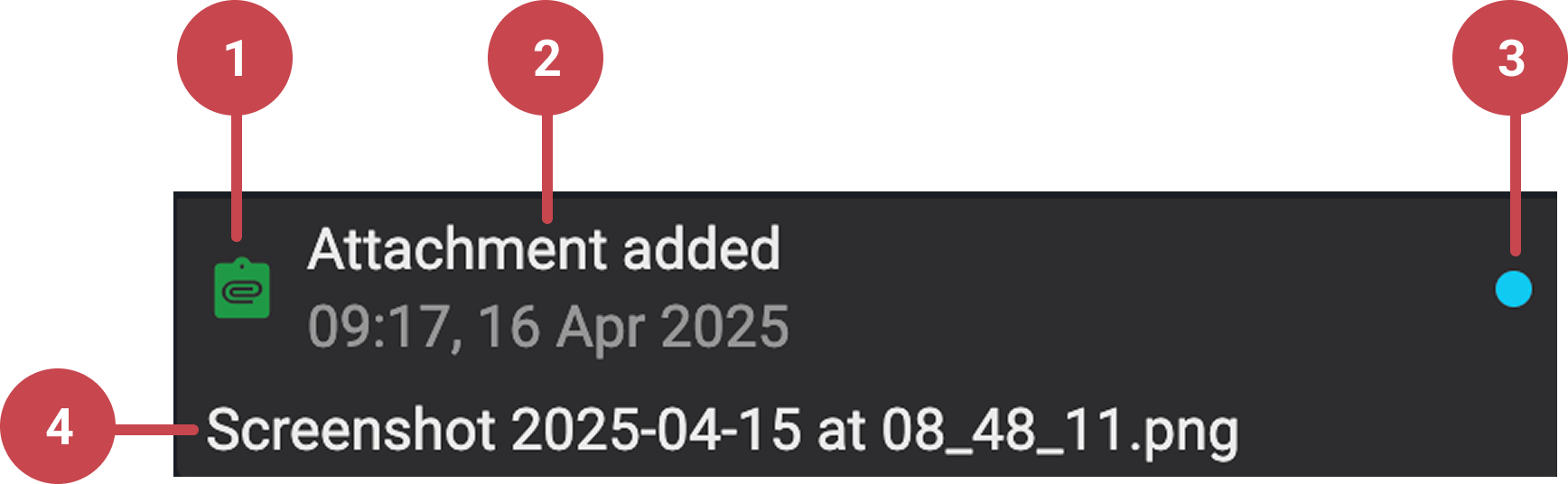
Notification type icon: Represents the category of the notification.
Headline and timestamp: Summary of and when the notification was sent.
Unread indicator: Unread notifications have a colored dot.
Brief description: Shows more details related to the notification.
Hover functionality: Hovering over a notification displays a
 Mark as read button. Click the Mark as read icon to set this notification to read or the
  Mark as unread icon to set it back as unread.
Step-by-step instructions
Mark notifications as read
Hover over the notification: Move your cursor over a notification in the pop-up or side panel and click
Mark as read to mark it as read.Clear all unread notifications: Click the
 Mark all as read button to remove unread indicators from all notifications at once.
Set a notification to unread: Click
Mark as unread to change a read notification back to unread.
Note
Read notifications will be automatically removed after a time period specified by your company, with a default setting of two weeks. Unread notifications follow the same rule but may have a different duration, also determined by your company, with a default setting of four weeks.
Adjust pop-up notification alert settings
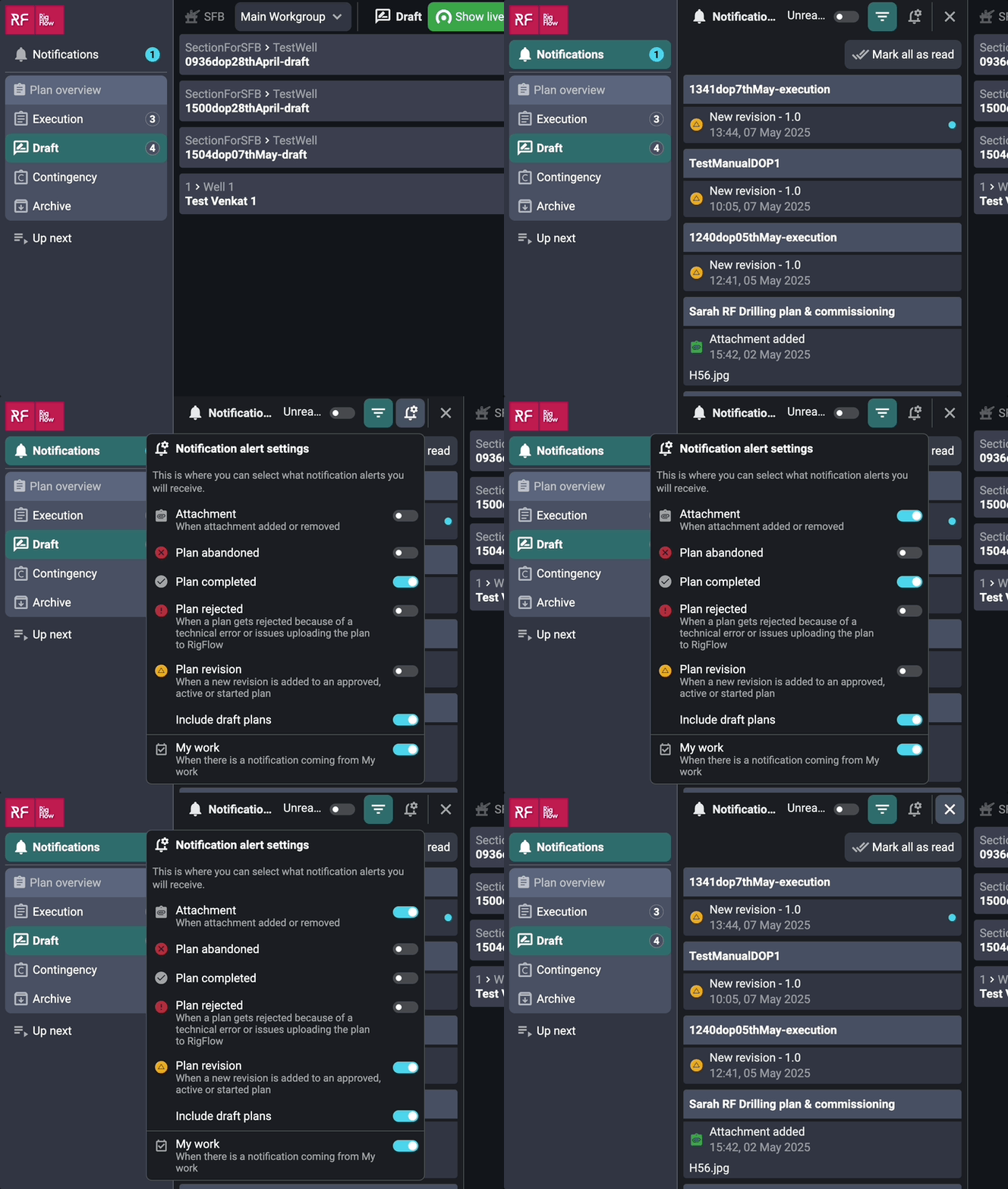
Open the Notifications panel: Click the
Notifications icon on the left-side panel.Access alert settings: Click
 Notification alert settings.
Define pop-up alerts: Choose which notifications will appear as pop-ups.
Auto-save settings: Close the settings window, and your choices are saved automatically.
Tips and tricks
Personalized settings: Notification preferences only affect your account and do not impact other users.
Troubleshooting
Notifications not appearing: Ensure your Notification alert settings are properly configured.
Unread notifications not clearing: Use the
Mark all as read button to clear all notifications.