Generate with AI button
The  Generate with AI button is part of the updated
  Operational summary widget in RigFlow. This tool helps offshore crews create concise summaries of the last 12 hours and an outlook for the next 12, using AI to speed up the process.
This is one of the first AI-powered features available offshore, designed to reduce manual work. While reliability has been tested extensively onshore, the real value comes from offshore teams using it regularly. Edits and updates made during its use help ensure accuracy in daily workflows and also contribute as feedback to ongoing improvements of the tool.
How it looks
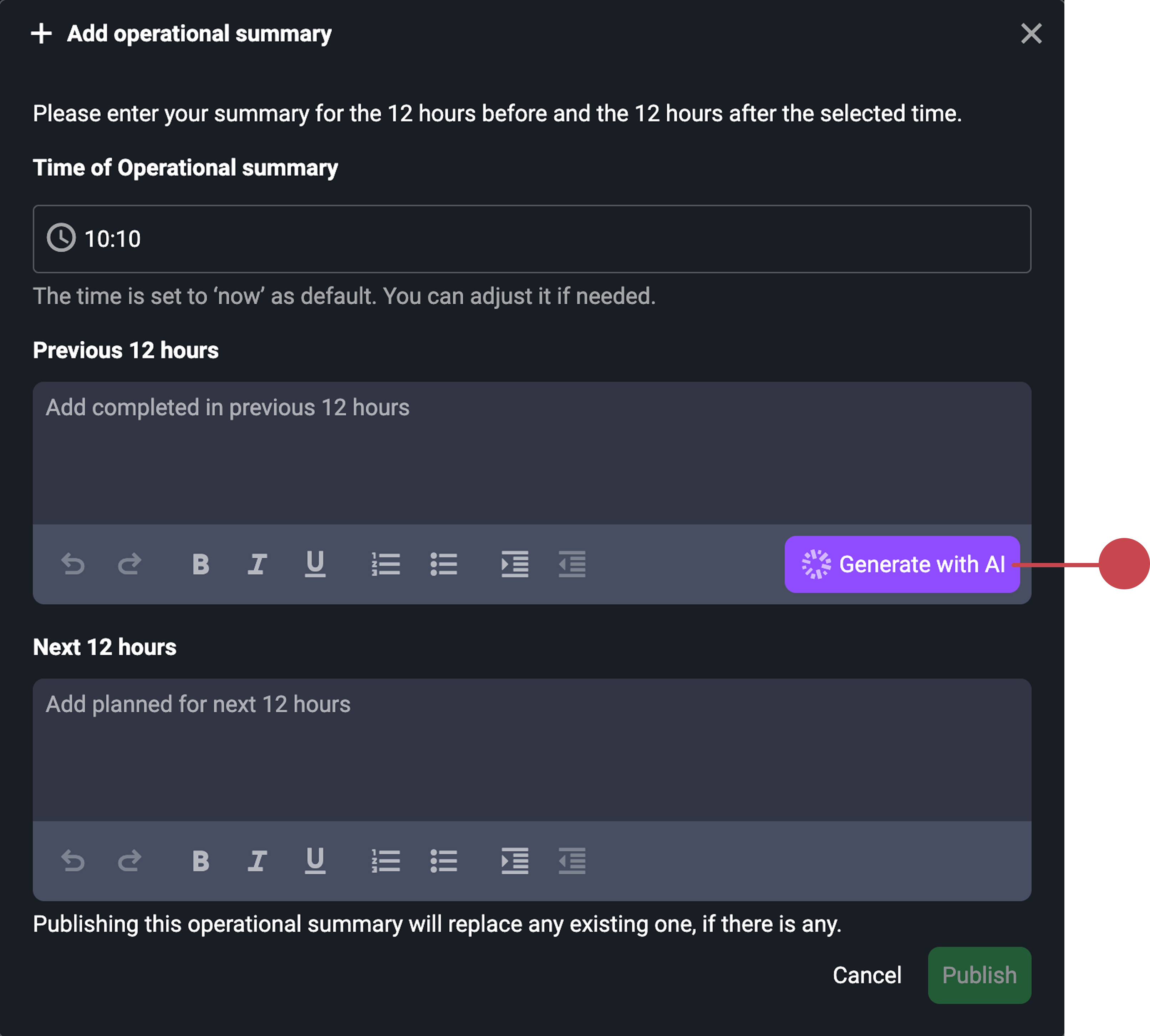
The Generate with AI button is located inside the Operational summary widget, on the Previous 12 hours field. It appears as a button beneath the text box. When clicked, the AI automatically produces a draft summary based on the operation log for the last 12 hours. This draft text is inserted directly into the field, ready for you to review and edit before publishing.
The Next 12 hours field has no AI button yet. Instead, it remains empty so you can manually write the planned operations. This field is optional, so you can leave it empty if no outlook is needed. Once you are ready, use the Publish button at the bottom of the window to save the summary and make it visible in the Operational summary widget.
Step-by-step instructions
Navigate to the Operational summary widget: Open
 Rig Page and locate the Operational summary widget.
Click Add operation summary: In the header, select
 Add operational summary to open a modal window that allows you to input summaries for the past and upcoming 12-hour periods.
Set the time of the summary: Use the
 Time of operational summary field to choose a reference time (the current time will appear as a default).
Important
The Previous 12 hours section will automatically cover the 12 hours before the timestamp, and the Next 12 hours section will cover the 12 hours after it.
Generate a summary for the previous 12 hours with AI: Click the
Generate with AI button in the Previous 12 hours field; an auto-generated summary will be placed in the text box for you to review and edit.Review and edit the AI-generated text: Carefully check the draft summary, then adjust wording, add missing context, or correct details as needed.
Notice
Clicking the
Generate with AI button again will overwrite your edits with a new draft.Fill in summary for next 12 hours (Optional): If needed, type in the planned activities, procedures, or forecasts manually in the Next 12 hours field, since this section is not auto-generated by AI yet.
Publish the summary: When your text is ready, click Publish to save it and display it in the
Operation Summary widget. This makes both the past and future sections (if filled) visible to all users along with their timestamps.Clear an existing summary: In the Operation Summary widget header, click
 Clear to remove the current summary. This action deletes both the Previous 12 Hours and Next 12 Hours entries and resets the widget to show no content.
Tips and tricks
Always review AI-generated summaries, as they are based only on operation log data and may reflect a different interpretation of what details should be included.
Be careful not to lose your changes; clicking the Generate with AI button again will replace any edits you’ve made with a new draft.
Frequent updates help improve future AI accuracy and support better offshore collaboration. Horizon56 safely stores your edits as feedback to improve the feature without using them for AI training.