BHA
The  BHA (Bottom Hole Assembly) is a feature within RigFlow that enables seamless integration and sharing of BHA data between different software applications. This feature is designed to minimize manual data entry by automatically synchronizing planned BHA configuration from your third-party integration into RigFlow. It provides up-to-date information on planned BHAs without needing to manually copy or edit the data.
How it looks
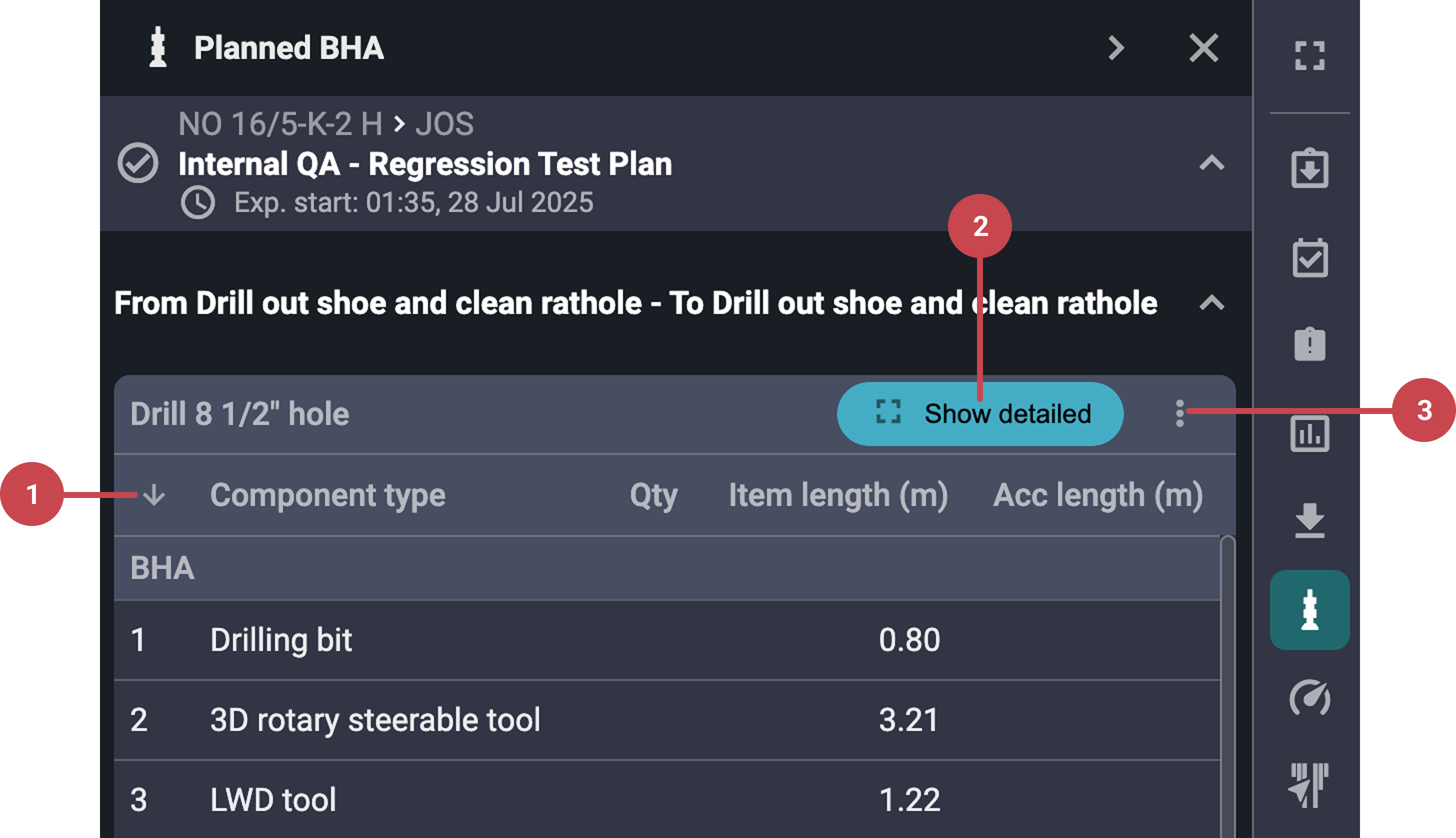
The Right sidebar provides a simplified version of the  Information tab BHA table with fewer details for quick reference. It displays:
Component Type
Quantity
Item Length
Cumulative Length
Additionally, the panel includes the following navigation options:
 Flip direction arrow: Allows you to switch the view between top-down and bottom-up, depending on how you want to visualize the BHA components.
 Show detailed view: Opens a larger, more detailed view of the BHA without needing to open the full table.
 More menu: Contains the
  Flip direction button to adjust the component display orientation.
Note
When hovering over the name of each component type, there is a  product data tab. It provides a detailed breakdown of each BHA component's specifications. This tab includes technical parameters, supplier details, and operational limits.
Important
For the BHA Integration to work correctly, tasks must be linked to the plan, and these tasks must contain BHA data in the third-party integration. If the tasks are not properly linked or if the BHA data is missing in the third-party integration, the BHA information will not be transferred to RigFlow.
Step-by-step instructions
Open the Planned BHA: In RigFlow, go to the Right sidebar and click the
BHA icon to open a compact view of the planned BHA.Select a BHA summary: Find and open the plan card that contains the BHA you want to review.
Adjust the component order: Use the
Flip Direction arrow or the Flip option in the  More Menu to change how the components are displayed (top-down or bottom-up).
Explore component details: Scroll through the BHA list. To view product data, hover over a component type and click either the component name or the
 information icon next to it.
View full BHA details: Click
Show detailed button to open an expanded table with additional columns for each BHA component.
Examples
The rig crew can verify the expected BHA configuration before tripping in the hole.
Directional drillers can confirm if all planned survey tools and stabilizers are included in the BHA.
Troubleshooting
Cannot edit BHA: The BHA feature is read-only in RigFlow. Edits must be made in your third-party integration.