Explore the user interface
RigFlow features a user-friendly interface designed to facilitate seamless execution and monitoring of drilling operations. The interface is divided into multiple sections to ensure efficiency in navigation, task execution, and data tracking.
The interface supports both landscape and portrait orientations, giving users flexibility based on device setup and working preferences.
This guide provides an overview of the key components of the RigFlow user interface, including the Left Side Panel (Navigation), Main Content Area, Right Side Panel, and the Global Action Bar (GAB).
The RigFlow user interface consists of the following primary elements:
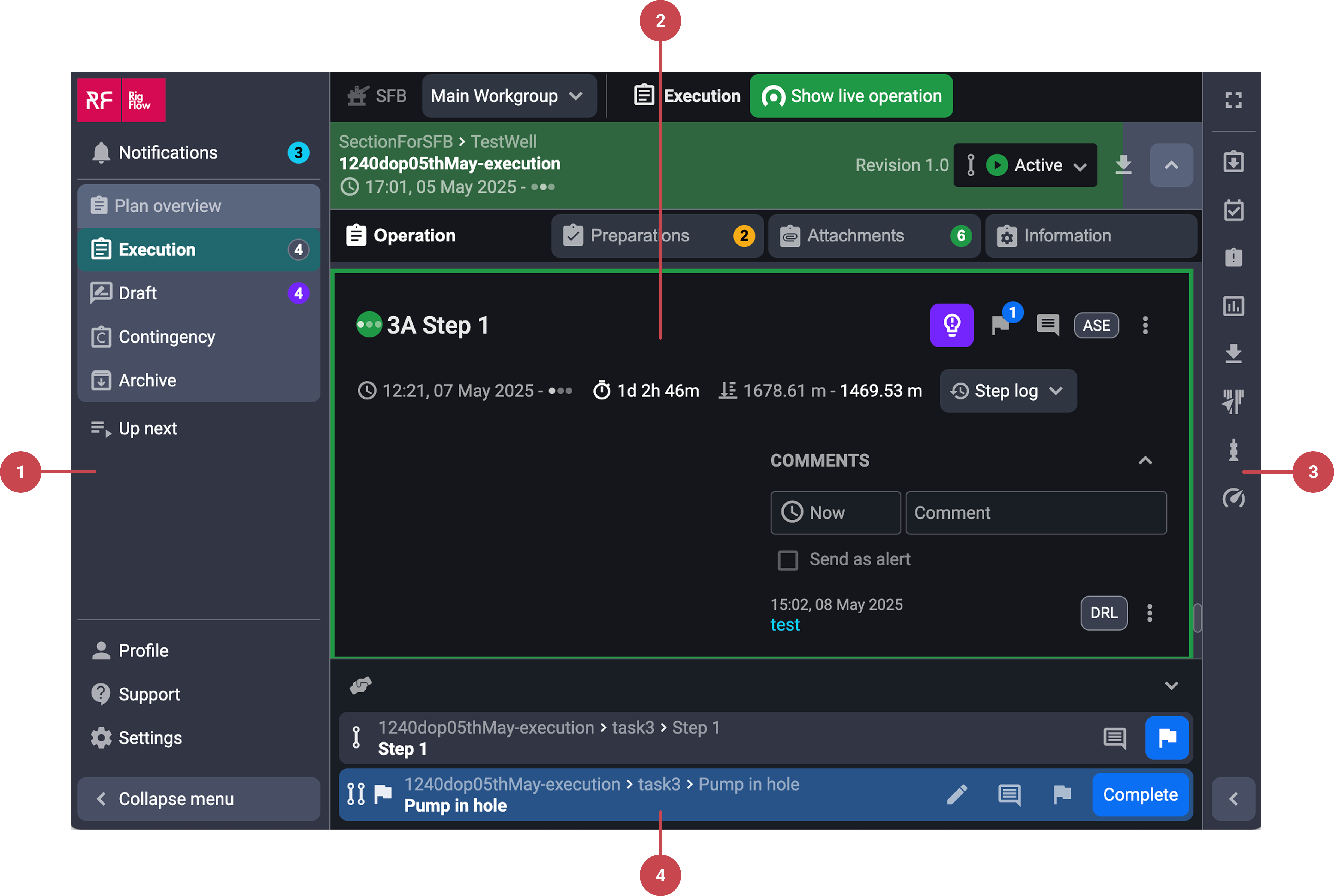
Left sidebar (Navigation): The left side panel serves as the main navigation hub, providing access to key applications and settings. This panel includes:
Application Menu: Quickly switch between different features and tools, such as Plan Overview and Operation overview, My Work.
Notifications: View alerts and important updates. See more on Notifications
Profile, Support, and Settings: Access user-specific options at the bottom. See more on Profile, Support, and Settings
Main Content Area: The main content area is where users execute and update plans. The content displayed here depends on the selection made in the left side panel. Key functionalities include:
Executing tasks in ongoing plans.
Adding comments and insights to steps and actions. See more on Comments and Insights.
Reviewing Plan Overviews to track progress. See more on Plan Overview
Right sidebar: The Right sidebar provides contextual tools relevant to the ongoing plan in the main content area. For more information, refer to the Right sidebar.
Global Action Bar (or GAB): The Global Action Bar (GAB) ensures a real-time overview of all active steps and actions on the rig. It provides:
Visual indicators of current operations.
Step titles and breadcrumbs for an easy overview.
Options such as add new actions, mark steps as complete, or adjust contingency plans.
For more information, refer to the Global Action Bar.
Profile, Support, and Settings
At the bottom of the left side panel, users can access the Profile, Support, and Settings sections.
Profile
Click on the Profile Icon to access:
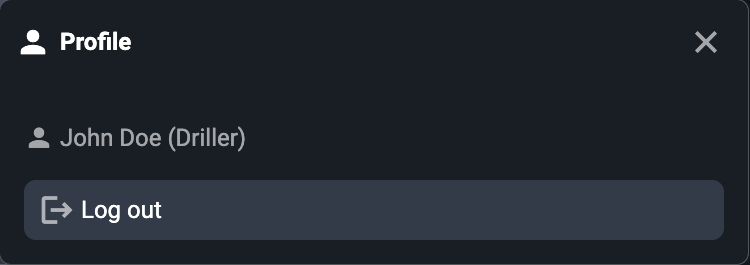
User information: View details about your account and job role.
Log out: Securely Log out to end your session.
Support
In the Support section, users can:
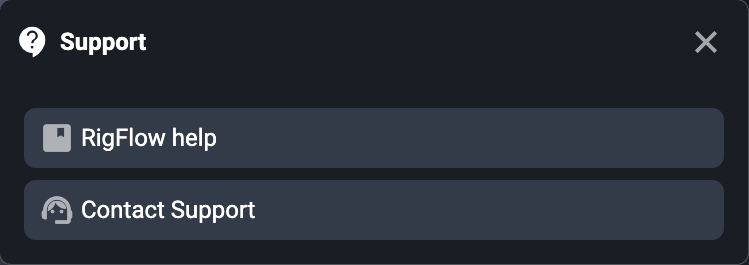
Use the Help Portal for additional resources, by clicking RigFlow help.
Contact 24/7 support for technical issues or questions related to RigFlow. Click Contact Support and our online chat will guide you.
Settings
The  Settings menu allows users to personalize their RigFlow experience. These settings are user-specific and do not affect other users.
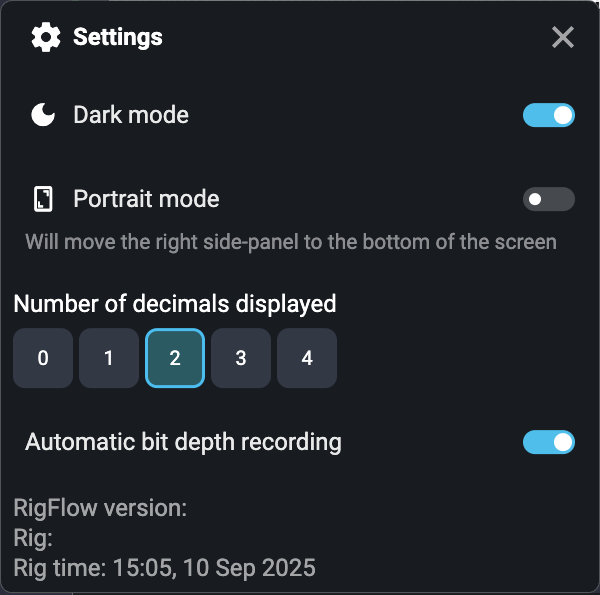
Dark mode: Toggle between light and dark themes. The
 Dark mode provides a visually comfortable experience, particularly in low-light environments.
Portrait mode: Toggle between landscape and portrait mode. The interface adjusts automatically to a vertical stacking layout.
Right sidebar apps open above the Global Action Bar.
The full-screen button is placed at the top of the main page (not in the Right sidebar).
Number of decimals displayed: Define how many decimals will be displayed after the decimal point.
Automatic bit depth recording: Enable or disable automatic logging of bit depth values. When turned on, RigFlow will automatically record the depth during operations. If turned off, you must manually input the bit depth data.
Step-by-step instructions
Activate Portrait mode
Open settings: Open
Settings from the Left sidebar.Activate Portrait mode: Turn on the toggle for Portrait mode.
Changes in the user interface: Once enabled, the Right sidebar will move above the Global Action Bar. It will function the same way as before, but will now be displayed horizontally, with the Right sidebar application content shown in the lower part of the screen.