Wellcom Project Planner
The Wellcom Project Planner is explicitly developed for Equinor users. It provides a forward-looking view of upcoming rig operations by integrating project planning data directly from Equinor’s Wellcom system. This tool helps users on the rig understand what’s coming next, not just in the next few days, but in the weeks and months ahead.
This feature is read-only, available to all RigFlow users working with Equinor rigs, and is used to improve planning visibility across operational teams.
How it looks
You can find the Wellcom Project Planner in the Left sidebar under Look ahead. When you open it, you’ll see a read-only list of the current project and upcoming ones. This information comes from Equinor’s Wellcom system.
Each project consists of sections. You can click to expand a section and see the list of tasks inside. Tasks appear in the order they’ll be completed. The completed tasks are marked with a  check icon.
The Wellcom Project Planner feature contains:
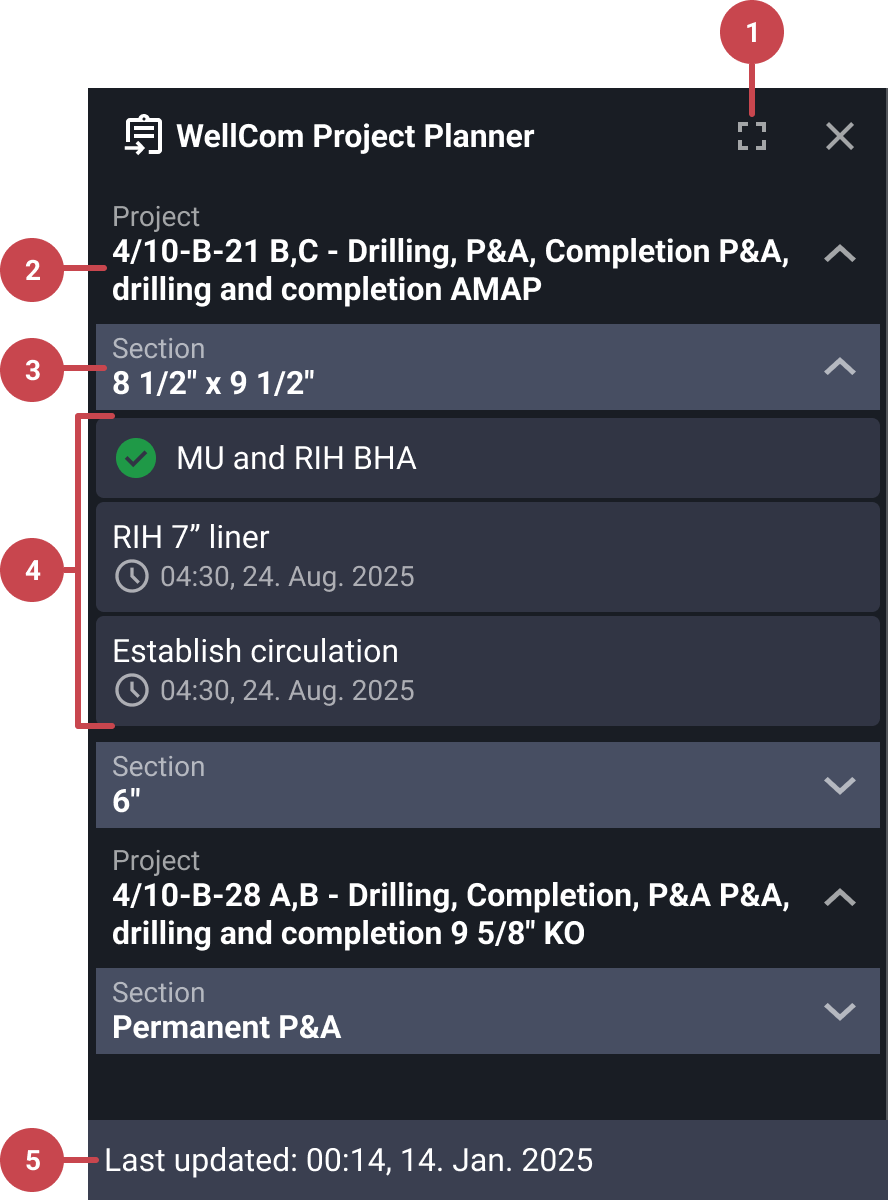
Full screen: Lets you expand the view to see more details like start dates, end dates, and how long tasks will take.
Project: Shows projects from Wellcom. You can expand or collapse these to see what’s inside.
Section: Groups of tasks inside a project. You can expand or collapse these to see what’s inside.
Tasks: Steps within a section. Completed tasks are marked with a
check icon.Last updated: A colored banner at the bottom shows when the data was last refreshed, so you know how current the synchronization is.
When clicking the  full-screen icon, the planner opens in a modal view, giving you a tabular breakdown of all tasks in a project section. Here's what each part of the interface shows:
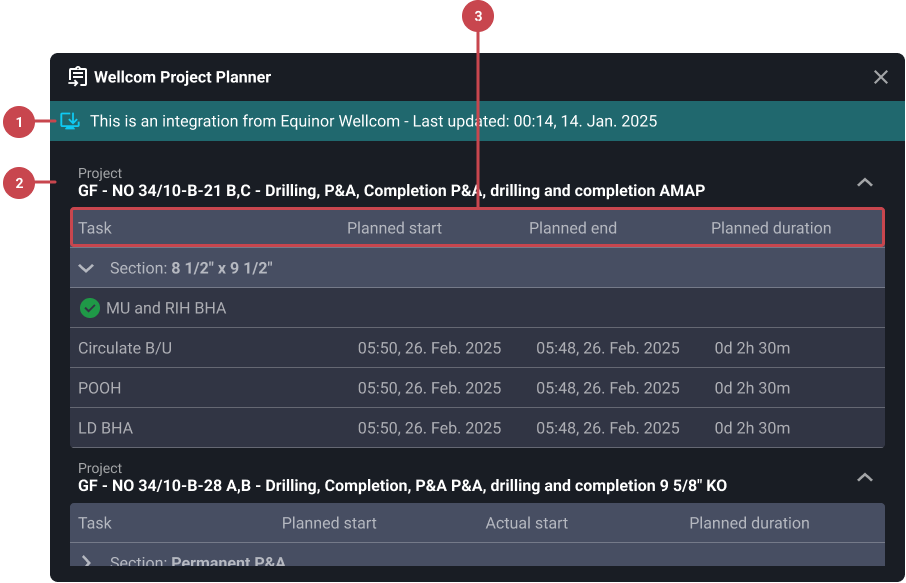
Top banner: Displays the data source and the time it was last updated, helping users confirm how current the information is.
Project title: Displayed below the banner, this shows the full title of the project, including rig and activity details.
Table fields:
Task: Lists the name or description of each task. Tasks are grouped into collapsible sections. Completed tasks are visually marked with a
check icon. Tasks listed after the last completed one are considered upcoming or active.Planned start: Displays the scheduled start time and date for each task.
Planned end: Displays the scheduled end time and date for each task.
Planned duration: Indicates the total time allocated for completing each task.
Step-by-step instructions
Viewing the Wellcom Project Planner
Open the Project Planner: Click on the icon for
 Wellcom Project Planner in the Left sidebar under
  Look Ahead.
See current and upcoming projects: View the ongoing and upcoming projects.
Expand project sections: Click a project section to see its detailed tasks.
Interpret task statuses: Completed tasks are shown clearly. The task following the last completed one is considered active. A clock icon indicates upcoming tasks.
Opening the Detailed View
Click the full-screen icon: At the top of the Wellcom Project Planner, click the
full-screen icon to open a more detailed display.Review detailed planning info: The expanded view shows additional data such as the planned start date, end date, and duration for each project section.
Examples
If the current task is Install Liner , and it is
completed, the next task, Cement Job would be considered the active task.Note
Due to the update frequency of Wellcom, some tasks may be completed on the rig but show as upcoming in the Wellcom Project Planner.
Tips and tricks
Completed projects disappear: Once a project is done, it no longer shows in the planner.
Upcoming projects: RigFlow only displays the Active and the next two Upcoming projects. If a project is not displaying in RigFlow check that:
It is activated in RigBridge (added from the Wellcom integration to RigBridge).
The project planned start dates are set after the planned start date of the Active project.
Remember, it’s read-only: You can’t modify or interact with the tasks beyond expanding/collapsing them.
The full-screen view helps when planning logistics or support services for upcoming operations.
Important Notes
This feature is only available to Equinor rigs with the Wellcom integration enabled.
This is a read-only view from Wellcom. Due to Wellcom's update frequency, some tasks may be completed on the rig but shown as upcoming in the Wellcom Project Planner.