Plan Overview
The Plan Overview feature in RigFlow is the central hub for managing and executing plans onboard a drilling rig. It provides users with a structured and transparent view of planned operations, ensuring that all tasks are executed efficiently and well-documented.
How it looks
The Plan Overview interface is designed for clarity and easy navigation, allowing users to access and manage plans effectively. Below is a breakdown of its key components:
Left sidebar
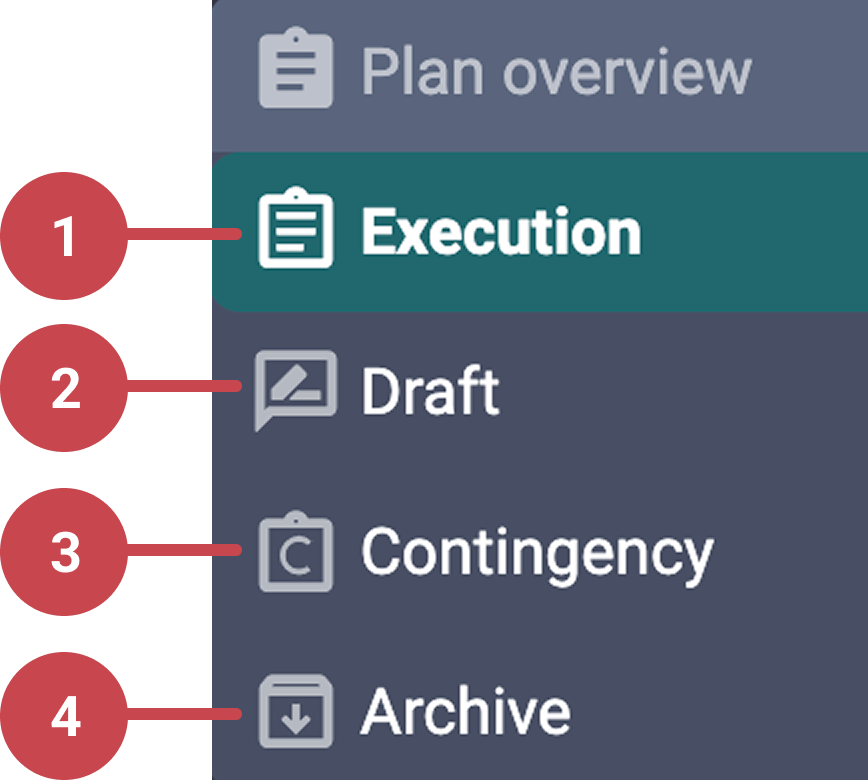
The Plan Overview feature contains four sub-apps that categorize plans based on their status:
 Execution: Displays plans that are approved or active.
 Drafts: Contains plans that are not yet approved but are shared for review. Read more here: Best practices for draft reviews.
 Contingency: Stores backup plans that can be executed if needed. Read more here: Contingency plans.
 Archive: Keeps a record of completed or abandoned plans. Archived plans are in a read-only format.
Header

The header section at the top provides global controls:
Workgroup selector: Shows the current workgroup and allows users to filter plans by assigned workgroups. Learn how to change workgroups here: Change workgroup
Sub-app title: Displays the current sub-app (execution, drafts, contingency, or archive).
 Live operation button: Clicking it navigates directly to the currently running step in an active plan.
Main panel
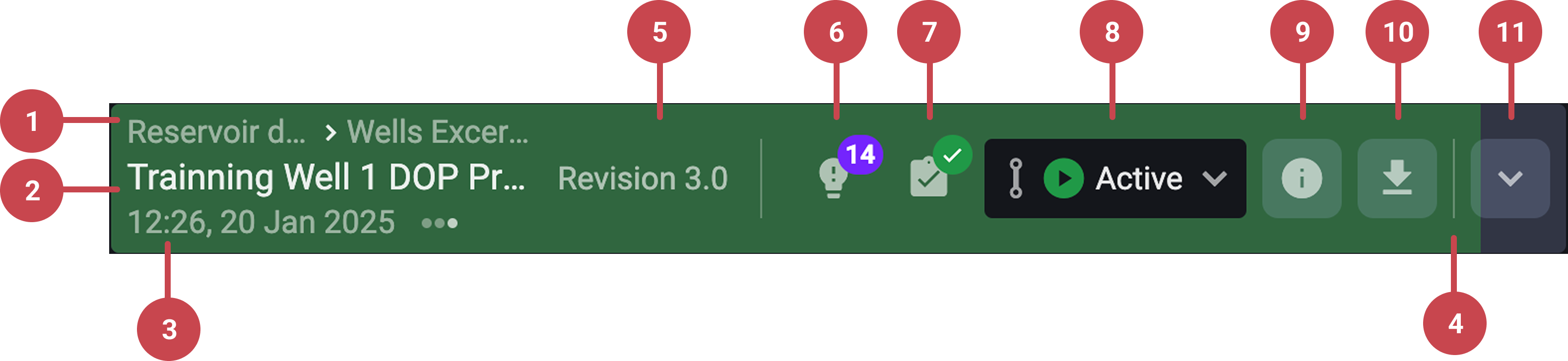
The main panel is where plans are displayed in the form of plan cards. Each card provides a summary of the plan, including:
Breadcrumb navigation: Displays the hierarchy of the plan (e.g., well, event, and operation).
Plan title: Indicates the plan’s name.
Start and end time: Shows when the plan started and, if completed, when it ended.
Execution timeline: A progress bar that visually indicates how much of the plan has been completed.
Revision indicator: Displays the current revision number of the plan.
 Insights: Shows the number of observations or lessons learned added to the plan.
 Preparation: Displays the number of pending preparations before execution.
Status: Showcases the plan’s current status (draft, approved, active, completed, abandoned).
 Quick information button: Provides a summary view, including:
The plans revision history.
A link to the change log for tracking updates.
A shortcut to view the plan in the Operation Log.
 Export: Generates a PDF report of the plan, including attachments and operational logs.
 Expand: Opens the plan to reveal step-by-step execution details.
Step-by-step instructions
Navigating on the Plan Overview
Open Plan Overview: When you log in to RigFlow, it automatically opens in the Plan Overview screen, showing the
Execution tab by default.Choose a sub-app: Use the Left sidebar to switch between
drafts, contingency, or archived plans.Select a workgroup: Use the dropdown in the header to choose the correct workgroup so you see the plans relevant to your team.
Open a plan: Find the specific plan card by scrolling through the list, then click on the card to open its details.
Reviewing insights & preparations
Review key observations: Click on the
 Insights button to access and review key observations.
Check pending preparations: Click on the
Preparations tab to complete pending preparations before execution, or mark them as not applicable.
Exporting a plan
Export a plan: Click the
Export button on the plan card to open the export panel.Adjust the export settings: On the export panel, you can choose to:
Include as run report.
Include attachments.
Adjust text size in the PDF
Download the PDF: Click the download button to export the plan as a PDF.
Viewing plan history
Open the quick information panel: Click on the
quick information button on the plan card.View change log: In the quick information panel, click show change log to view a chronological list of all updates made to the plan.
Track execution details: In the quick information panel, click show plan in operation log to see detailed records of how the plan has been executed.
Note
You can also access this information by clicking on a plan and going to their  Information tab.
Examples
Drillers & assistant drillers: Review upcoming steps to anticipate and prepare for their tasks.
Mud loggers: Access planned activities remotely for better coordination.
Supervisors: Evaluate execution history and review changes for audit and reporting purposes.
Tips and tricks
Use the
Show Live Operation button to quickly navigate to the running step.Utilize
contingency plans to prepare for unexpected operational changes.Filter by workgroups to focus on relevant plans.
Troubleshooting
Unable to view plans in Plan Overview: Check the workgroup selector to ensure you are viewing the correct team’s plans.
Cannot change plan status: Verify your user role, as only authorized roles can update plan statuses.
Live operation button not working: Ensure you are viewing an active plan in the execution sub-app, the button will not function if no plans are currently running.
plan progress bar not updating: Ensure the plan is actively being executed and steps are marked as completed.
Operation Log not displaying correct information: Open the operation log directly from the Plan Overview Quick Information button for filtered results.