Co-pilot
The Co-pilot feature in RigFlow lets users without full operational rights manage key step operations such as starting, stopping, modifying steps, adding actions, and adjusting plans. This ensures smooth collaboration, especially when the Driller delegates temporary control.
How it looks

The Co-pilot function is accessed through the Global Action Bar at the bottom of the RigFlow interface. When active, the  Co-pilot icon displays with a colored background, indicating it’s in use.
Step-by-step instructions
How to assign permissions
Open the Co-pilot modal window: Click the
Co-pilot icon in the Global Action Bar.Assign operational rights for a job role: Select one or more job roles to grant them the ability to start, stop, or modify steps and add actions. Use the search function to quickly find the user you wish to grant control to.
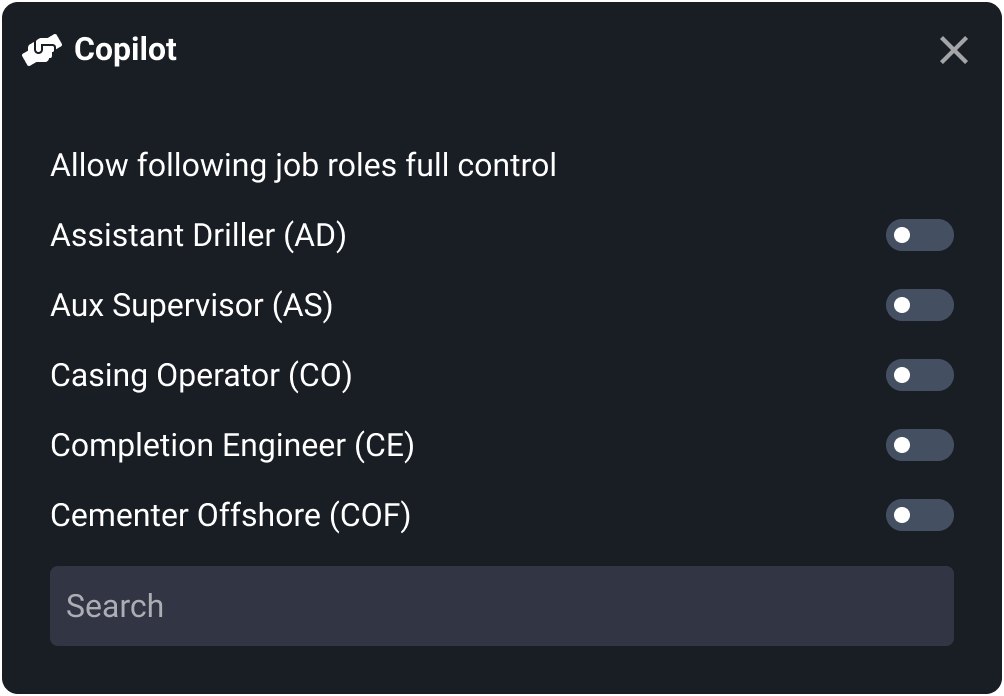
Automatic saved: Once job roles are selected, they appear at the top of the list, making them easier to review and remove if needed. The change happens instantly—no save button required.
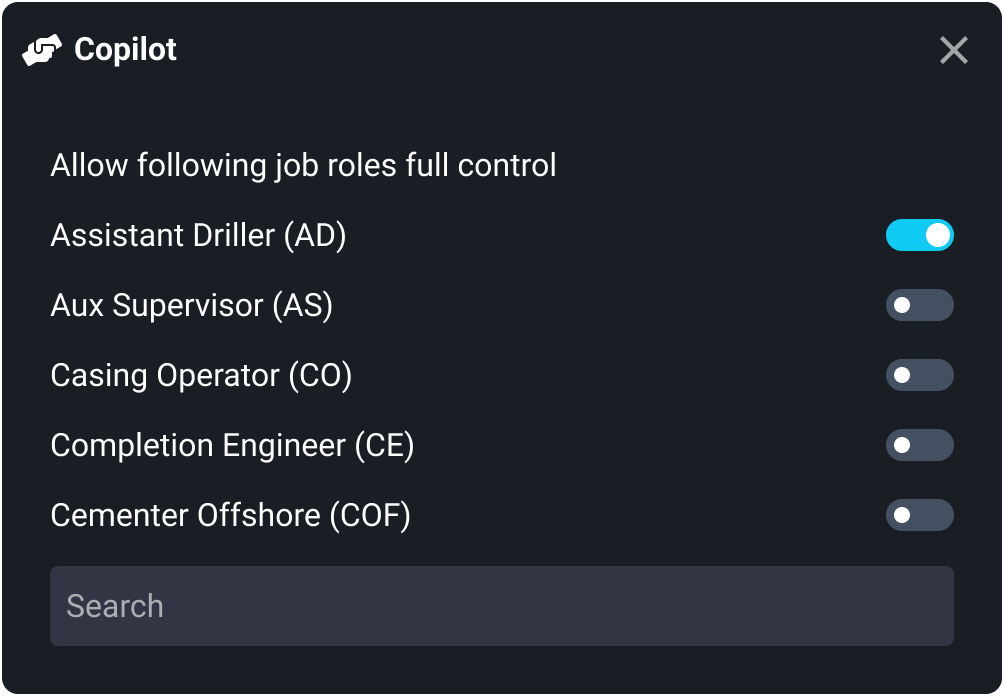
Close the Modal: Click the
 Close icon once you have completed the assigning. The Co-pilot icon will now display a colored background to show it's activated.
How to unassign permissions
Open the Co-pilot modal window: Click the
Co-pilot icon in the Global Action Bar.Unassign job role: Deselect one or more job roles to remove the ability to start, stop, or modify steps and add actions. Use the search function to quickly find the user you wish to remove permissions from.
Automatic saved: The change happens instantly—no save button required.
Close the Modal: Click the
Close icon once you have completed the removal of job roles. The Co-pilot icon will now display no colored background, if no job roles is active anymore.
Examples
A Driller going on break can temporarily assign operational rights to an Assistant Driller or Tourpusher.
If additional support is needed during a step, another crew member can be made Co-pilot to handle specific actions.
Tips and Tricks
All job roles in RigFlow are now visible in the Co-pilot selection list, not just pre-defined groups. This provides greater flexibility in delegating control.
Use the search bar in the Co-pilot modal window to filter by role or name quickly.