Step attachments
 Step attachments let you upload and manage files directly from a step in RigFlow. This makes it easy to keep all related documents—such as reports, diagrams, or checklists—connected to the specific step where they are needed. Only the owner of a step can add and manage its attachments.
How it looks
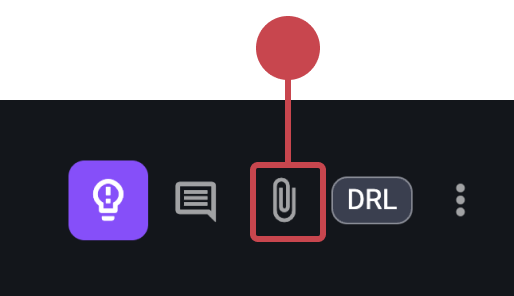
The Attachment icon is located in the top right corner of each step, next to other icons such as  Insights and
  Comments. Clicking it opens the attachment panel, where you can add, rename, delete, or comment on files.
Step-by-step instructions
Adding a new attachment to a step
Find the attachment icon: Locate the
attachment icon in the top right corner of the step where you want to add an attachment.Click Add Attachment: After opening the panel, click the Add attachment button.
Choose your file(s): Browse your device and select a supported file(s).
Confirm upload: The file(s) will be uploaded and linked to the step.
Supported files
Attachments are limited to the following files: PDF, images (jpg, jpeg, png) and Excel (xls and xlsx)
Deleting a step attachment
Open the step attachment panel: Click the
attachment icon in the top right corner of the step.Locate the file: Find the attachment you want to delete.
Delete the file: Click the
 More icon, select Delete, and Confirm.
Warning
The delete action cannot be undone.
Renaming a step attachment
Open the attachment panel: Click the
attachment icon in the top right corner of the step.Locate the file: Find the attachment you want to rename.
Rename file: Click the
More icon, select Rename, type the new name, and click Confirm.
Adding a comment to an attachment
Open the attachment panel: Click the
attachment icon in the top right corner of the step.Locate the file: Find the attachment you want to comment on.
Add comment: Click the
More icon, choose Add comment, and type your note.Submit the comment: Press Enter or click the
Send button.
A small floating comment icon will appear on the attachment afterwards, showing how many comments are linked to it.
Tips and Tricks
Use clear file names for quick identification.
Avoid unsupported file types such as .docx, .txt, or .zip.
Only the person/role who uploaded a RigFlow attachment can delete it.
Replace spaces in filenames with hyphens (-) for clean, web-safe filenames.