Insights
 Insights in RigFlow are a powerful tool designed to capture lessons learned and improvement opportunities directly from the rig floor or onshore offices. They can be found in several places within RigFlow and support safety, efficiency, and communication across teams by allowing anyone with access to contribute meaningful feedback in real-time.
Insights are written notes tied to a plan in RigFlow. They are visible to everyone with appropriate permissions, including offshore and onshore users, and are automatically synced with RigBridge for further analysis and action.
How it looks
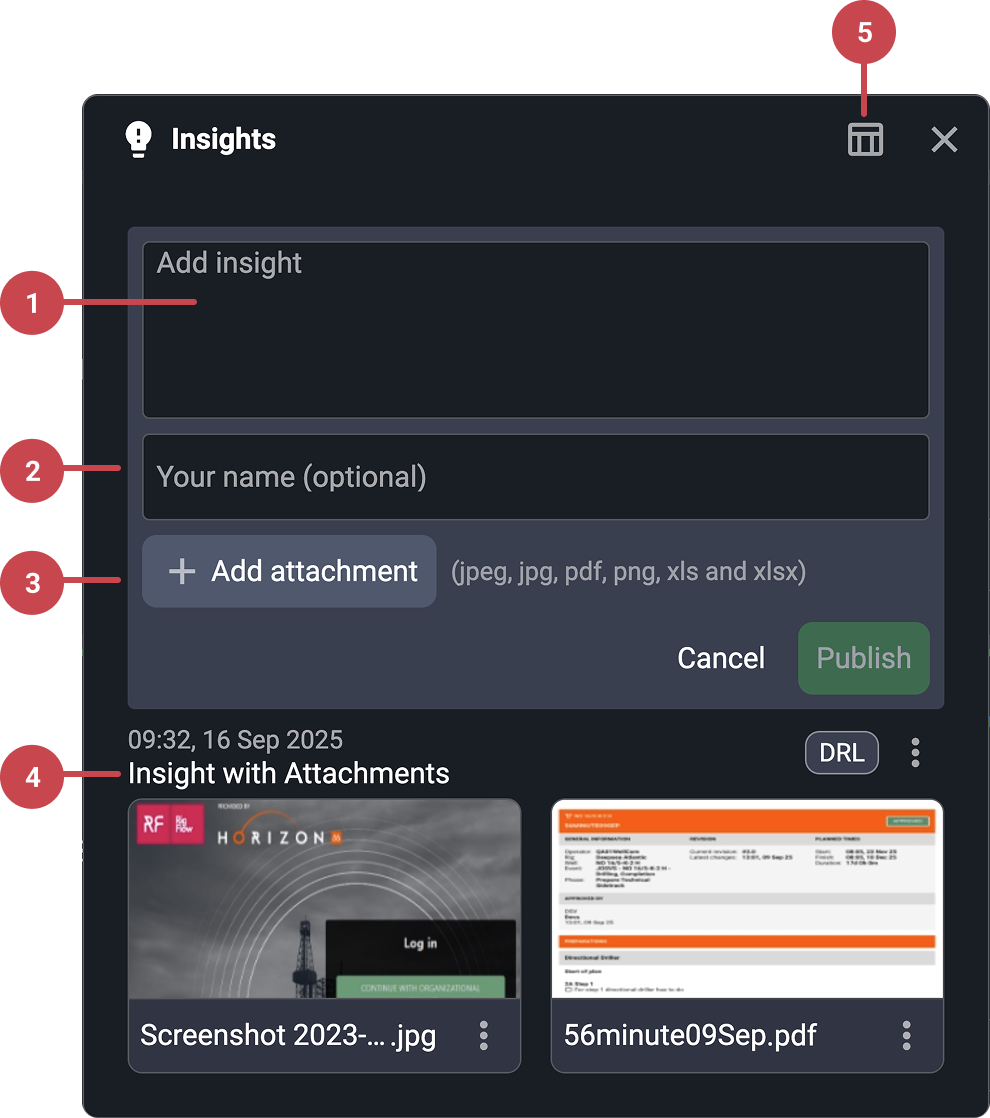 |
Insight Text Box: Designated area where you type your insight. Keep it short, clear, and focused on lessons learned or suggestions for improvement.
Author Field (Optional): A space where you can enter your name if you want to identify yourself as the insight author.
Add attachment: Upload files and attach them to your insight comment.
Added insights: This section displays all added insights. If an attachment is included, it will be shown as part of the corresponding comment.
Table view: Click on the table view button to open a full list of all insights recorded for the current step. It's useful for reviewing past inputs and ensuring your insight hasn't already been mentioned.
Step-by-step instructions
Add an Insight
While reviewing a step or any part of the plan in RigFlow, click the
Insights button to open the Insights panel.On the text box, enter a short, clear message about what can be improved, what went well, or what should be changed.
If desired, you can enter your name as an insight author. This helps with follow-up but is completely optional.
Save the insight. It becomes instantly visible to everyone using the plan.
Edit and Delete Insights
All insights linked to a specific plan or step are displayed within their respective cards under the Insights icon.
You can edit an already published insight by clicking on its icon and selecting the
 Editing icon.
It is also possible to delete insights by clicking on the
 Delete icon. This action can only be performed by the author of the insight.
A modal dialogue box will appear, asking whether you wish to delete the file. Please note that this action cannot be undone.
Upon clicking Delete, the insight will be permanently removed.
View and Manage Insights
All insights for a plan are visible at every stage — during execution, after completion, and even while the plan is still in draft.
After a plan is completed, stakeholders review insights, decide which ones to keep, and can pin important ones.
Pinned insights are copied over if the plan is reused, ensuring valuable lessons aren’t lost.
Best practice using Insights
Examples of good Insights usage
A driller suggested using a newer tool that made a job safer and more efficient. The insight led to a cost-benefit analysis, equipment purchase, and improved operations.
Offshore crew members use insights for feedbacks or improvments to the work instructions.
Common mistakes to avoid
Confusing insights with comments: Use the comments field for operational comments; insights should focus on lessons learned or improvement opportunities.
Being vague: Specific, actionable observations are more useful than general statements.
Fear of feedback: Don’t hesitate to raise suggestions—Insights are designed for positive change, and management support is key.
Tips and tricks
Keep it clear and short: Use plain language that everyone can understand.
Make it relevant: Ensure your insight is directly related to the step or operation.
Act quickly: Don’t wait to write down an insight—capture it in the moment.
Use it for improvements: From safety to performance tweaks, all ideas are valuable.