Statuses
Statuses in RigFlow helps users track and manage various stages of an operation. Understanding these statuses allows users to follow workflows efficiently, recognize their responsibilities, and ensure seamless transitions between different phases of an operation.
How it looks
Statuses are displayed on Plans, Steps, and Actions within RigFlow, typically located next to each item's title. Below is an overview of different statuses and their meanings:
Plan-level statuses

Plans in RigFlow go through different phases, and each phase is represented by a status:
Draft: When a plan is first published to RigFlow from RigBridge, it appears under the Draft status. They are not yet approved for execution but can be viewed for feedback and preliminary preparation.
 Approved: A plan moves to Approved status when it has been reviewed and approved in RigBridge. This means the plan is ready for execution.
 Active: When execution begins, the plan moves to Active status. An active plan contains running steps, and its progress is tracked in real-time.
 Paused: If an operation needs to be temporarily halted, the plan can be put on status.
 Abandoned: If a plan is Abandoned, it means execution has been stopped permanently before completion. The plan moves to the archive, but it is marked as incomplete.
 Completed: A plan reaches Completed status once all steps have been executed successfully. The plan then moves to archive for future reference.
Step and action-level statuses
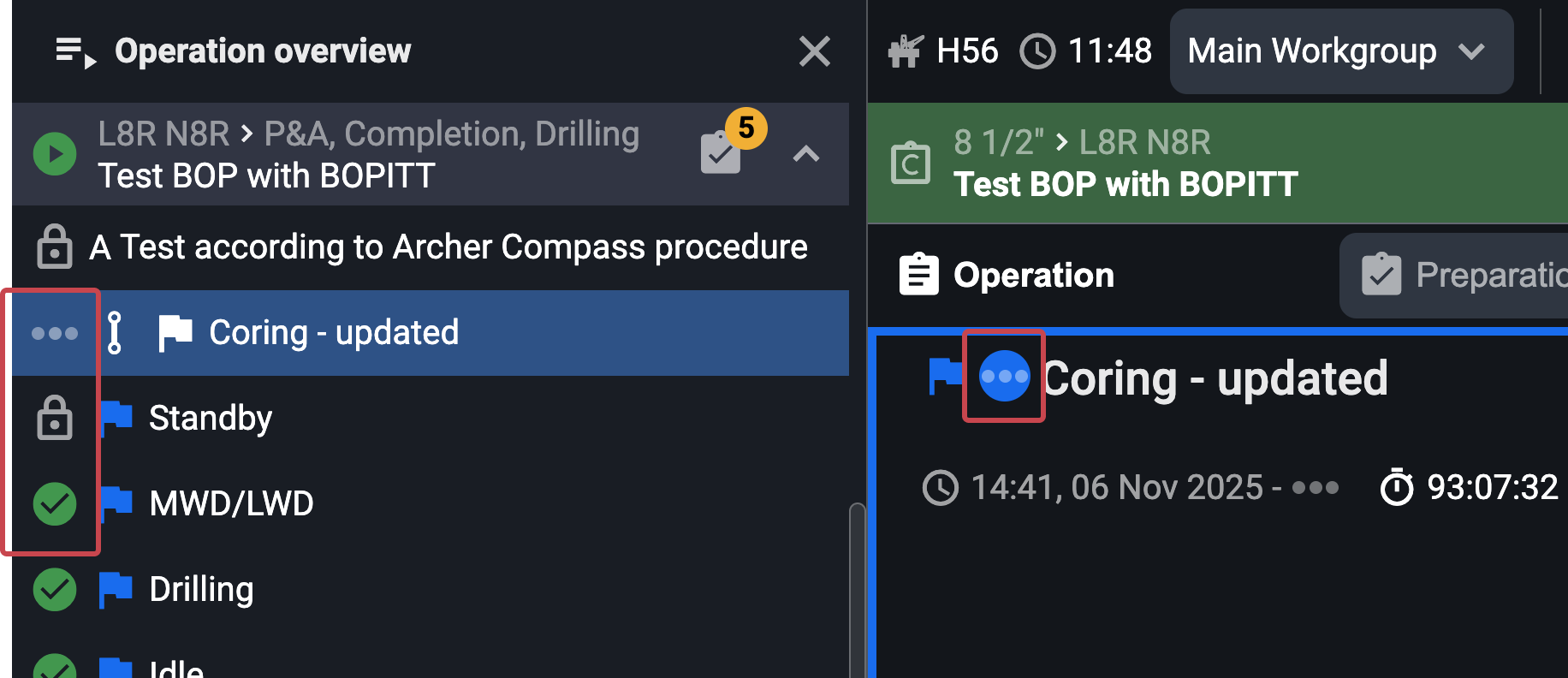
Each step in an operation also has its own status:
Not Started: A step that has not yet begun execution.
 Step/
Step/  Action in Progress: A step is currently being executed.
- Paused: If execution is temporarily stopped, the step is marked as Paused.
- Completed: When a step has been executed successfully.
 Not Applicable: If a step is deemed unnecessary or skipped, it is marked as Not Applicable.
- Abandoned: If the step was started but not completed and had to be discarded.
Step-by-step instructions
Plan statuses
View a plan's status: Navigate to Plan Overview and find the plan you are looking for. The status of each plan is displayed on the right-hand side of the plan card.
Start a plan: Open the plan from Plan Overview, navigate to the first step, and begin execution.
Pause, abandon, or complete a plan: Open the active plan, select the appropriate status, and click on it.
Notice
Only users with execution permissions can change plan statuses.
Step and action statuses
View step and action-level statuses: Open the Plan details section. Each step’s status will be displayed next to the step title. You can access more details by hovering over it.
Change step and action level statuses: Steps automatically update based on execution. If manual intervention is needed, you can click on the step header and select the appropriate action. Changes will be logged in the Step Log for tracking.
Best practices
Monitor active plans: Use
 Operation overview to quickly see the status of ongoing and upcoming plans.
Use the status indicators: Hover over status icons to get more details.
Ensure proper permissions: Only authorized users can change plan and step statuses.
Archive for future reference: Completed and abandoned plans are stored for transparency and auditing.