Operation
The  Operation Tab in the Plan Overview section of RigFlow is a critical tool that provides real-time tracking and execution of drilling operations. This tab allows drillers and relevant personnel to follow operational steps, log activities, and review detailed execution data.
How it looks
The Operations Tab provides a clear, structured list of all steps and actions within a plan. Each step represents a specific task in the drilling process and includes key details like instructions, operational parameters, risks, and report backs. The interface is organized into the following elements:
Structure
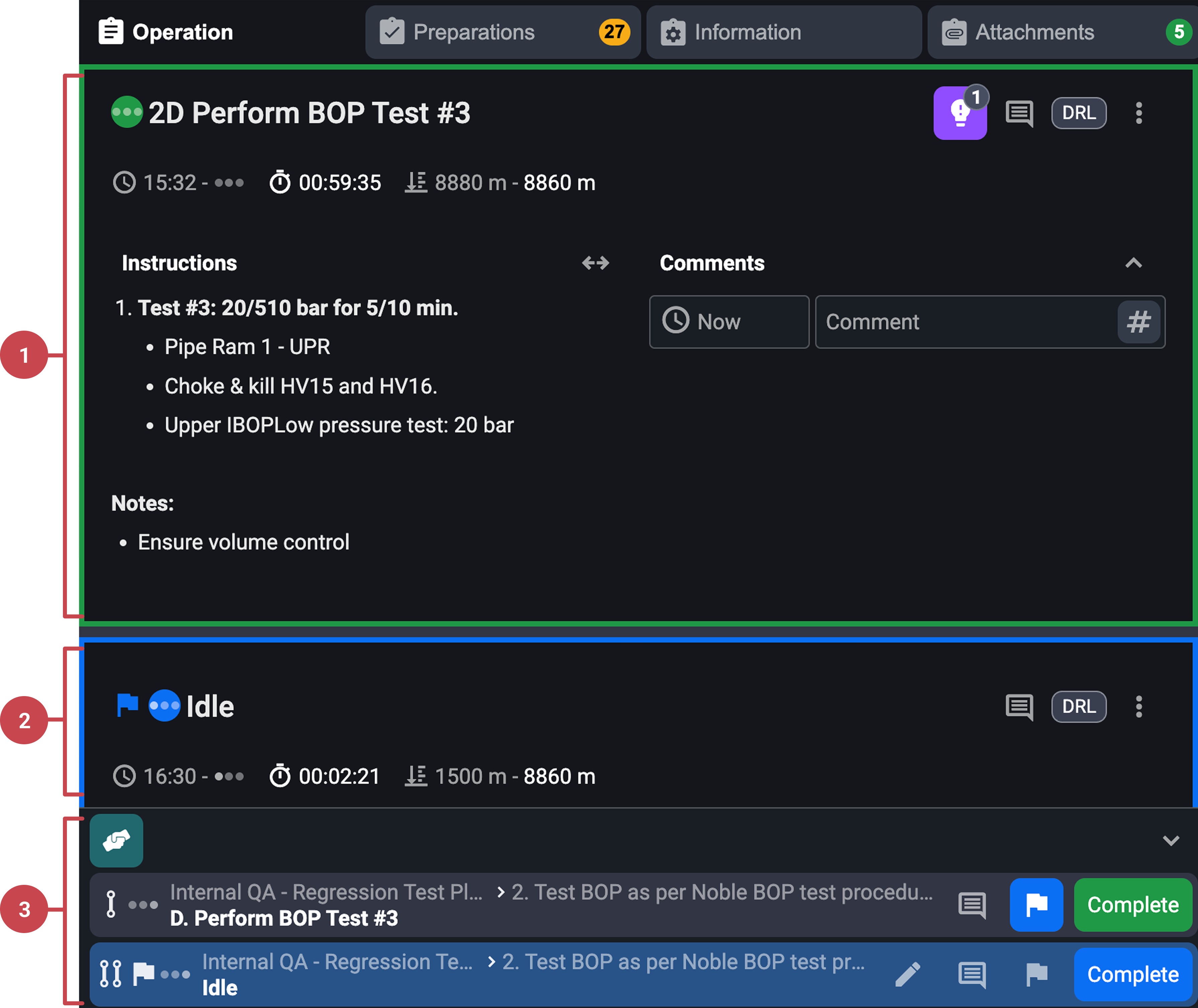
Steps: Planned operational tasks with predefined instructions. Read more about them here: Completing steps or plans.
Actions: Unplanned tasks added during execution. Read more here: Using actions.
Global Action Bar: Visual overview of the current active steps or actions. Read more about it here: Global Action Bar.
Step header
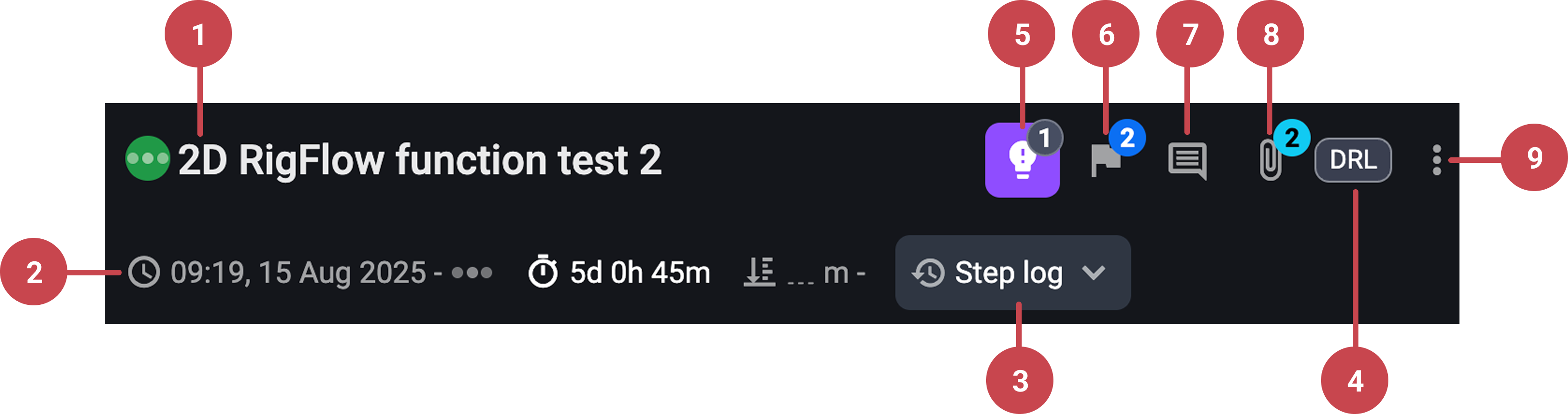
Title, status, and step code: Shows the step name, its current status (not started, in progress, or completed), and a unique code that links it to the plan.
Execution data: Displays when the step started and finished, along with the total duration of execution.
 Step log: Tracks the progress of the step, including pauses and resumed activities.
Responsible role: Indicates which job role is assigned to execute or oversee the step.
 Insights: Allows users to add or view insights related to the step. Read more about them here: Insights.
 Inline actions: Represent unplanned actions added during a step, shown with their timestamps.
 Comments: Enables users to provide detailed feedback or updates, which remain attached to the step for reference. Read more about them here: Comments.
 Step attachments: Attach a document or file directly to a step. Read more about it here: Step attachments.
 More menu: Let users jump directly from a step to its detailed entry in the
  Operation Log for deeper review. Read more here: Operation Log.
Step content
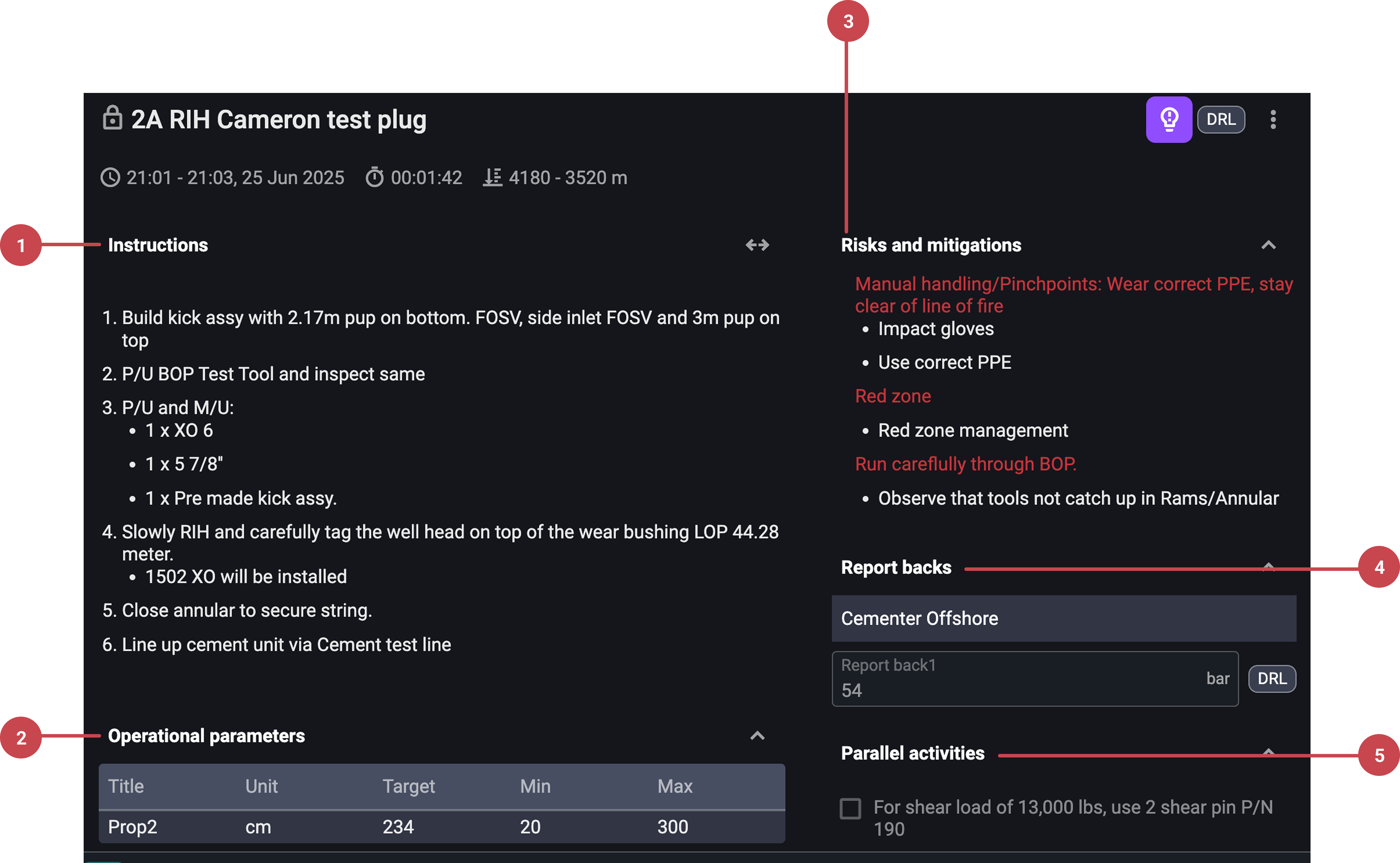
Instructions: Detailed guidelines describing how to perform the step.
Operational parameters: Reference values such as limits, targets, and units that guide safe and accurate execution.
Risks and mitigations: Lists potential hazards for the step and explains how to prevent or handle them.
Report backs: Input fields where assigned roles enter specific data requested for the step.
Parallel activities: Additional tasks that must be completed alongside the main step, shown with checkboxes to track progress.
Step-by-step instructions
Accessing the Operation tab
Select a plan: Open the Plan Overview and choose the plan you want to work on by clicking its card or the expand button to view its details.
Navigate to the Operation tab: Once inside the plan details, click on the Operations Tab to display the full list of steps and actions for that plan.
Reviewing steps and actions
Navigate to the running step: Identify the active step by checking its status and execution timestamps, or use the show live action option to jump directly to the running step.
Review the step content: Open the step to review the instructions for required actions, check the operational parameters for acceptable values and limits, verify any linked procedures for additional guidance, and read the risks and mitigations section to understand potential hazards and how to manage them.
Review the entire plan: Scroll through the Operations Tab to view past, current, and upcoming steps for full visibility of the plan.
Managing inline actions
Review inline actions: If a step is paused, open the
Step log to check any inline actions that were added during the pause.Monitor the action's progress: Keep track of the inline action’s progress in the
Step log before resuming the main step.
Adding Comments and Insights
Add an insight: Click the
Insights icon on the step header to add insights that may help during execution.Add a comment: Open the
Comments section within the step to provide detailed feedback, updates, or clarifications related to the step.Review existing comments and insights: Scroll through the
Comments and Insights sections to see previous notes and ensure all relevant information is considered before proceeding.
Tips and tricks
Use the
 Show live action button on the header to keep track of the active step.
Check
 Parallel activities for any additional responsibilities.
Use
Comments & Insights to communicate important observations.Use the
 Operation overview app on the left side panel to navigate the main window and review upcoming steps.
Ensure timely input of Report backs to keep operations updated.
Examples
Driller: Reviews the current step instructions and updates the report backs section with the required execution data.
Supervisor: Checks the Step log to track any pauses or inline actions and ensures proper documentation of delays.
Driller: Adds a comment to highlight an operational concern when encountering unexpected conditions during execution.
Troubleshooting
Can't edit step details: Only responsible personnel can edit. Request access if needed.
Step not progressing: Ensure the previous step is marked as complete.
Actions not showing: Refresh the page or check execution logs.