Up Next
The  Up Next feature in RigFlow is designed to provide users with a quick overview of the currently running plan and upcoming plans in chronological order. It helps users navigate easily within RigFlow by offering visibility into operational steps, statuses, and transitions.
How it looks
The  Up Next feature is located on the Left sidebar of the RigFlow interface. Users can use this feature to:
Monitor the real-time execution status of a plan.
View upcoming operations, including draft and approved plans.
Navigate quickly to specific steps or actions.
It is structured into two primary components:
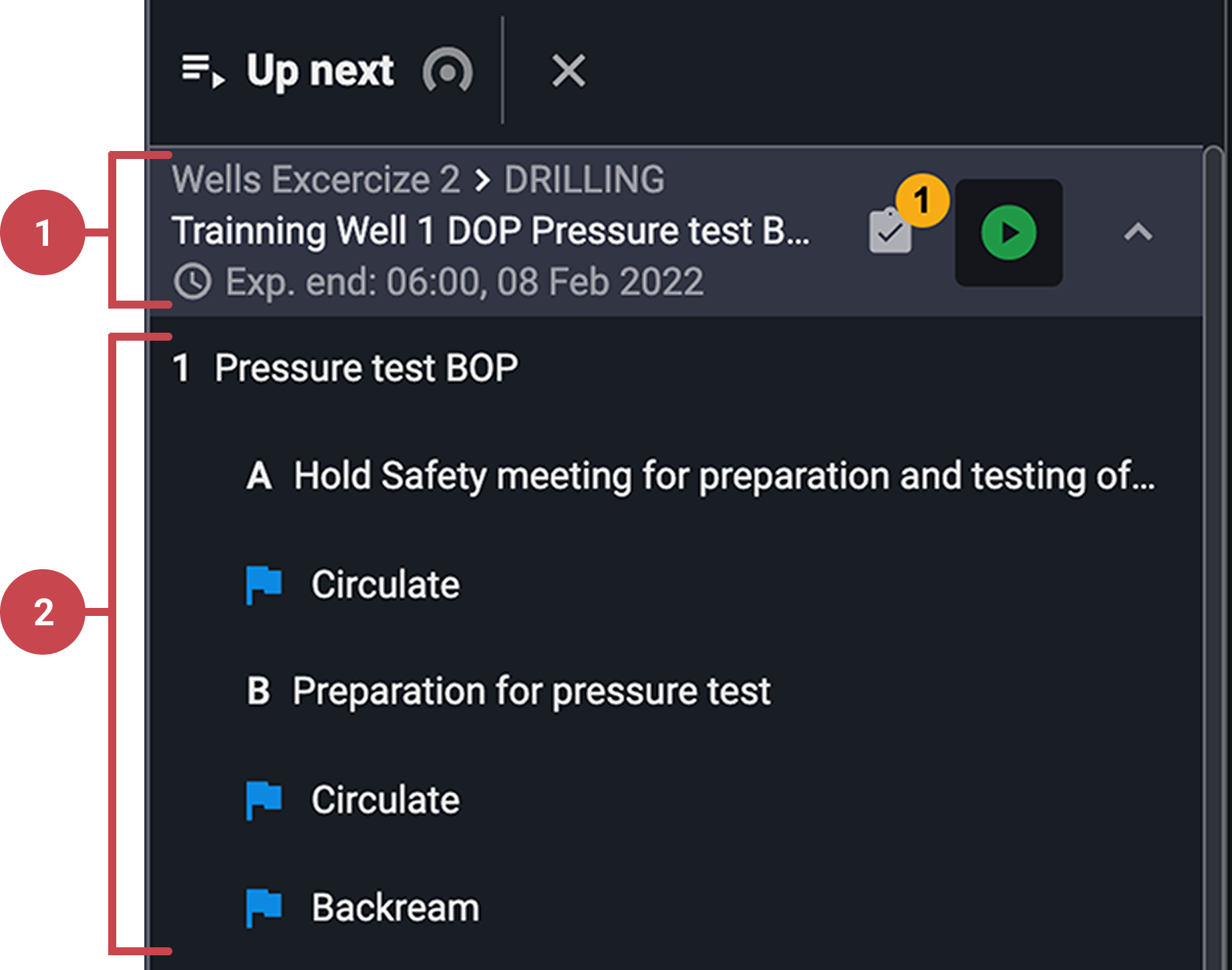
Plan bar
Displayed in chronological order, with the currently running plan positioned at the top. Each plan includes:
Title: Identifies the operation.
Relevant Information: Displays associated event and phase details.
 Preparation Indicator: Displays a warning icon with the number of incomplete preparations. Click to view the checklist and mark items as complete if permitted.
Status Indicator: Shows whether the plan is Draft, Approved, Active, or Paused using color-coded icons.
Steps/actions
Represent the execution flow within each plan, highlighting the current running stage. They are presented in hierarchical order:
Task Level: Numbered key stages of the operation.
Step Level: Indented sub-steps labeled A, B, C, etc.
 Action Level: Specific operational actions, marked with color-coded icons for quick identification.
Clicking on any step or action navigated the main RigFlowwindow to the relevant section for further details.
Step-by-step instructions
Navigating the Up Next feature
Open the Up Next panel: Locate and open the
Up Next button on the Left sidebar.Navigate through the panel: Plans are displayed chronologically, and each plan has a color-coded status indicator (e.g., Draft, Approved, Active).
Review the paln preparations: Click the
preparations button on the plan header to view missing preparations.Access the plan details:
 Expand or
  Collapse plan sections to focus on specific steps.
Navigate on the plan: Clicking on a step or action within a plan navigates the main window to that specific step.
Using the Live Operation button
Use the live operation button: Click the
 Show live operation button in the header to follow the current running operation.
Identify when the button is active: The button becomes active only when you have scrolled away from the active step in the panel. When active, the button changes color; click it anytime to return to the running step instantly.
Tips and tricks
Use the
 Show live operation button to stay updated on real-time activities.
Reduce clutter by expanding and collapsing plan sections.
Hover over status indicators to see plan status descriptions.
Click the
preparations button to quickly check pending preparations.