Detail view in Operation Log
The Detail View in the Operation Log allows you to review, edit, or delete actions or steps with precision. It’s handy when you need to update previously logged data - whether to adjust times, refine comments, or remove duplicate or incorrect entries. This helps maintain a clean, accurate timeline of events, improving both reporting quality and operational transparency.
How it looks
The Detail View appears when you click on an action or step in the Operation Log. It opens a pop-up window and can include:
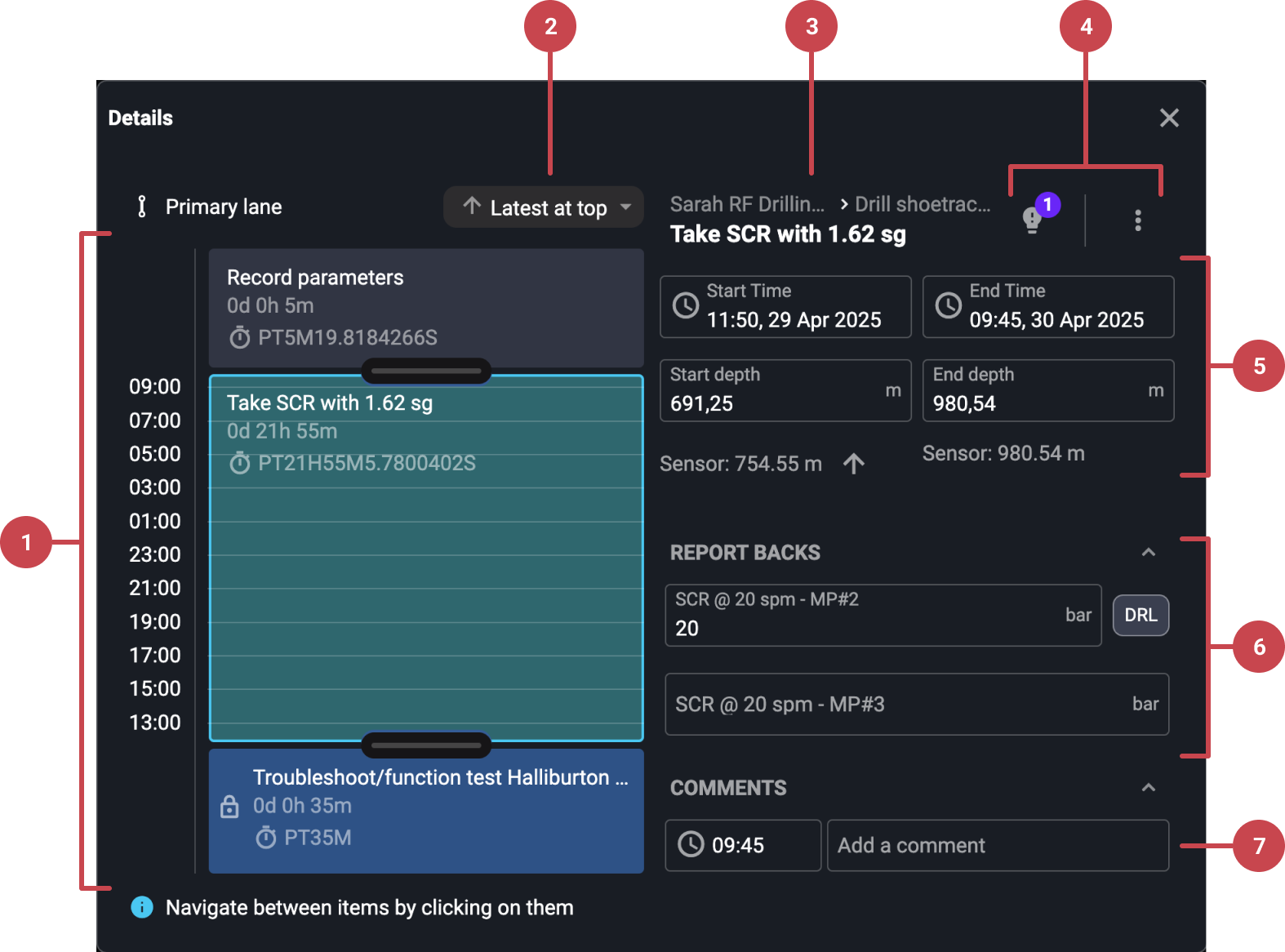
Time view and change: Move the sliders to adjust the start and end time. The original time will be indicated as a dotted line for easy comparison. The change will also update the Start and End time input fields.
Sort order: Adjust the sort order to display either the latest entries at the top or the bottom.
Breadcrumb and title: Show the step title and the breadcrumb path reflecting its plan and task.
Toolbar: Use it to Add insights, or click the
 More icon to access options such as Set Back to Not Started, Set to Not Applicable, or Show step.
Time, Depth, and Total Depth: Display input fields for time, depth (including the sensor reading at that time), and total depth. Clicking the
 insert data icon populates the depth field with sensor data.
Report backs: In this section, you can edit an existing report back.
Comments: In this section, you can add new comments, edit existing ones, or delete them.
Tip
Actions, added by the rig team, offer more editing flexibility than steps. Click an action in the log to edit it as you would a step. Learn more about the difference between What is the difference between actions and steps?.
Step-by-step instructions
Edit an action or a step
Edit both steps and actions directly in the Operation Log to ensure all information remains accurate and up to date. Whether correcting a timestamp, updating a title, or adding a comment.
Open the Operation Log: Navigate to the Operation Log in the Right sidebar. You can use either
 Log view or
  Table view to make edits.
Click the step or action: Find the item you want to edit. You can click on the entire action or step block to open the editing panel.
Edit the title, report backs, or comments: Update text as needed. You can edit report backs and comments for both steps and actions. Titles can only be edited on actions.
Adjust time and depth: Click on the Time or Depth fields to update the start and/or end values. In time fields, use the calendar and time selector to make precise changes.
Automatic Save: Your changes are saved automatically when you click outside the input fields.
Using the more icon in the toolbar
 Set to Not Applicable: Flags the step as irrelevant for the current operation.
 Set back to not started: Reverts the step status to indicate it hasn’t been started.
 Go to step or Go to action: Will redirect you to the step or action in Plan Overview.
 Delete: An action can be deleted as long as it is not locked for editing.