RigFlow version 2.0
The document covers the release of software updates for RigFlow. This release is primarily a release for introduction of major features, bug fixes and incremental improvements. The new features and bug fixes are outlined in the detailed release notes section.
Modernized design & layout
RigFlow 2 brings a cleaner, more structured interface to help users navigate and work more efficiently.
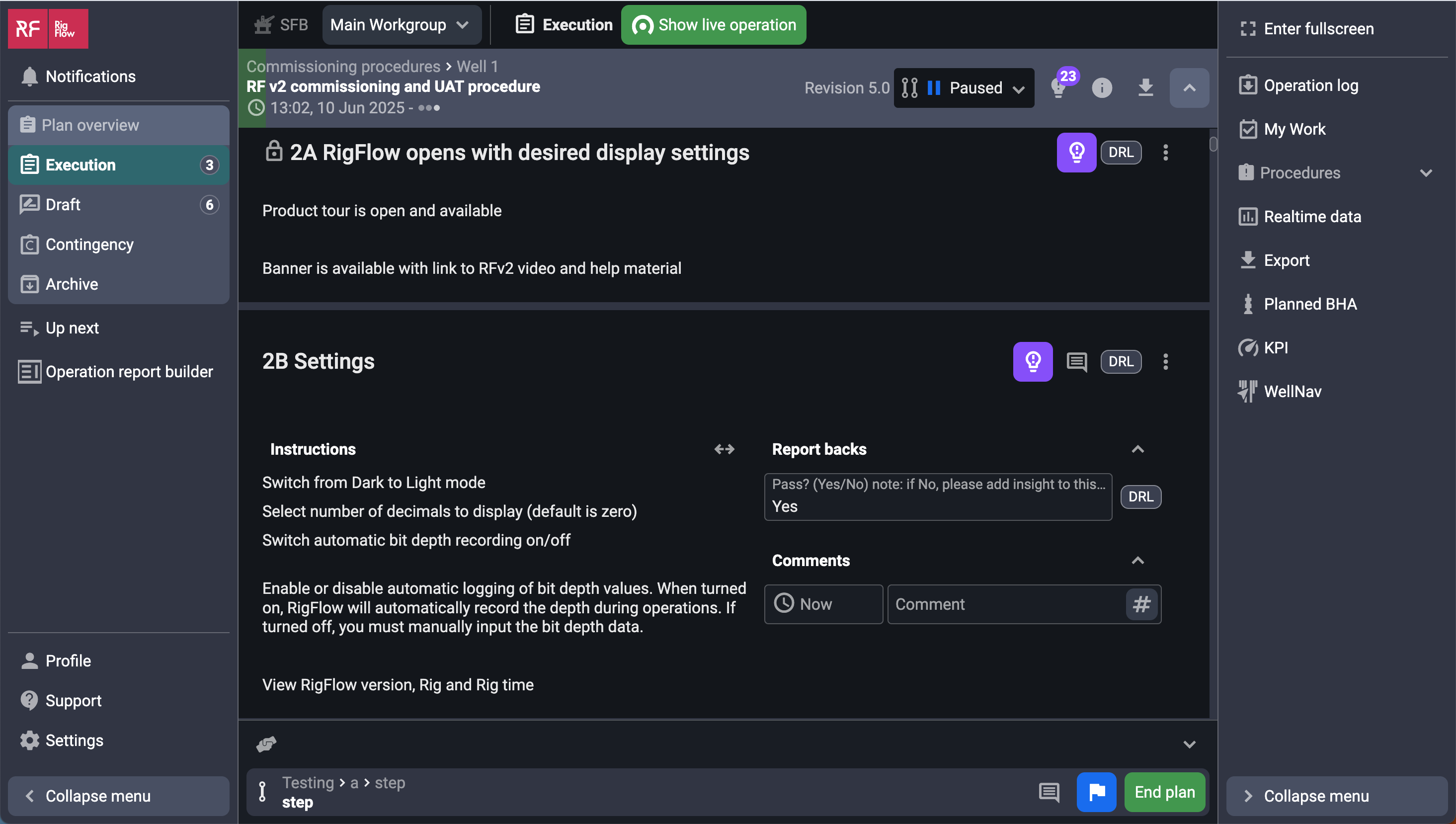
Key Design Changes:
New Left Sidebar: Slimmed-down sidebar with faster access to Up Next, Plan Overview, Profile, Support, Settings, and Notifications. Plan Overview now consolidates Execution, Draft, Contingency, and Archived plans - features that were previously located under the tab bar in the top of RigFlow 1. Read Explore the user interface.
Streamlined Main View: Central content area is now more spacious and focused, adapting dynamically to the selected module. Read Explore the user interface.
Global Action Bar (GAB): Always visible, the GAB lets you control operations in real time without navigating away. Read more about the new Global Action Bar.
Split-Screen View: Work with an open right sidebar and the main view side-by-side — e.g., Plan Overview Execution and the Operation Log — to boost context and reduce tab-switching. Read more about Using the splitscreen on the Right sidebar.
Full Screen Option: Quickly hide navigation panels for a cleaner workspace when needed. The icon can always be found in the top of the Right sidebar.
Improved Fonts, Spacing & Icons: Clearer typography, updated icons, and more breathing room across the interface for better readability.
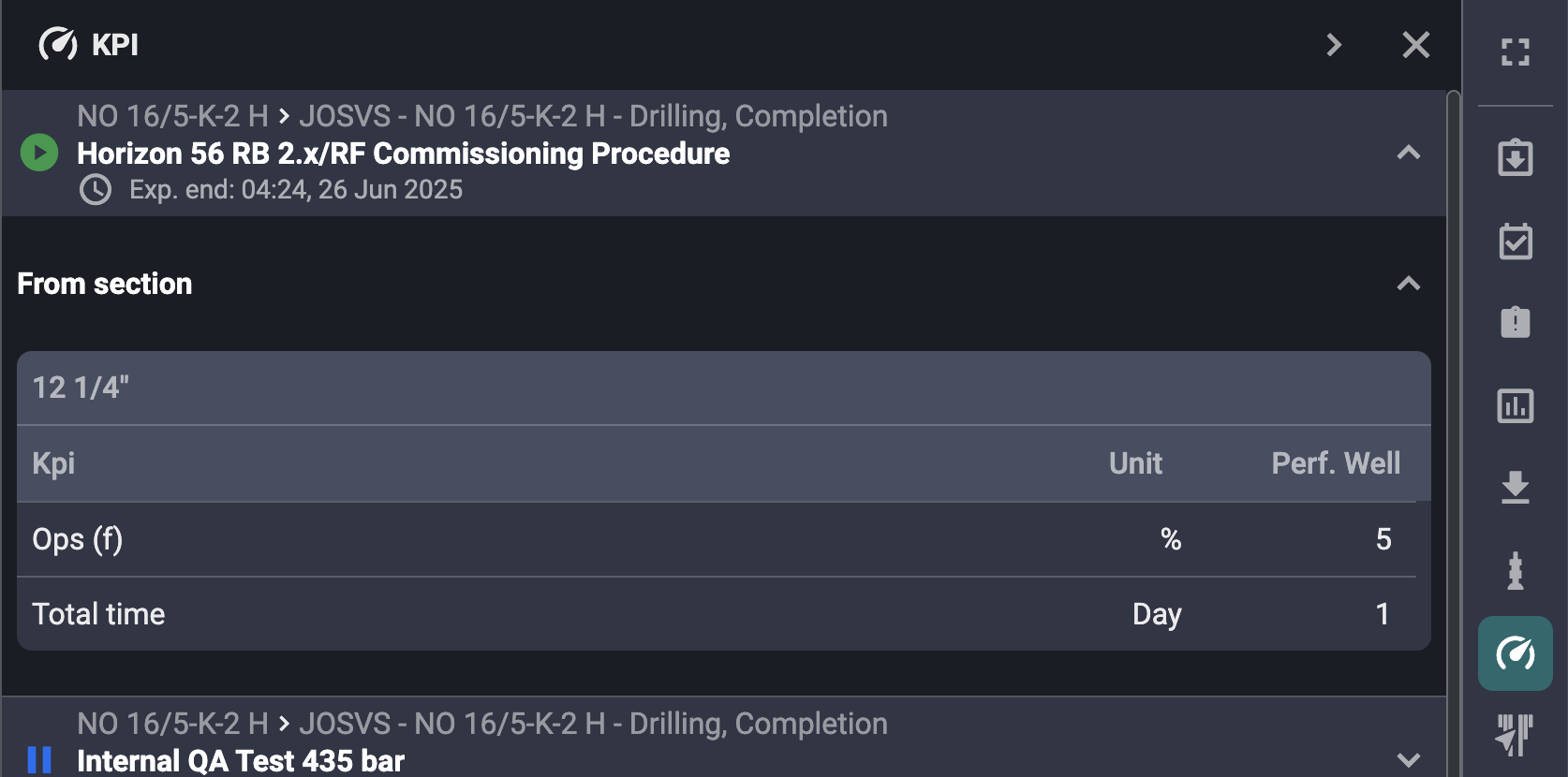
Lightweight Navigation: The redesigned Application Menu now lives in the right sidebar for quick switching between modules like Operation Log, WellNav, Export, and Real-time. Read more about the new Right sidebar.
Actions inline: Ability to show Actions inline in the Operation Log for better traceability. Read more about the Managing inline actions.
Updated comment input field: Improved comment handling with sensor data linking via # and mentions via @ . Read more about Comments.
Docked attachments: Pin frequently used files to the right sidebar for quick access while working. Read more Docked attachments under Attachments.
This visual refresh is designed to speed up daily work.
Up Next
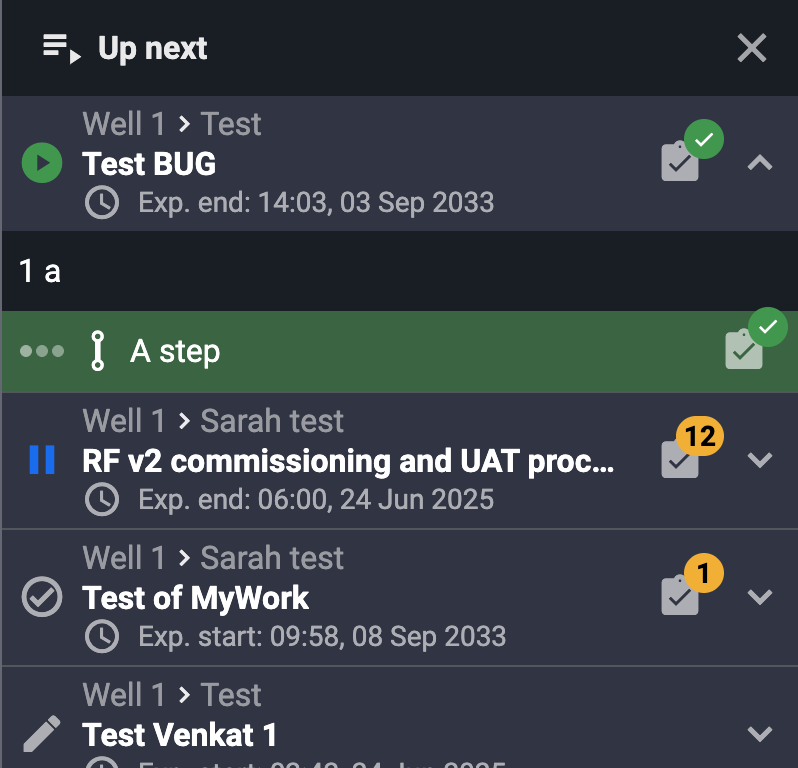
The Up Next panel helps you stay focused by showing what needs your attention next. It lists steps, actions, or plan items that are waiting on you — all in one place.
In RigFlow 2, Up Next has been updated to also include items from Preparation checklists, so you can keep track of what needs to be reviewed or completed before execution begins.
You can access Up Next from the left sidebar to see a clear overview of upcoming tasks, making it easier to stay organized and avoid missing important work.
Read more about Up Next.
Notifications
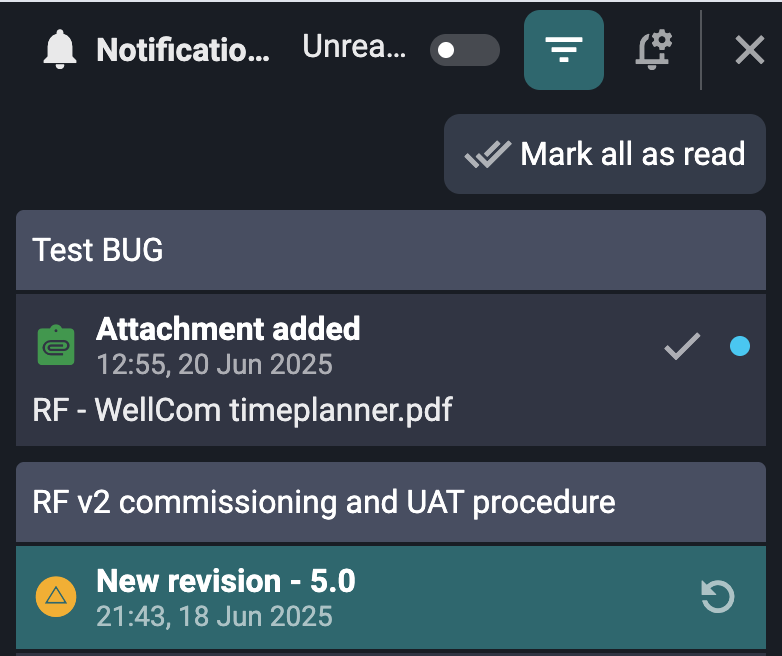
The Notifications panel helps you stay on top of important updates as you work. You can find it by clicking the notification icon in the left sidebar.
Here, you’ll see notifications for things like plan changes, step comments, errors, reminders, and system messages. Each notification is clickable, directing you directly to the relevant section of the application.
You can also manage which types of notifications you want to receive as pop-up alerts.
Read more about Notifications.
New Integrations