Operation report builder
 Operation report builder is a feature in RigFlow used to review, adjust, and export drilling operations for a specific day. It allows both imported and manual entries, with full control over editing and content visibility.
How it looks
Main view
You can open the Operation report builder from the Left sidebar in RigFlow. It takes up the main part of the screen, and the page loads the report for the current date by default. The interface is structured and interactive, consisting of the following key components:
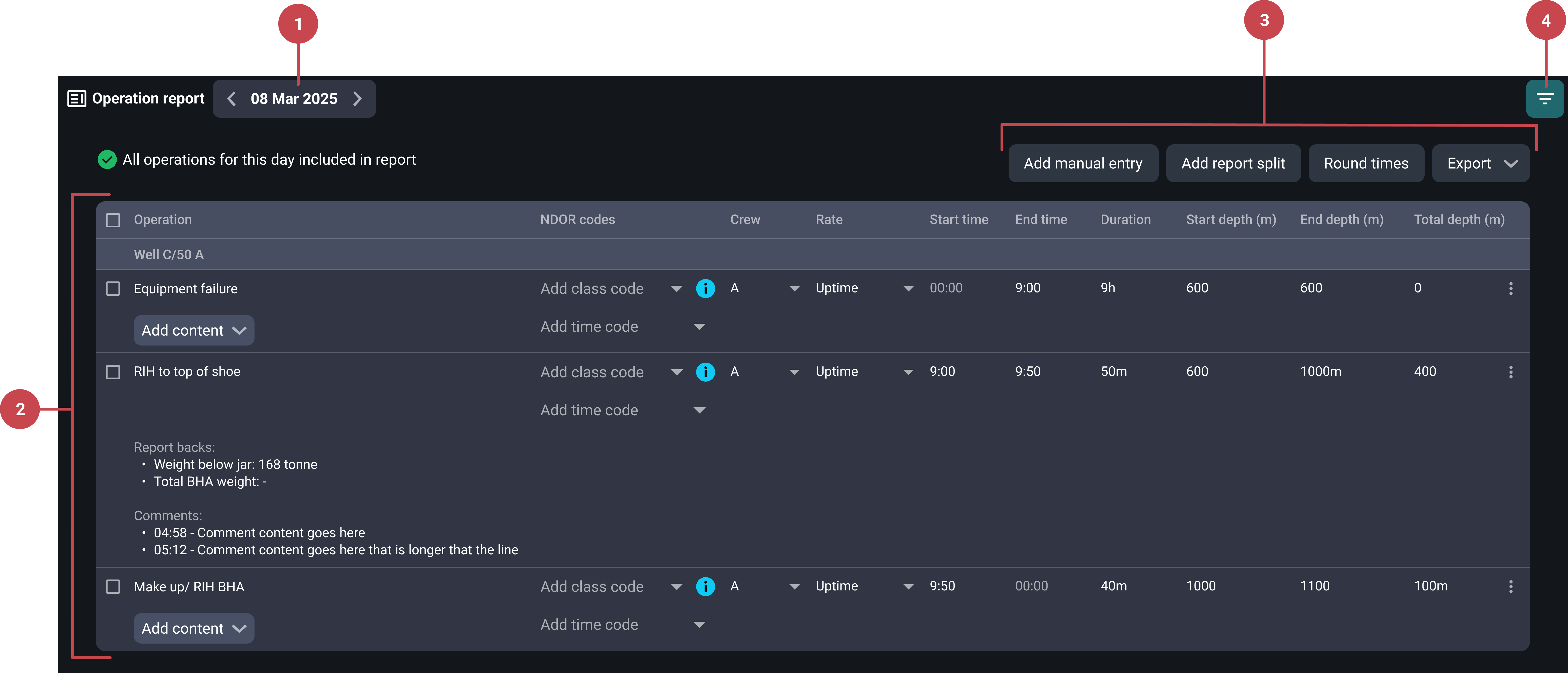
Date picker: Located at the top of the view, it allows the user to select which day's report to work with. The report always spans from midnight to midnight of the selected day.
Report table: Once content exists, the interface becomes a structured table. Each row represents an operation and contains:
Title of the operation.
Checkboxes on left side: Allows multi-select for batch operations.
Add content dropdown button: Used to add report backs or comments.
Crew / Rate (if configured per customer).
Start time / End time / Duration.
Start depth / End depth / Total depth.
 More options menu: Currently only used for deletion.
Action bar: At the top of the table, it includes interactive options:
Add manual entry: Activates a mode that allows you to insert a new operation manually. It’s used when an operation wasn’t captured in the log or needs to be added later.
Report split: Visually indicates shift changes or crew changes.
Round times: Adjust durations with a rounding tool.
Export: Export report to Excel or customer-specific formats.
Import from Operation Log: Opens a modal where the user selects how much of the day to import. The data is pulled from the
 Operation Log and converted into table rows.
 Filter icon: Provides table customization options that also affect exported data:
Show or hide comments.
Include or exclude timestamps on comments.
Show or hide report backs.
Empty view
When there is no report for the selected date, the Operation report builder displays an empty view. In this view, no table is shown until you add data. You can start your report by choosing one of the following options:

Import from Operation Log: Imports data from the Operation Log.
Add manual entry: Starts a manual report line.
Step-by-step instructions
Using the report table
Open the Operation report builder: In RigFlow click the
Operation report builder icon on the Left sidebar. The report for the current day opens automatically. You can switch to other dates using the date picker at the top.Add report backs or comments: On each operation row, click Add content to open a menu where you can insert report backs or comments. If a row already contains both, the Add Content button will disappear, and you can edit the existing information directly by clicking on it.
Use multi-select options: Use the check boxes on each row to select multiple lines. You can delete, bulk-edit fields like crew/rate, or export selected lines.
Filter table view: Click the
Filter icon in the top right and choose to show/hide comments, timestamps, or report backs. This also affects exported content.
Using the action bar
Import operation data: Click Import from operation and choose an end time for the import. Confirm to load operations from the
Operation Log (primary operations only).Add manual entry: Click the Add manual entry button and hover over the table to choose where to add the new entry. Click on the desired space to add a new line or split an existing one and fill the fields.
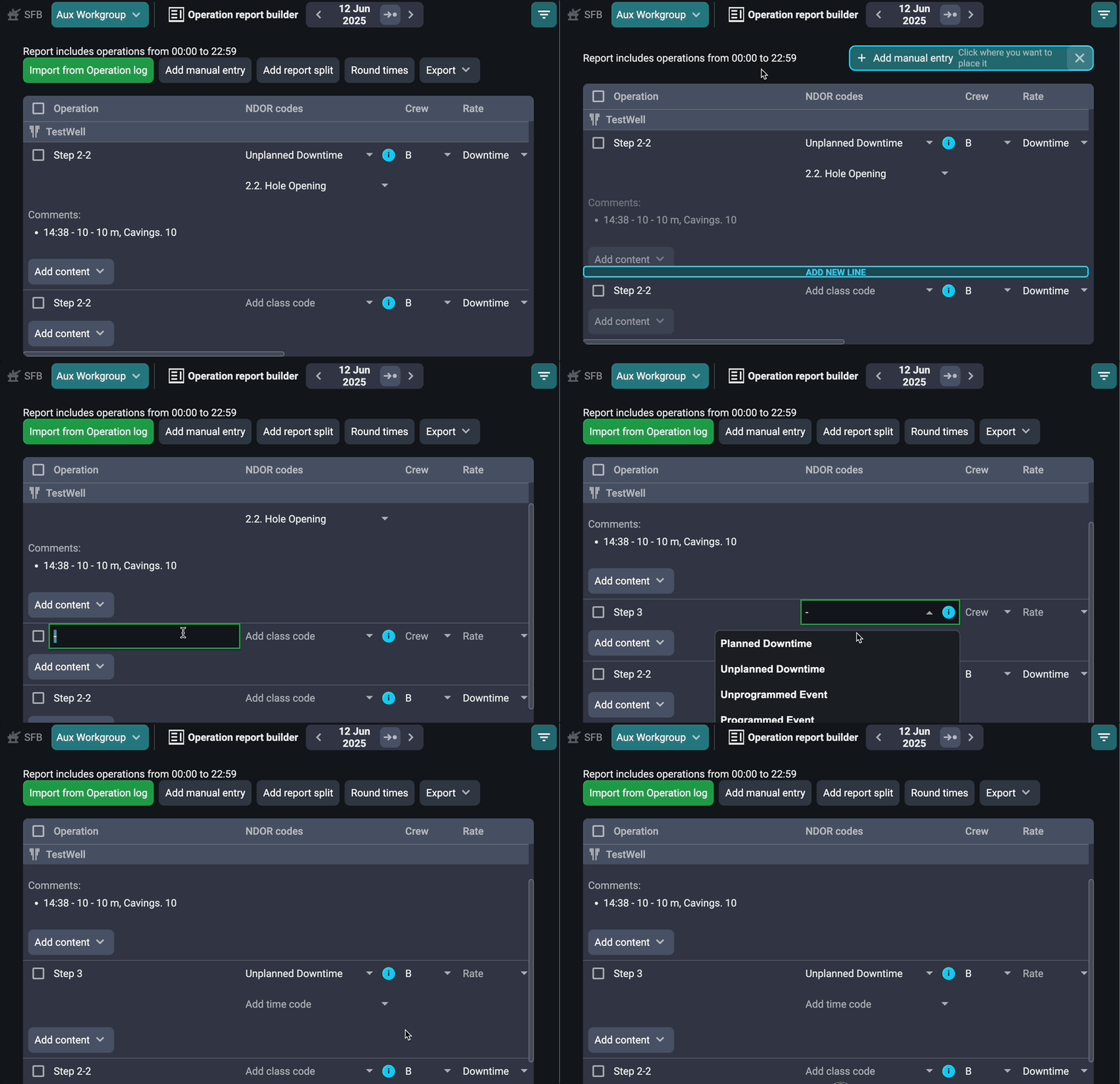
Add report split: Click Add manual entry to activate manual entry mode. Hover over the table and click where you want to insert a new row, either between existing operations or at the start or end. Then fill in the operation details like title and time.
Select round times: Click the round times button in the header to open a panel where you select a rounding interval (5, 10, 15, or 30 minutes). The rounding is applied once, and the times remain fully editable afterward.
Export the report: Click the export dropdown and choose between Excel or a configured customer-specific format, or a configured customer-specific format.
Actions if there is no existing report
If there is no existing report for the selected date, the Operation report builder displays an empty state with two available options: Import from Operation Log and Add manual entry.
Import from Operation Log
Import from Operation Log allows users to bring data from the Operation Log for the selected day. Follow these steps to import operations:
Open the import from Operation Log modal: In the empty view, click the Import from Operation Log button. This opens a modal where you define how much of the day to import from the Operation Log.
Select the import end time: In the modal, select the end time for the import using the time picker. By default, this is set to either midnight or the current time, depending on whether the day is complete. Adjust if needed.
Confirm the import: Click Confirm. The system will pull primary operations from the Operation Log and display them as rows in the table.
Only primary operations are imported (parallel operations are excluded).
Imported operations are no longer linked to the Operation Log and can be edited freely in the Operation report builder.
Add manual entry
The Add manual entry option allows you to create a new operation when no data has been added for the selected day. Follow these steps:
Activate manual entry mode: In the empty view, click Add manual entry. This enables the manual entry mode and prepares the interface for your first operation.
Create and edit the entry: A single blank row will appear in the table. You can immediately start filling in the details and operation information. This entry behaves similarly to imported operations and can be edited or deleted as needed.
Examples
A driller imports operations for the day shift, edits titles, adds notes, and exports.
A supervisor uses the filter to exclude comments and exports only the required data.
An engineer deletes all rows and re-imports a full day to correct mistakes.
Tips and tricks
Undo not available: If something goes wrong, delete and re-import.
No locking mechanism: Edits can be made anytime.
Real-time saving: No need to manually save changes.
No indication of manual vs. imported lines, treat them the same.
Edits don’t sync back to the Operation Log, and vice versa.