Operation Log
The  Operation Log is where all key actions, steps, and updates are documented during a drilling operation. It provides a clear, searchable timeline of what’s happening on the rig, ensuring all activities are tracked and easily accessible by the team.
How it looks
The Operation Log can be accessed from the Right sidebar. It supports two views:
Table view
Structured, row-by-row format for a more detailed overview. This view can contain comments, company-specific codes, and rates.
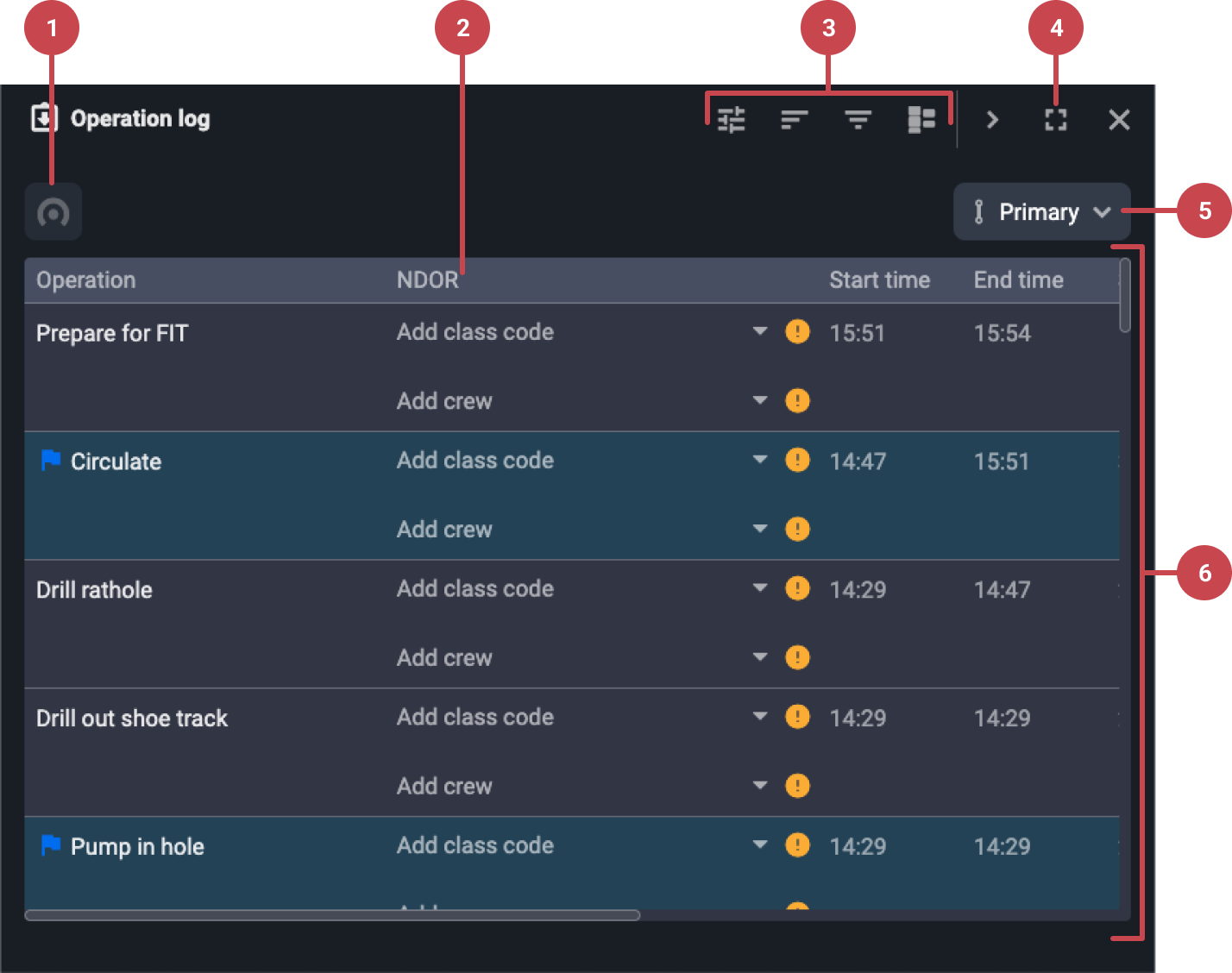
Scroll to live operation: Click the
 Scroll to live operation to jump directly to the currently active operation step.
Customer-specific columns: Your company can add custom columns to the table, helpful for reporting and exporting data based on your specific needs.
Toolbar header: Contains tools you can use within the table view. Learn more here Toolbar header.
Open table view in full screen: If your table contains a lot of data, click the
 Open in modal to expand the table into a larger pop-up window for easier viewing and editing.
Switch between Primary lane & Parallel lane: Use the dropdown menu to toggle between viewing the Primary lane or the Parallel lane in table format.
Entry (table row): Each row typically includes if it's an action or not, Operation step title, Start and end time, Start and end depth, Total depth, Comments, and Report backs. Additional fields may include custom company codes and rate information.
Log view
A simple, chronological view centered on activities, perfect for reviewing completed work.
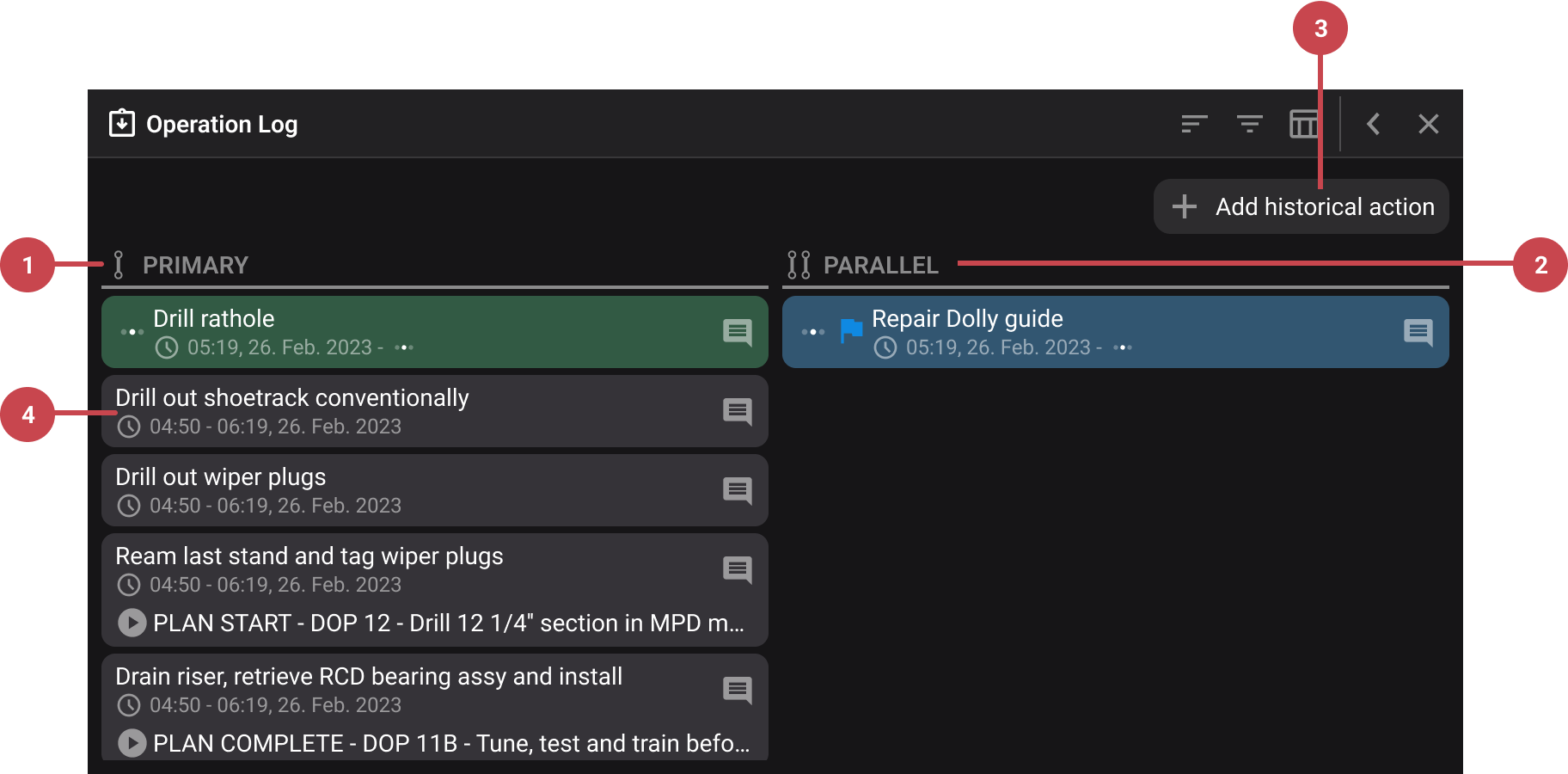
 Primary lane: Displays the main planned steps in sequence (e.g., “Drill 12 ¼” section”).
 Parallel lane: Shows unplanned or real-time actions that run alongside the primary plan (e.g., “Rig up equipment” or “Equipment troubleshooting”).
 Add historical action: Displayed similarly to real-time actions but with a backdated timestamp. Helpful in logging completed activities that were not captured in real time. Learn more about how to Add a historical action.
Entry: Each entry includes, by default, the following: Operation step, whether it's an action or not, timestamp, and
 comments.
Toolbar header
For both views, the toolbar in the Operation Log header can contain:
 Column options: Let you choose which data columns to show or hide, so you only see what’s relevant to your task. This is often used in our table views in RigFlow.
 Sort: This enables you to change the order in which operations appear, either in descending or ascending order.
 Filter: Filters in RigFlow help you quickly find relevant information by narrowing down what’s shown based on your selected criteria, such as date range, or showing comments or insights.
- Open in a modal window: Click the Open in modal icon to display the right side panel content in a full-screen window. This is helpful for viewing wide content like tables.
Step-by-step instructions
Switch view
Show Table view: Click the
 Show table view icon to show the table.
Show Log view: Click the
 Show log view icon to show the log.
Detail view of a step or action
Open the Operation Log: Navigate to the Operation Log in the Right sidebar. You can use either
Log view or Table view to make edits.Select step or action: Locate the specific step or action you want to examine more closely.
Click on the step or action: Clicking anywhere on it will open the detail view, where you can see and edit additional information such as comments, timestamps, or reporting codes. Learn more at: Detail view in Operation Log.
Add a historical action
Use this when an important step or action was not logged in real-time. It helps keep the operation history complete, supports accurate reporting, improves handovers between shifts, and ensures compliance with audit and HSE standards. It’s especially useful when the crew is too busy to log the step as it happened.
Open Log view: Make sure you are in the Log view of the Operation Log. Historical actions cannot be added from the Table view.
Click Add historical action: Press the
Add historical action button to begin.Place the action: Click anywhere in the log to insert the action. You can also click on an existing step to split it - this will insert the action and divide the original step into two parts with the same title.
Select action type: A modal will appear with a list of available actions. Select one from the list or use the search bar to find it by code or title.
Action is added: Once selected, the action will automatically appear between the steps. If needed, click the action to edit.
Prepare for Export
If your company has enabled it, you’ll see some extra fields in your Table view. They can contain fields such as Crew, Phase, Activity Code, and Class/Time Codes.
Add content to the fields: Use the dropdowns to fill in each field according to your internal reporting standards.
Validate and save automatically: Entries are automatically validated to ensure correct formatting and export readiness.
For detailed export instructions, see:
Examples
Here are real-world scenarios that show how rig teams use the Operation Log to maintain transparency, ensure handover continuity, and support regulatory reporting:
Shift handover: During the night shift, the Driller logs an action, “Circulated bottom up and prepared to POOH.” This ensures the day shift picks up exactly where the operation left off.
Unplanned event tracking: A mechanic initiates an action titled “Top drive inspection,” adding the comment: “Unusual noise during rotation. Investigation started.” This provides a clear audit trail for troubleshooting.
Data for reporting: While performing a well control drill, the Driller enters Class Code and Crew details under NDOR fields, making the activity ready for export with no rework.
Tips and tricks
Update in real time: Encourage the team to log updates as they occur - this results in cleaner handovers, improved reporting, and fewer errors due to memory lapses.
Highlight delays or deviations: Use actions to separate deviations from the planned sequence clearly. This makes it easy to analyze downtime or NPT.
Audit before export: Before exporting to EDRS or NDOR, scan the log for missing codes or blank depth values. Catching these early saves time.