Undo a completed step
If a step in RigFlow is accidentally marked as completed, you can easily reverse the action. This feature is helpful for correcting mistakes or adjusting the workflow before continuing operations.
Step-by-step instructions
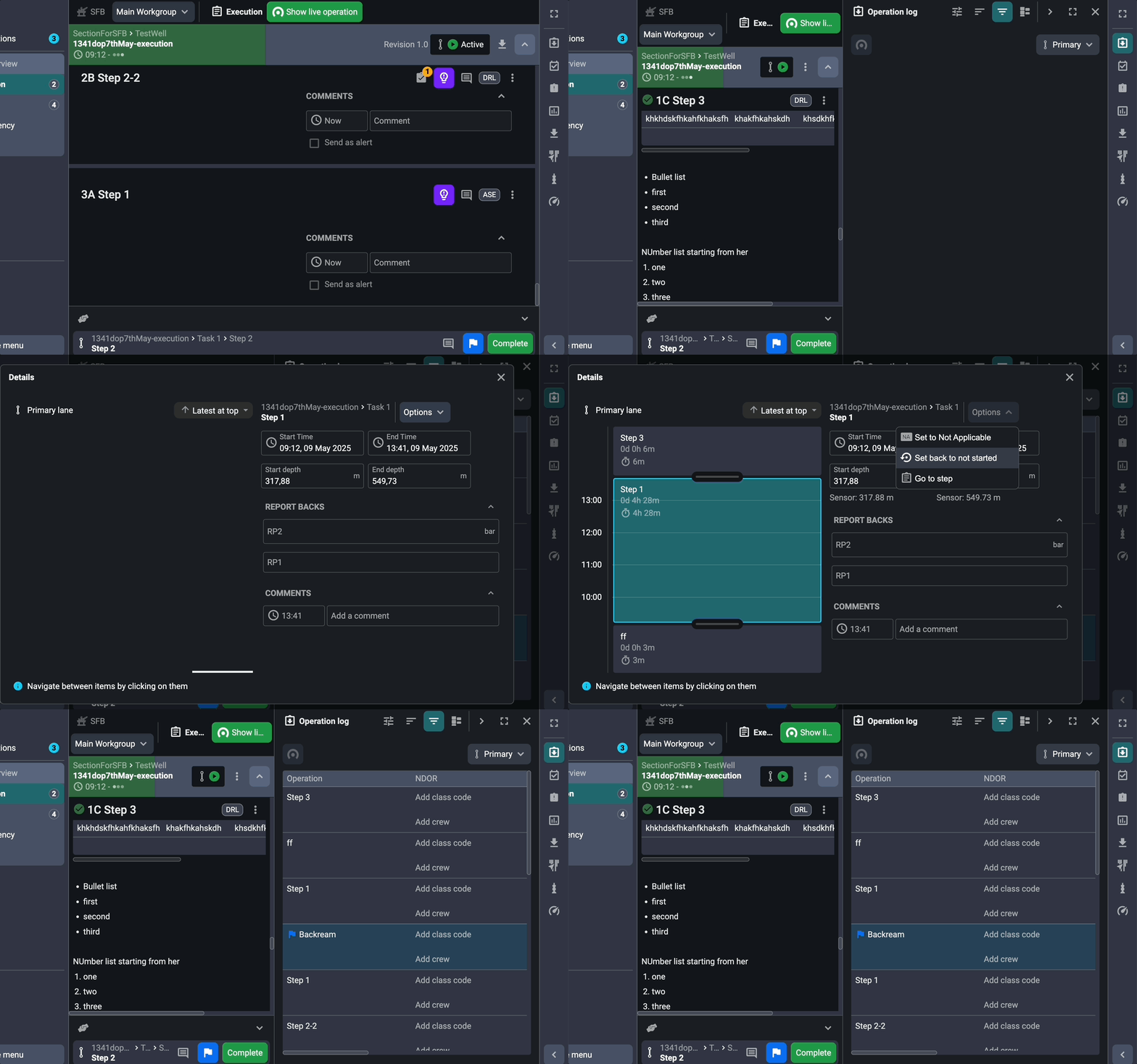
Open the
 Operation Log: The Operation Log in RigFlow provides a chronological list of all workflow steps. Access it via the Right sidebar in RigFlow.
Locate the Completed Step: You can use either the
 Table view or
  Log view. Once there, find the step that was mistakenly marked as completed and click on its title (e.g., “RIH 5" “Drill pipe”).
Open Step Options: Look for the Options dropdown button and click on it to open a menu.
Revert the Step: Select Set back to not started from the dropdown list.
Confirm the Action: A confirmation dialog will appear. Click Confirm set to not started to finalize.
The step will now return to an active state, allowing further editing or execution.