What's active in my plan
RigFlowoffers multiple ways to track and identify the currently active operations, steps, and actions in your plan. This article explains all the methods you can use to know what is currently active in your plan.
Check the Plan Overview
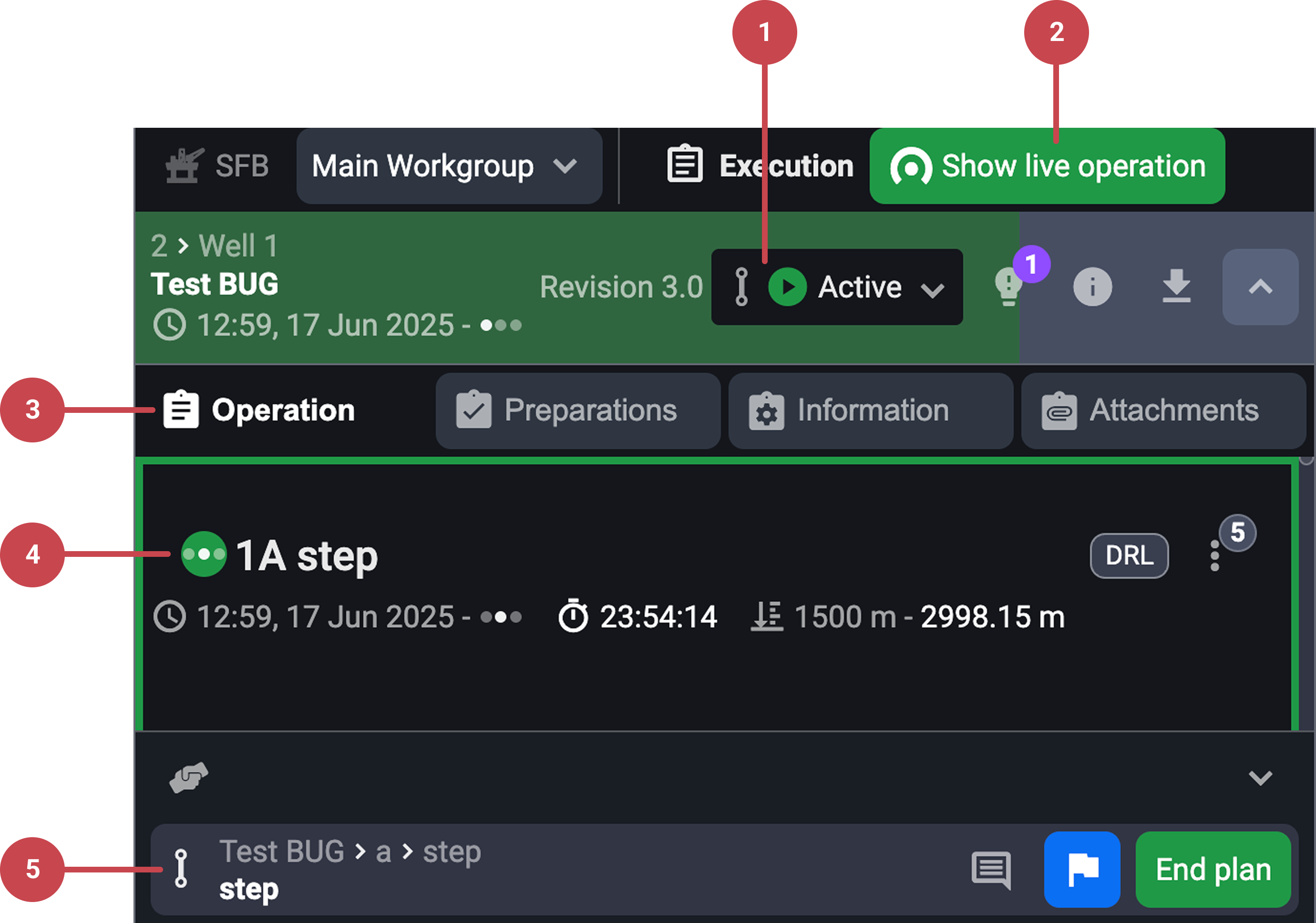
Plan status tag: Go to the
 Plan Overview, active plans are labeled with an
  active status tag.
Use
 show live operation: To jump to the current step in execution, click on the show live operation button on the header.
Look in the
 Operation tab: Each plan's operation tab lists every step and action. Look for execution data, live progress tracking for the current step, or inline actions for real-time events added to the step. Read more about the operation tab here: Operation
Use the status indicator: Each step and plan has a status, hover over status icons for more info.
Use the Global Action Bar: The Global Action Bar is an always-visible strip at the bottom of the RigFlow interface. It shows the step or action currently in progress, if it’s a parallel task, it will appear in a separate lane. Read more about it here: Global Action Bar
Read more about Plan Overview here: Plan Overview
Use the Up Next panel
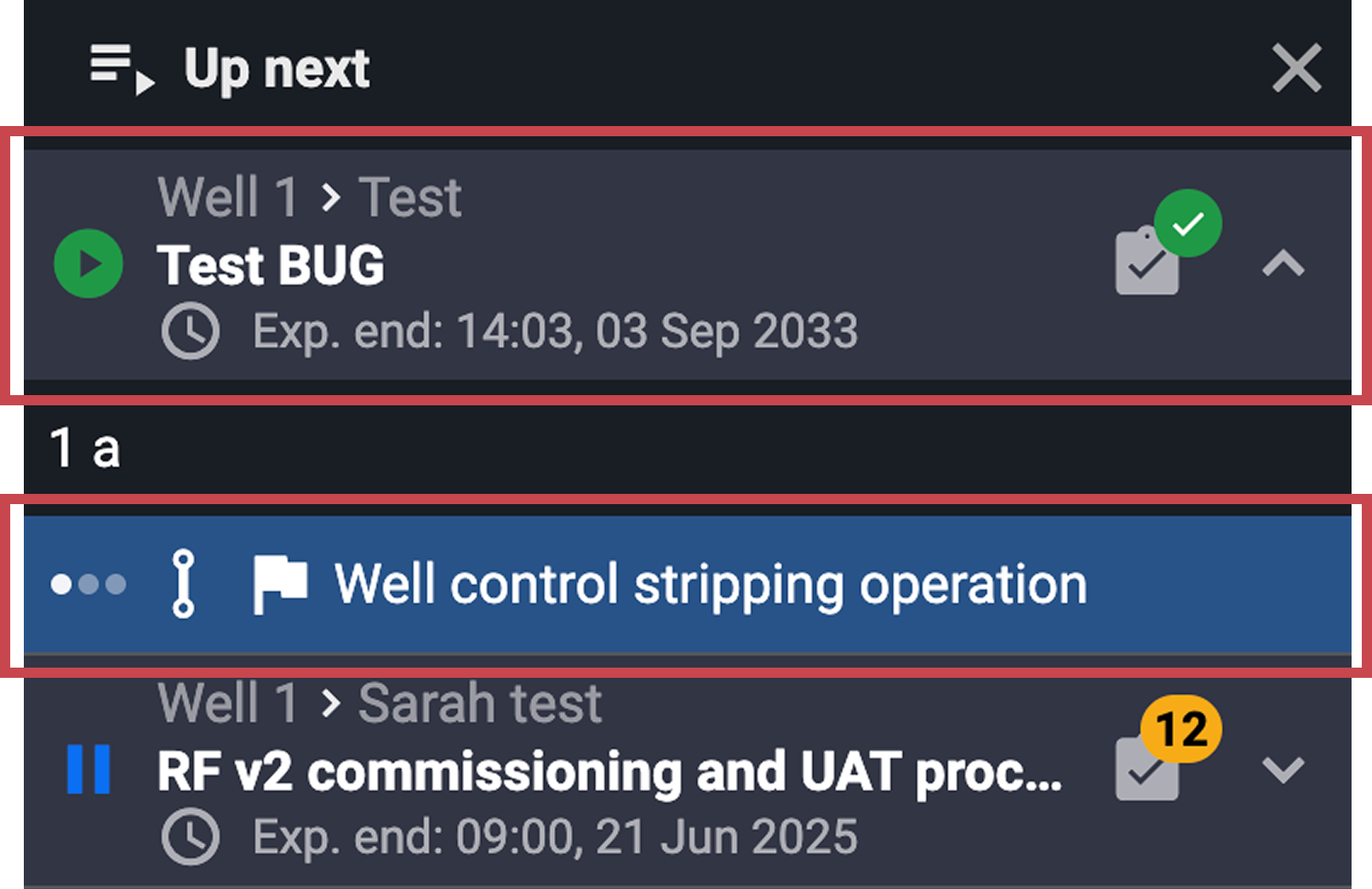
The Up Next feature provides a real-time overview of the current and upcoming plans.
Access the Up Next feature: Click the
 Up Next feature from the left sidebar. You will find the currently running plan is displayed at the top.
Explore the content: You will see step titles, icons for preparations and status (Active, Draft, Paused), etc. Read more about the Up Next feature here: Up Next
Open the Operation Log
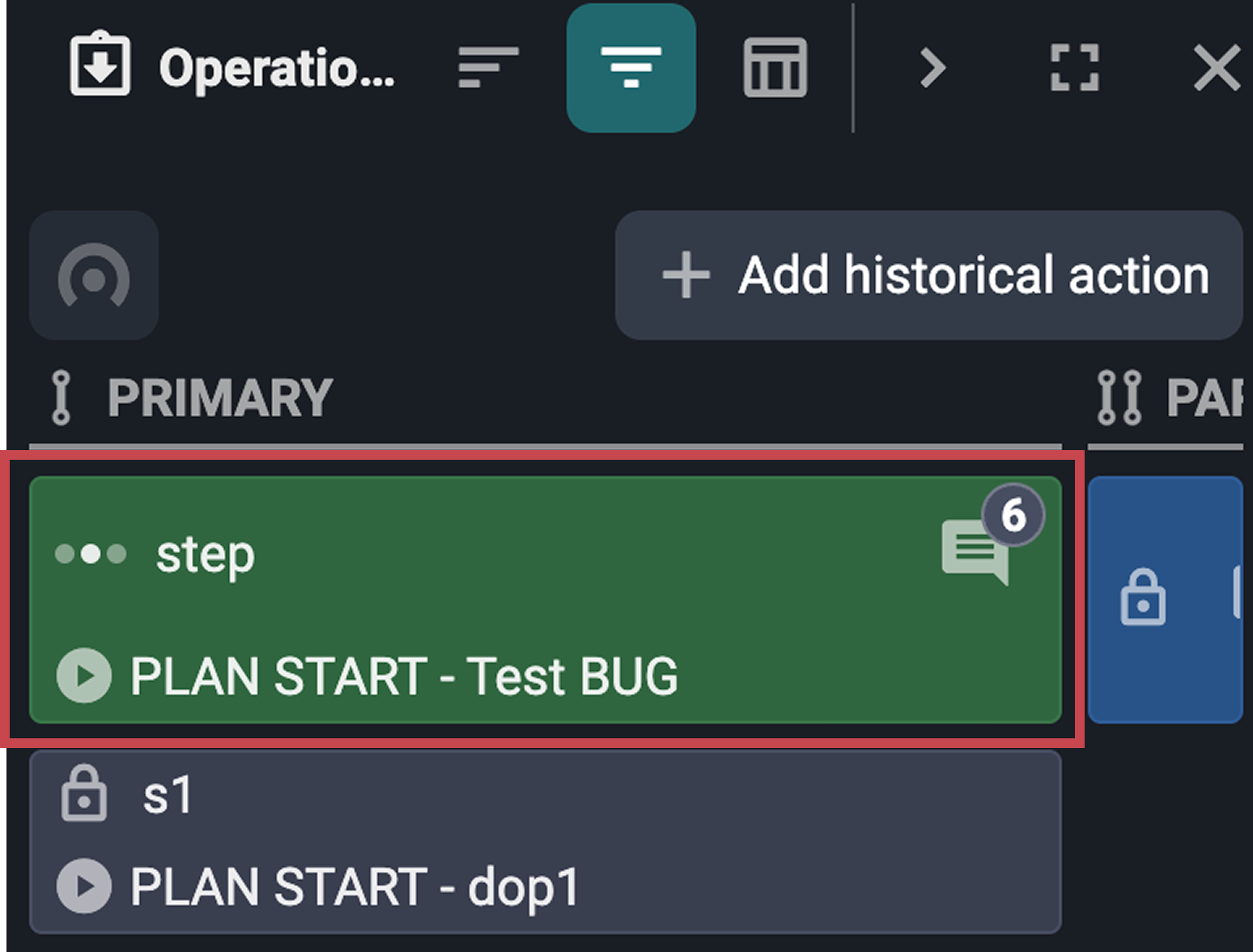
Open the Operation Log: From the Right sidebar, click on the
 Operation Log icon.
Switch to log view: Make sure you are on the log view, or click on the
 switch to log view icon in the panel header. The currently active step will appear at the top of the list.
Return to the active step: Click the
scroll to live operation button to return to the active step in your plan. This button becomes available only when you've manually scrolled away from the active step.
Switch between Wellbores
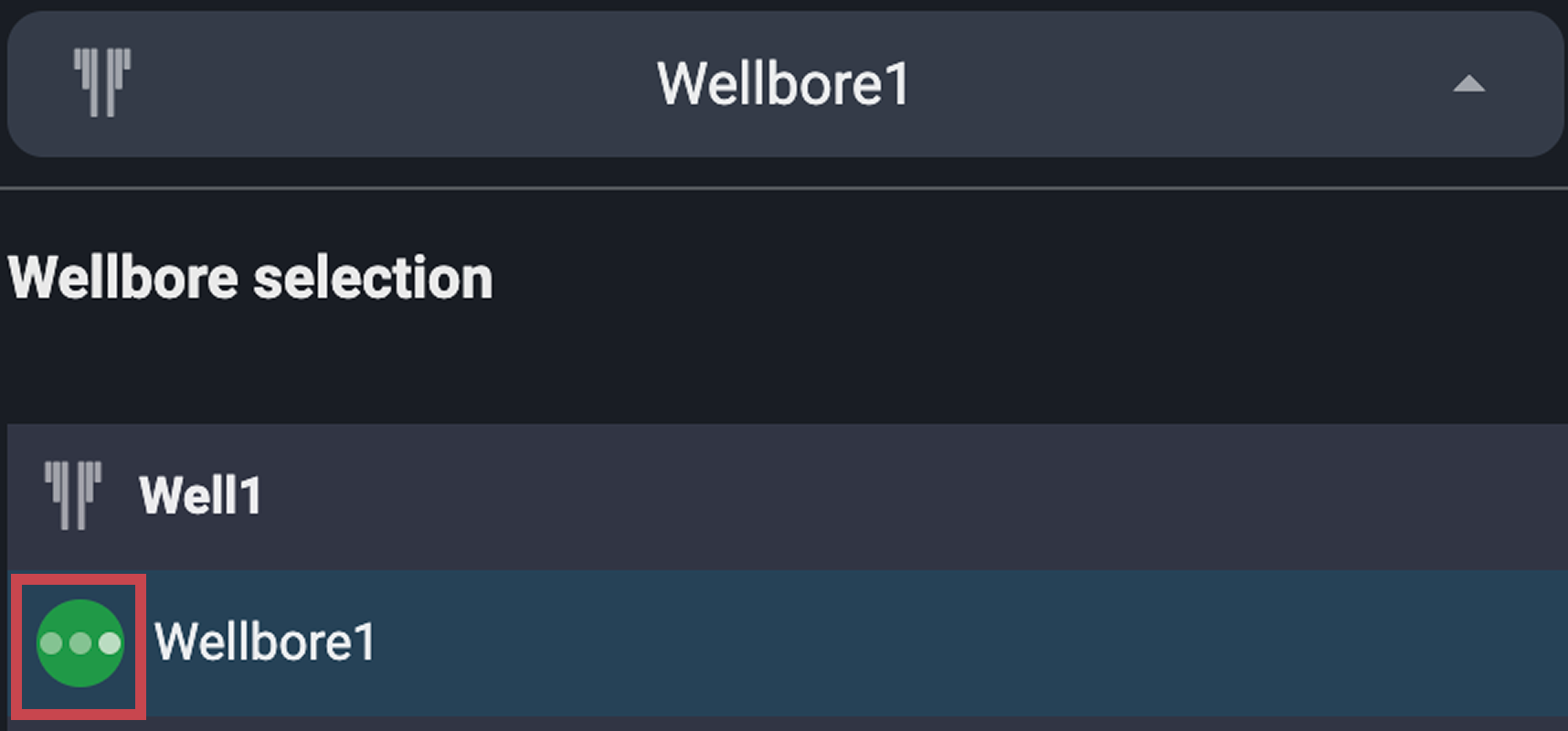
Open WellNav: Click the
 WellNav icon on the Right sidebar to open the tool and navigate between different wells and wellbores.
Find the active well: The current well is marked with the
 running status indicator. You can also click the show active well button to jump directly to the active wellbore. Read more about WellNav here: WellNav