Rig Page widgets
Widgets in Rig Page are grouped and displayed according to screen size and user preference, supporting custom configuration, presenter mode, and multiple pages. Some widgets are fixed, while others can be moved, hidden, or reordered.
Rig picture
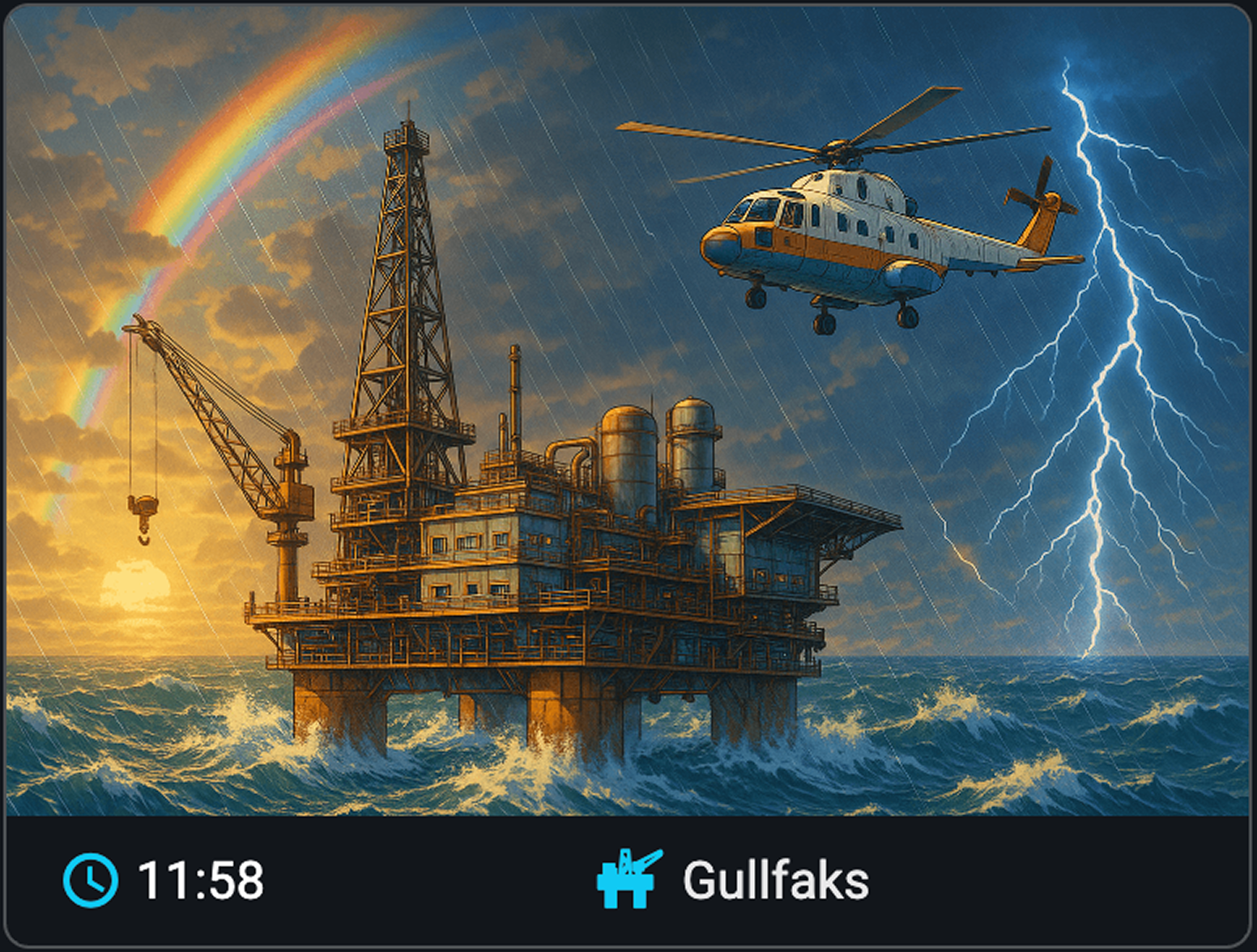
The Rig picture widget displays a static image of the current rig, helping users visually confirm which rig they are viewing in RigFlow.
It appears as a wide banner at the top of the Rig Page. The widget includes an image of the rig, the rig name, and a time indicator.
Step-by-step instructions
Remove the Rig picture: Click the Configure button on the Rig Page. In the list of available widgets, uncheck the box next to Rig Picture to hide it from your view.
Add the Rig picture: Click the Configure button again, then check the box next to Rig picture to make it visible on your Rig Page.
Awareness comments
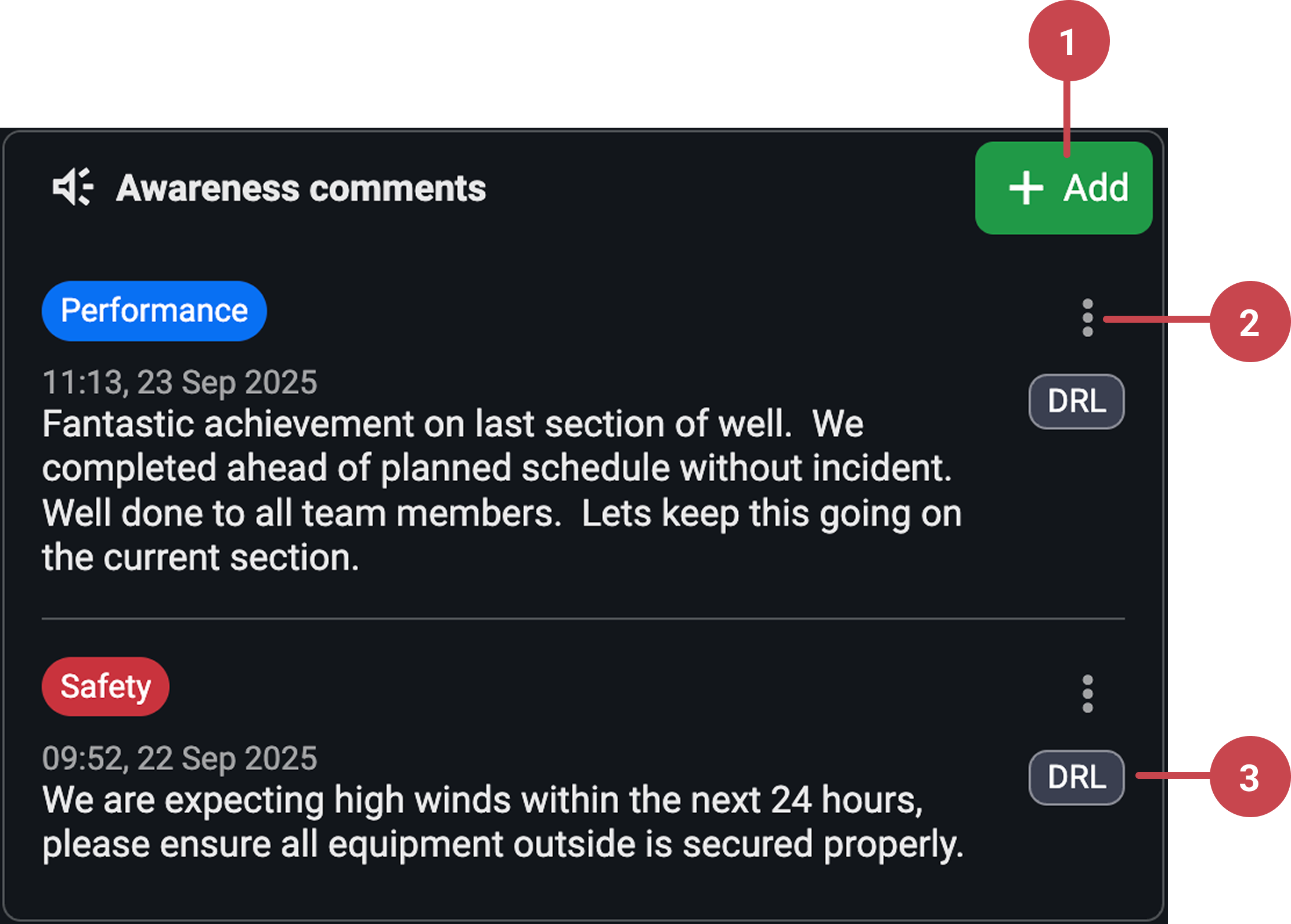
The Awareness comments widget is a fixed, high-priority widget on Rig Page. It is used to communicate important rig-related information that all users must be aware of. Due to its critical nature, it cannot be removed or repositioned. It includes:
Add button: Opens a modal where you can create a new awareness comment. This option is only available if you have the correct permissions.
Options menu: Provides tools to edit or delete an existing awareness comment. These actions are permission-based.
Awareness comment: Each comment displays a tag showing its category, the comment text itself, and the role tag of the person who created the comment.
Important
Awareness comments automatically sync between Rig Page in RigFlow and Rig Page in RigBridge. This means you only need to enter or update a comment in one place, and it will appear in both environments.
Step-by-step instructions
Open the editor: Click on the
 editing icon on the header of the
  awareness comments widget card.
Choose your action: Depending on your permissions, you will be able to:
Add a new comment.
- Edit or
 delete comments you authored.
Select a tag: Choose a tag to identify your comment: general, performance, or safety.
Set a timeframe: Set the
 Show until time picker, to automatically delete the comment at the chosen time.
Note
Only designated roles can add, edit, or delete comments.
Operational summary
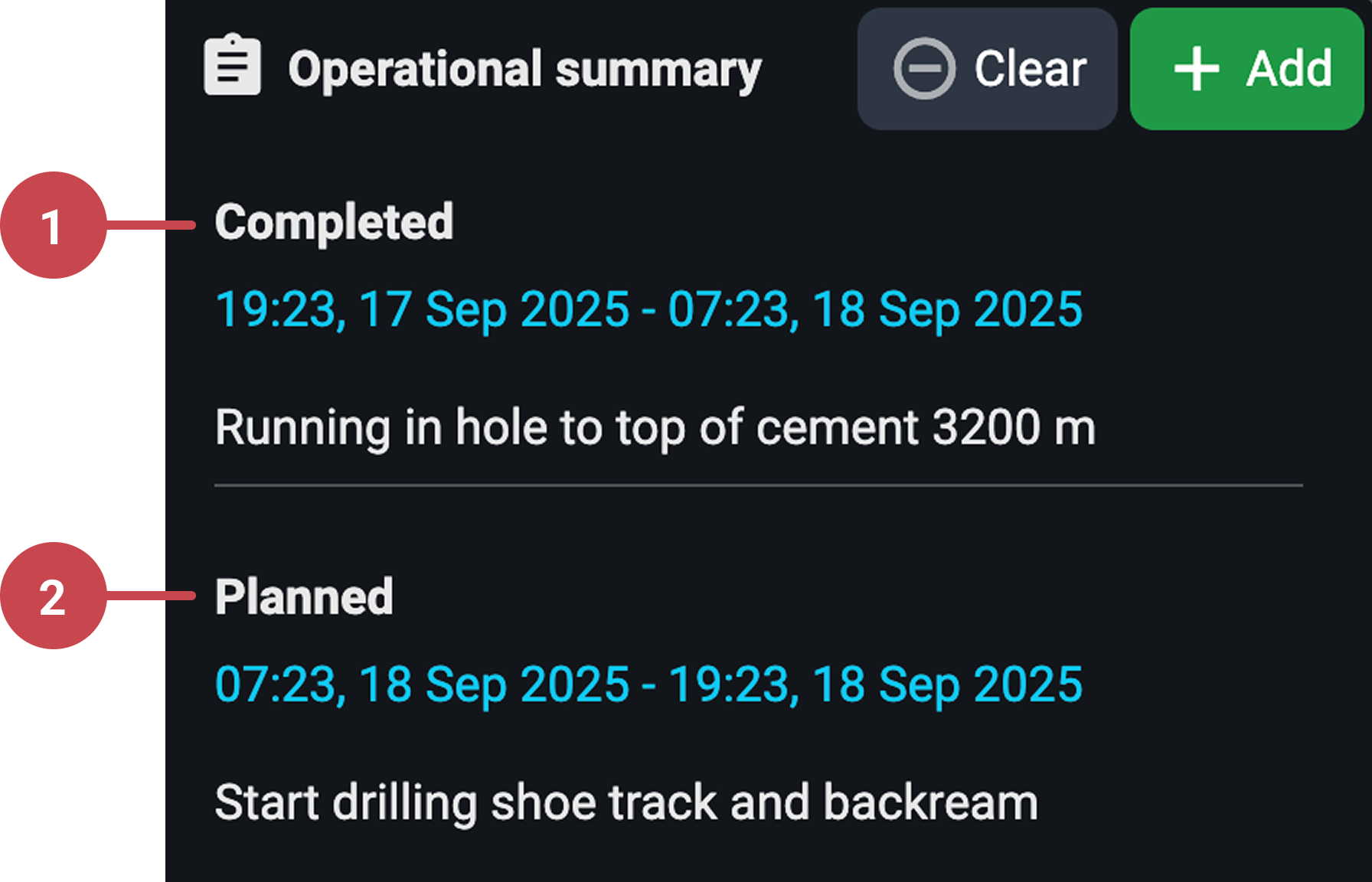
Displays manually entered summaries of drilling activity. It’s organized into two parts:
Completed: Covers completed operations.
Planned: Outlines what is planned next.
Read more about how to generate operational summaries automatically here: ???.
Important
Operational summary automatically sync between Rig Page in RigFlow and Rig Page in RigBridge. This means you only need to enter or update a comment in one place, and it will appear in both environments.
Step-by-step instructions
Open the edit window: Click the
edit icon on the  operational summary widget to open the window.
Note
Only designated roles can add, edit, or delete.
Select start and end times: Use the
Time for operational summary field to choose a reference time for the summaries (the current time will appear as a default).Important
The completed section will automatically cover the 12 hours before the timestamp, and the planned section will cover the 12 hours after it.
Add completed and planned information: Write a completed (previous 12 hours) and/or planned (next 12 hours) summary on their designated locations.
Use the Generate with AI button (if available): In some cases, the Operational Summary widget also includes a Generate with AI button to help prefill the Completed section. Click on it to let the system create a draft summary. Read more about it here: ???.
Mind the active summaries: Only one summary can be active at a time; new entries replace the previous ones.
Live operation
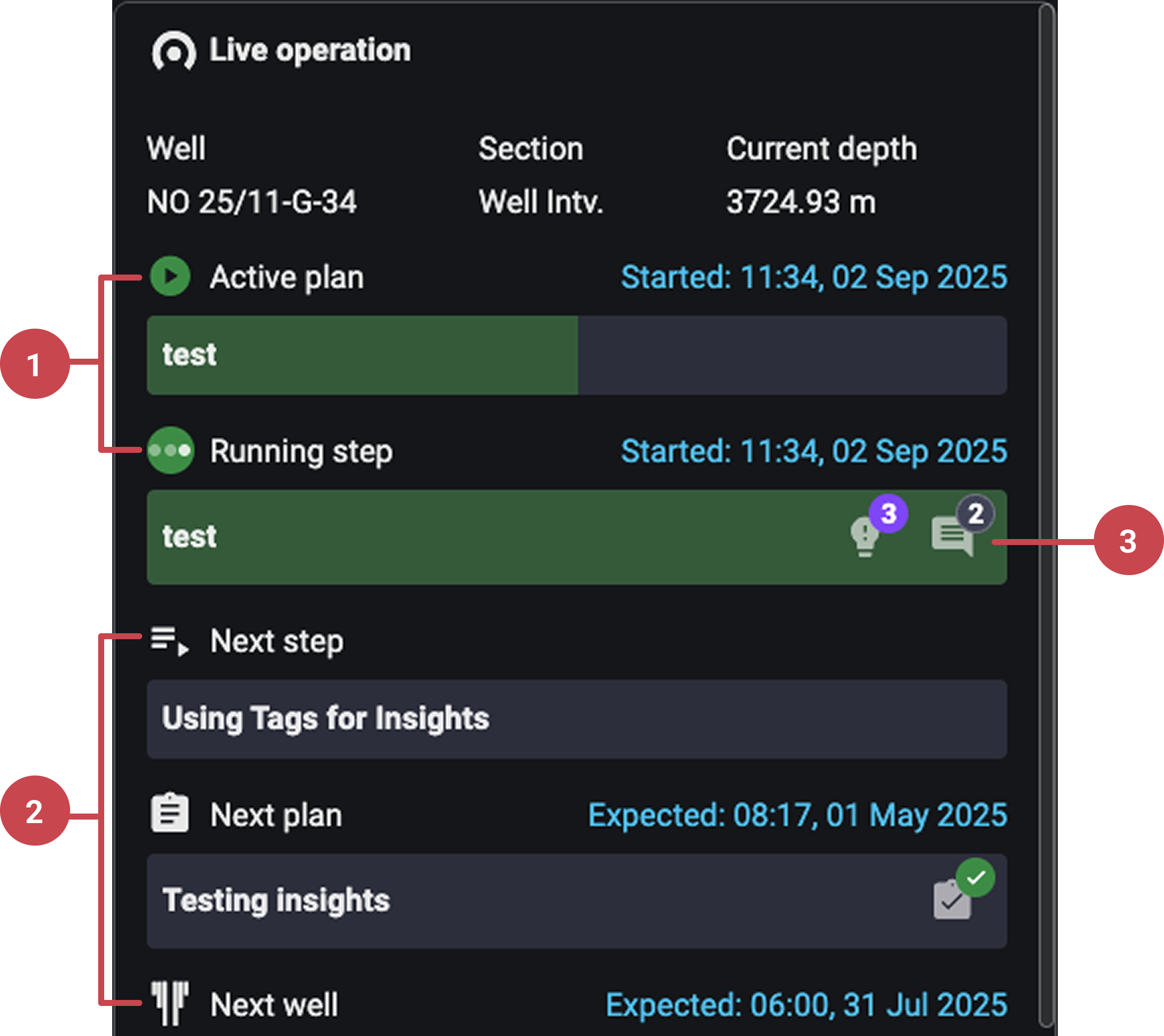
The Live Operation widget provides a clear overview of the current drilling operation. It shows what is happening right now on the rig, what comes next, and whether preparations are complete. It includes:
Active plan: Displays the currently active plan and the active step within that plan.
Next step, next plan, and next well: Highlights the next step, the next plan, and the next well, including their expected start times.
Comments, insights, and preparations: Displays insights, operational comments, and preparations associated with the step, with the option to click and read more.
Step-by-step instructions
View the current operation: Navigate to the Live Operation widget on the Rig Page.
Check insights and comments: Click on any insights or comments linked to the current step to read more details.
See what’s next: Look at the upcoming step, next plan, and next well displayed below the active step. Review the expected start time to prepare for upcoming operations.
Verify preparations: Check the preparation icon.
Overview of the last 12 hours
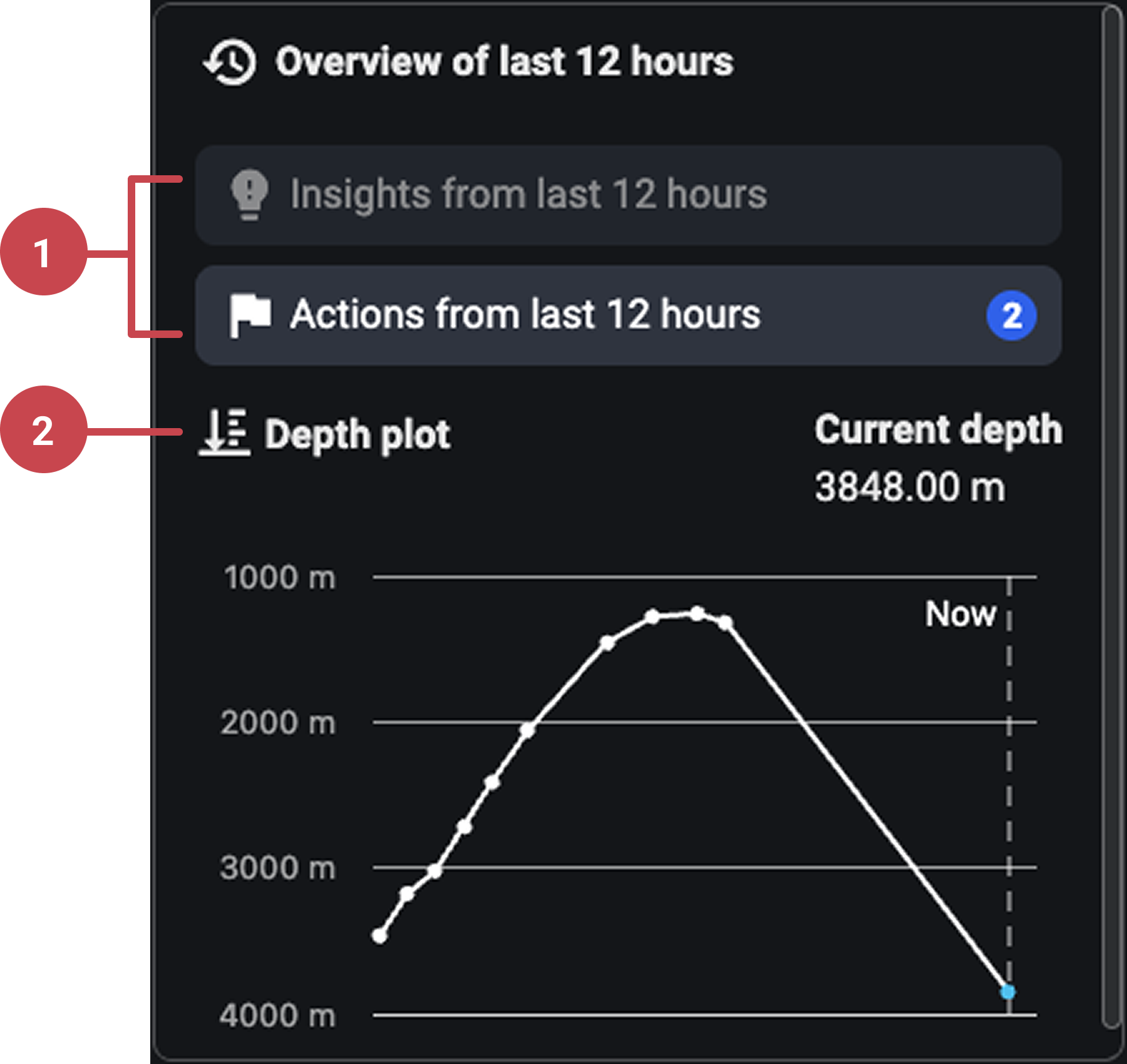
Shows a quick recap of the last 12 hours on the rig—insights and actions—so crews can review what happened before their shift. Actions shown here are only from the primary lane/critical path (actions added in parallel lanes are not included). It includes:
Overviews: A compact panel summarizing insights and actions from the past 12 hours; each item can be clicked to open full details in context.
Depth plot: A simple line plot of bit depth over the last 12 hours that gives a quick sense of whether the bit is going into the well, going out, or remaining stationary.
Step-by-step instructions
Scan the last 12 hours: Open the widget and review the list of insights and actions to understand recent activity.
Important
Only critical-path actions are included
Open details: Click any entry to jump into its full context for more information.
Use the Depth plot for a quick sanity check: Look at the line trend over the last 12 hours to confirm whether operations continued as expected.
Realtime data
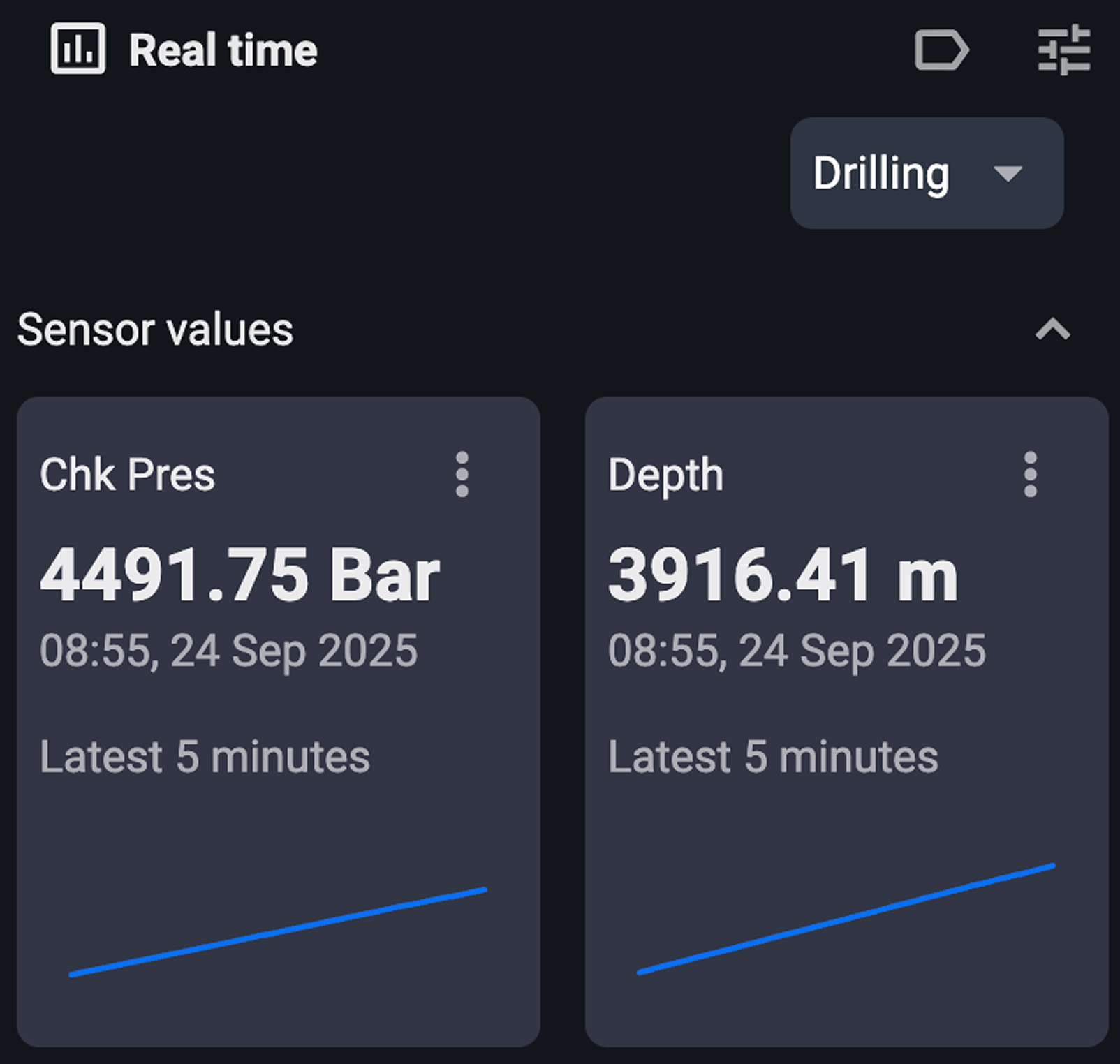
This widget mirrors the Realtime data app by displaying live metrics. Read more about the  Realtime data app here: ???.
Note
Some cards may appear empty if no data is available. Make sure you've selected the correct tag based on the current rig activity.
Step-by-step instructions
Select operational mode (Tags): From the dropdown menu, choose a tag that matches the current rig activity. Each tag automatically groups the most relevant sensors for that operation, streamlining your view.
Add sensors: Click the
 edit tags icon to open the sensor list. Use the checkboxes to select the sensors you want to monitor. Each selected sensor will appear as a Real-Time Card, displaying live values, performance metrics, and trends.
Customize the view: Use the
 options button to toggle trendlines on/off, and expand cards for detailed metrics.
Weather
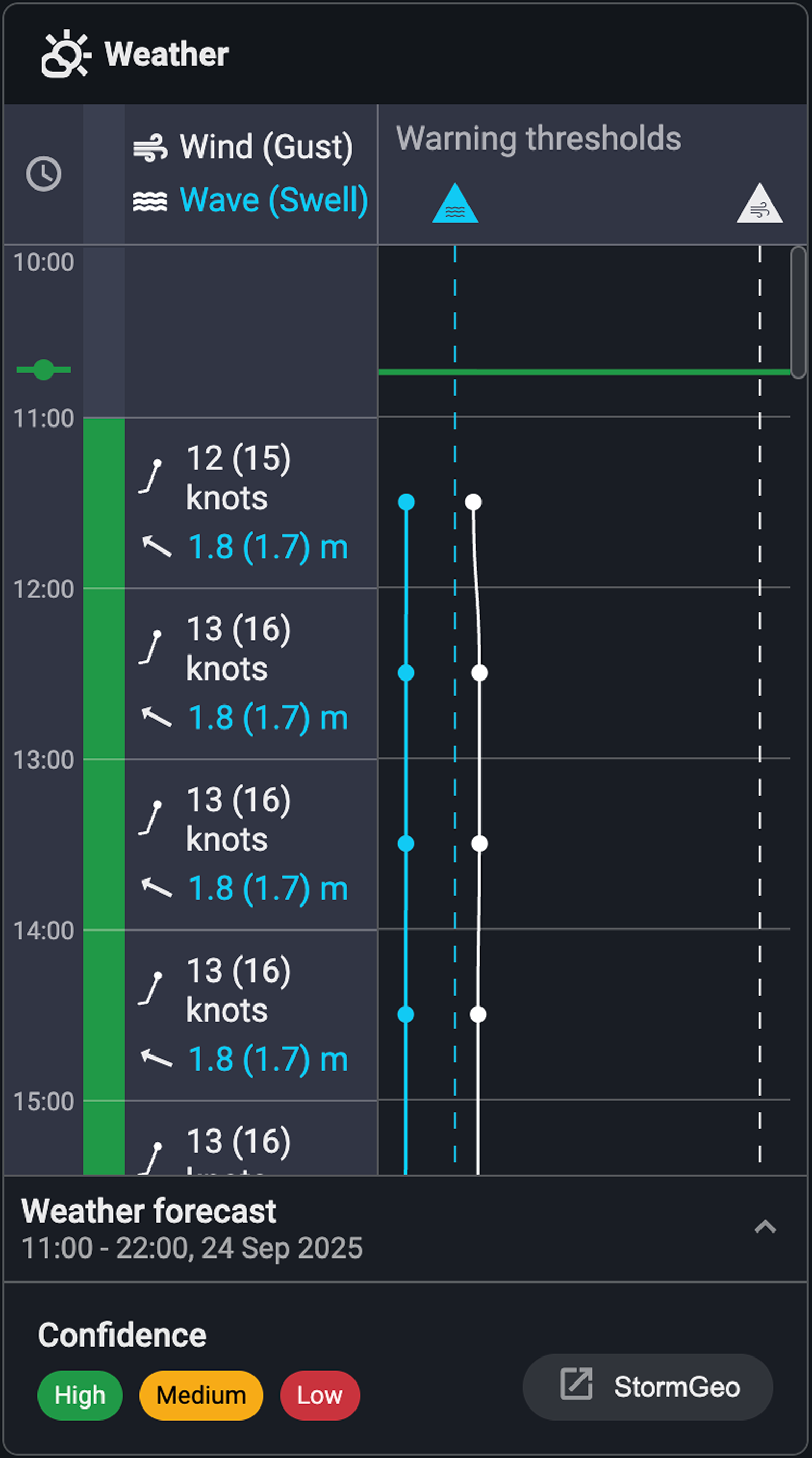
The Weather widget gives a quick view of current and upcoming weather conditions directly on the Rig Page. It mirrors the Weather app, so any changes made in the app are automatically reflected in the widget. Read more about it here: ???
Step-by-step instructions
View the current conditions: Open Rig Page and locate the Weather widget. Open the Weather forecast panel to display the current weather.
Check today’s forecast: Scroll down to see weather predictions for the rest of the current day.
Review tomorrow’s forecast: Look below the midnight divider line to see conditions for tomorrow, up until the following midnight.
Logistics
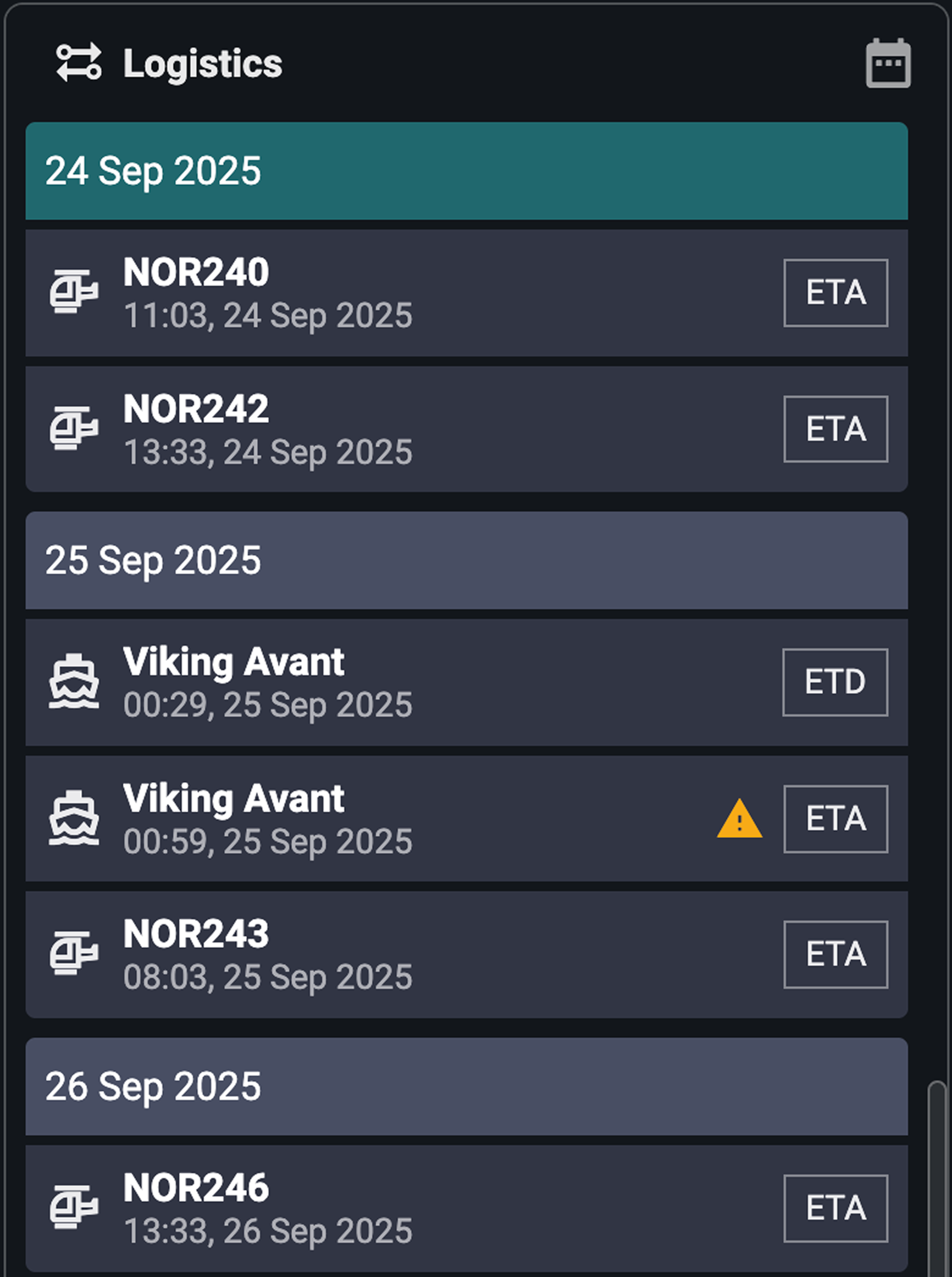
The Logistics widget gives you quick access to vessel and helicopter schedules directly on the Rig Page. It mirrors the Logistics, so the information is consistent across both. The widget helps teams track arrivals, departures, and planned logistics support for the rig. Read more about it here: ???.
Note
The widget and the Logistics app are independent. You can view the table view in the widget while keeping the timeline view open in the app (or vice versa).
Step-by-step instructions
Open the Logistics widget: Locate the Logistics widget on Rig Page. By default, the widget opens in table view.
Switch to timeline view (optional): Use the view toggle to switch from table view to timeline view for a graphical representation of logistics activity.
Check upcoming movements: Review the list or timeline to see scheduled vessel arrivals, departures, or helicopter flights.
Use the Logistics app for more detail: The widget provides a summary, but the Logistics app offers more configuration and detail if needed.
WellNav
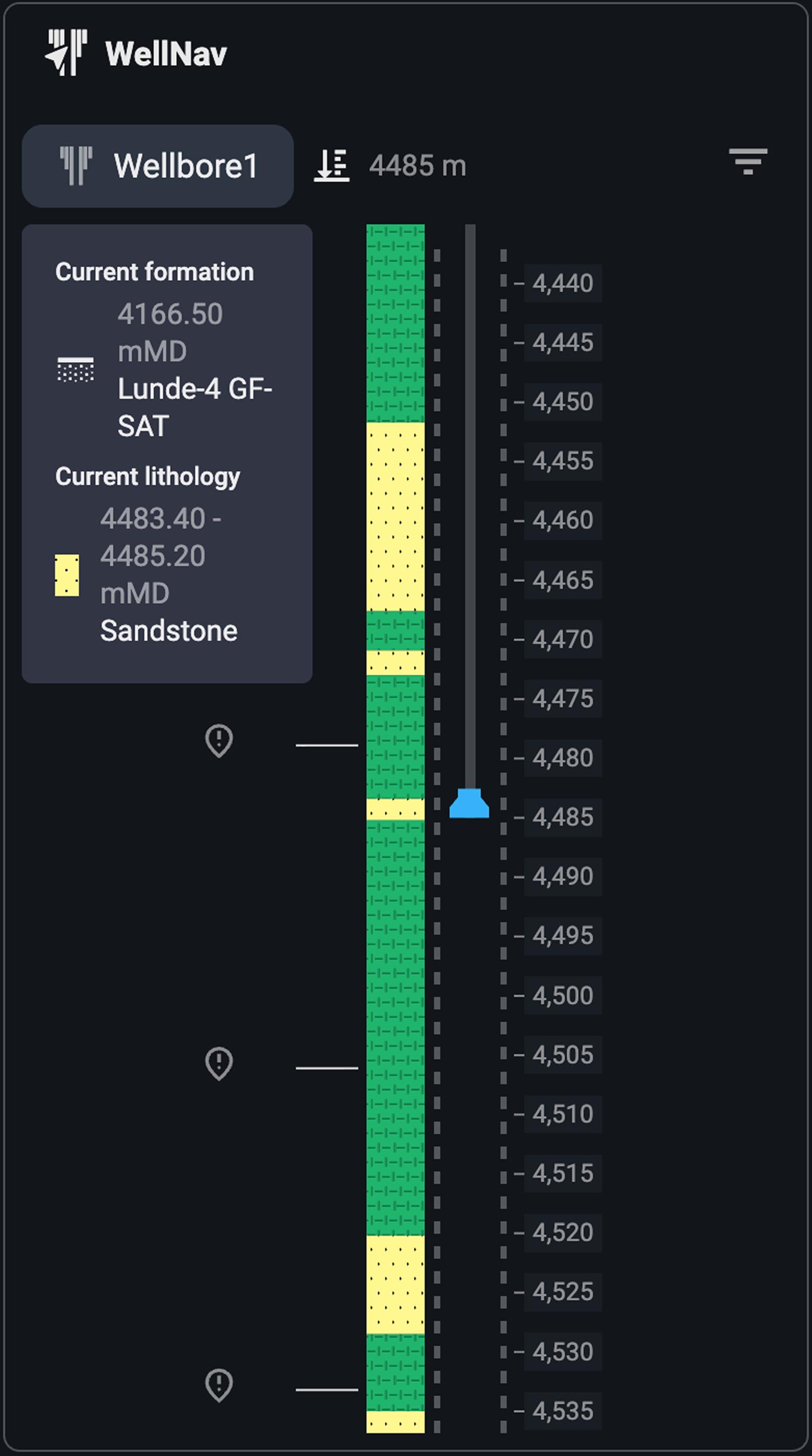
The WellNav widget provides a simplified version of the WellNav app directly on Rig Page. It is designed for quick viewing of well trajectory information, but does not include the full range of features available in the main app. Read more about it here: ???.
Step-by-step instructions
Open the WellNav widget: Locate the widget on Rig Page, it will automatically display the well view.
Check current depth and entries: The widget should display the current depth marker and the next planned entry.
Understand the limitations: Unlike the full app, you cannot add or modify entries from the widget. The table view is not available; only the well view is shown.
Use the WellNav app for full functionality: For adding entries, modifying points of interest, or accessing the table view, open the main WellNav app.
Troubleshooting
Cannot edit comments: You must be the original author and have the correct permissions.
Need to configure access levels: Administrators can set who has permission to update Rig Page content, depending on the server setup:
On a cloud server - Access levels can be configured directly in SysConfig.
On a local server - Access changes must go through the support team.