Configuration
The Configuration button on Rig Page in RigFlow is a key feature that allows you to personalize your view by customizing which widgets are displayed and how they're arranged across multiple pages. This customization helps users focus only on the most relevant information for their specific role, while keeping essential alerts always visible.
How it looks
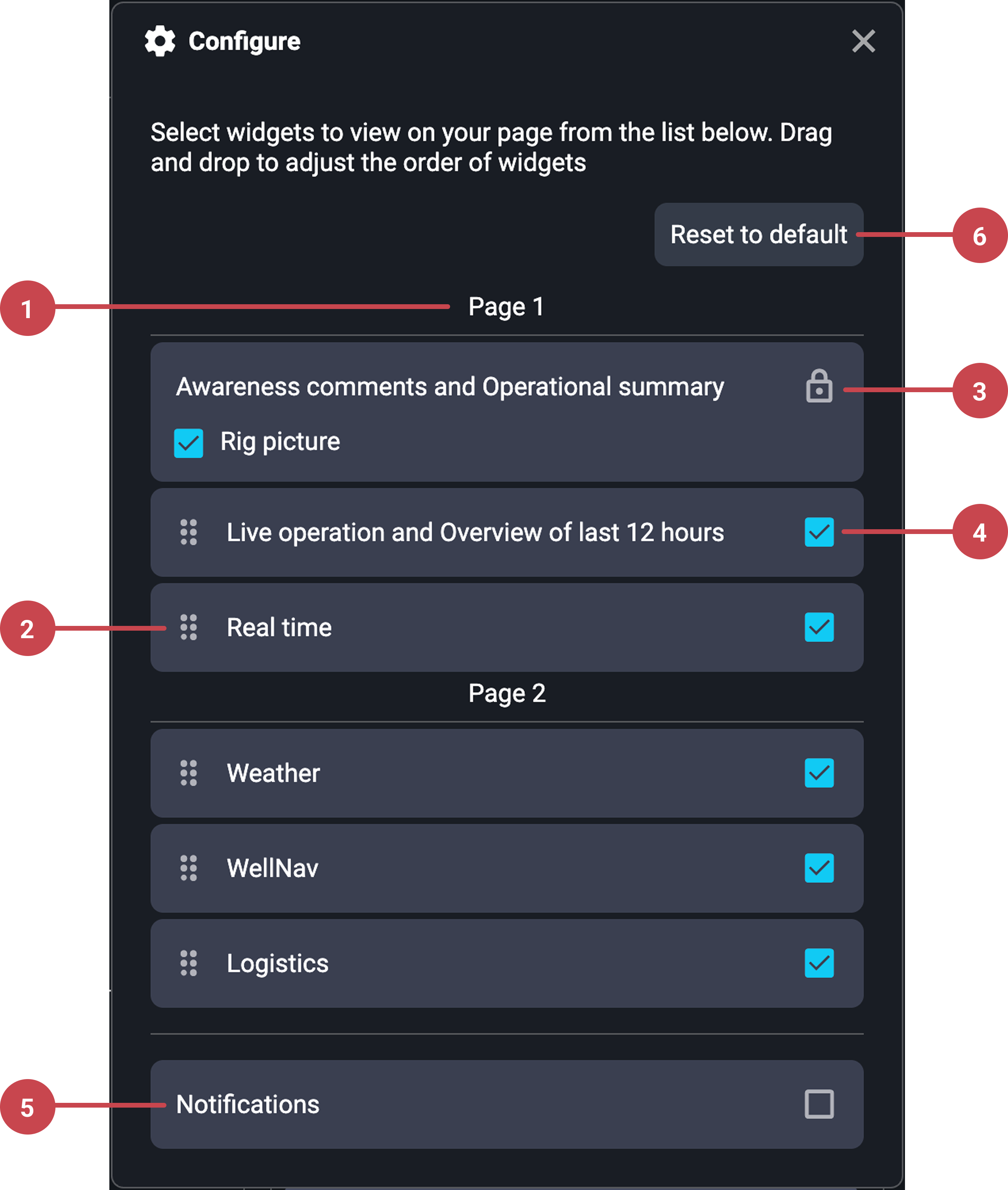
Pages: Rig Page can span multiple pages, depending on how many widgets are active. The number of pages dynamically updates depending on how many widgets are visible and the screen size.
Drag-and-drop icon: Widgets can be repositioned across pages using a drag-and-drop icon. When dragging a widget to another page, it pushes other widgets down, possibly creating a new page if space runs out.
Locked icon: Some widgets, like Awareness Comments and Operational Summary, are grouped and locked; these cannot be moved or separated. A locked icon visually indicates this restriction.
Check boxes: Each widget has a checkbox that allows users to turn it on or off, controlling whether the widget is displayed or hidden.
Hidden widget section: Widgets that have been turned off (unchecked) are collected at the bottom of the Configuration panel. From this section, you can reactivate a widget by checking its box again.
Reset to default button: Clicking this will restore all widgets to their default visibility and order as pre-defined.
Step-by-step instructions
Open the configuration button: Navigate to Rig Page and click Configure on the header. You'll see an overview of the current layout across pages.
Rearrange widgets between pages: Drag and drop widgets between pages with the drag and drop icon. The system will automatically push other widgets down or to the next page if space is insufficient.
Turn widgets on or off: Scroll to the list of widgets and check/uncheck boxes to show or hide specific widgets. Hidden widgets are listed at the bottom of the Configuration panel.
Reset to default: Click the Reset to default button in the panel. This will restore all the widgets to the default visibility and order.
Examples
A crane operator might turn off all widgets except Weather (Note: Awareness Comments cannot be turned off or moved, as they contain critical information).
Tips and tricks
You can still open side panels while viewing the Rig Page. If both side panels are open, the number of visible widgets per page decreases, which is reflected in the Configuration layout.
The layout is responsive. You will see fewer columns on small screens or when side panels are open, and Portrait mode can display 2 rows of widgets, maximizing space.