Restricted Access
 Restricted Access in RigFlow is a feature designed to control the visibility of sensitive operational data, ensuring that only authorized personnel can access or modify content. This is particularly useful in situations requiring confidentiality, such as exploration wells, where data exposure could impact financial markets.
How it looks
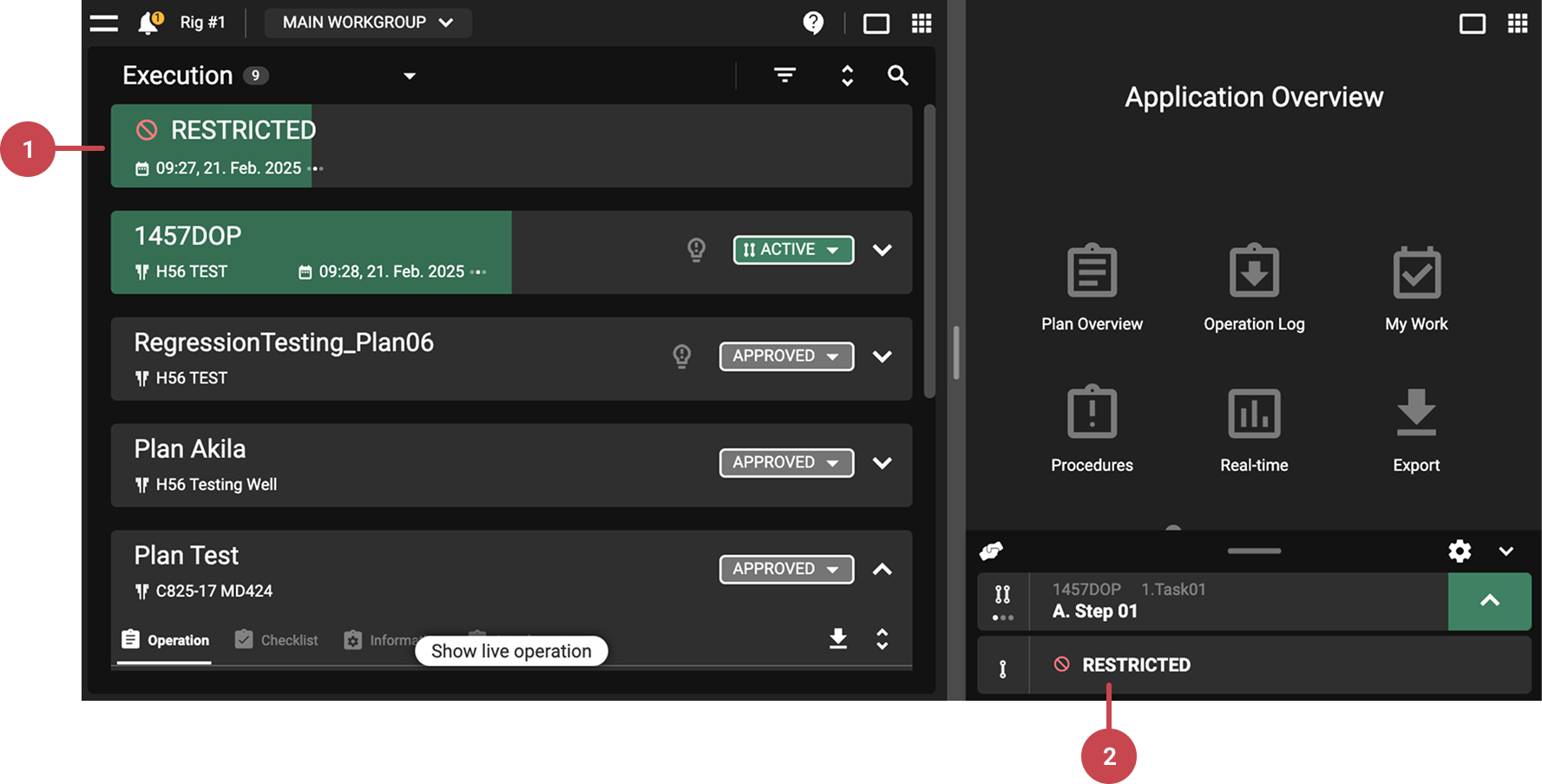
Restricted Access is visible throughout RigFlow and is indicated with a RESTRICTED label in areas where content is restricted, for example in the Operation Log.
Note
Restricted content cannot be exported from the Export app.
Restricted plan: When a plan is restricted, it will not display its status or title. Users can click on the plan row to request access. You can read more about how to use it on Request access to a restricted plan.
Restricted step: If a plan is restricted, all associated steps will also be restricted, displaying the
RESTRICTED label.
Step-by-Step instructions
Request access to a restricted plan
Note
A team lead within RigBridge will review and approve the access request.
If you need access to a restricted plan, follow these steps:
Open the
 Plan Overview.
Locate the restricted plan, which will be marked as
RESTRICTED.Click on any restricted content to open the Request Access modal window.
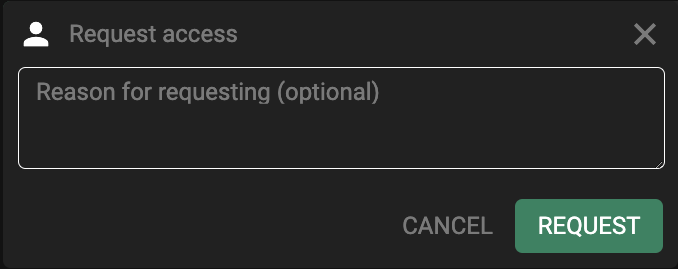
(Optional) Add a reason for your access request.
Click REQUEST to submit your access request.
A button labeled Access Request Pending appears on the plan row while your request is being reviewed.

You will receive an email notification if access is granted, and the plan will change to show all content.
Cancel an Access Request
If you no longer need access to a restricted plan that you previously requested, you can cancel your request by following these steps:
Open the
Plan Overview.Locate the restricted plan with a Access Request Pending button.
Click Access Request Pending to open the Access Request Pending modal.
Click CANCEL REQUEST to withdraw your request.
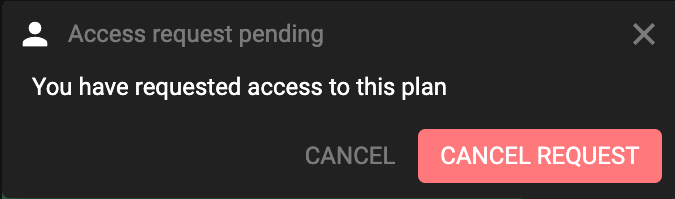
Your request for access is removed.
The plan remains restricted unless access is granted in the future.
Tips & tricks
Access requests are only available at the plan level within RigFlow.
Requests must be made through the Plan Overview app - steps under a restricted plan remain inaccessible unless access to the entire plan is granted.