Notifications
Notifications in RigFlow are essential for keeping you informed about important updates, alerts, and actions that require attention.
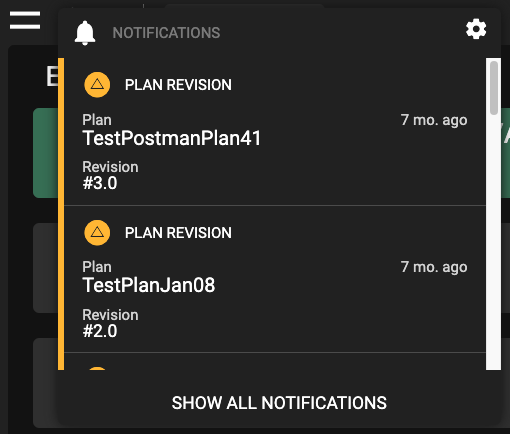
Notifications typically appear as alerts or messages within the user interface. They are designed to be easily noticeable, often displayed as pop-up alerts or within the notification panel. The interface might include icons or symbols indicating the presence of new notifications, often found in the header (shown with the following icon  ) or as a part of the Global Action Bar.
Setup notifications
Click the
notification icon located in the header.Select the
 settings icon from the notification menu.
Toggle your desired notifications on or off from the list provided.
Close the window by clicking the
 close icon when you’re finished.
Accessing Notifications
Click the
notification icon located in the header.View active notifications if any are available.
Click on a notification to be directed to the linked content for more detailed information.
Types of notifications
System Alerts: Notify users about system maintenance or updates. These are typically displayed in the header.
Error Warnings: Alert users when an error occurs within the system, prompting necessary action. They are usually shown in the header.
Task Reminders: Remind users of pending tasks or missed checks within a step. They are often displayed above the Global Action Bar.
Plan updates Reminders: Inform users about updates to e.g. plans, attachments, or revisions. These notifications are generally found in the header under the notification icon.