Global Action Bar
The Global Action Bar in RigFlow is a vital component designed to help users maintain a visual overview of the current active steps or actions, regardless of the displayed application within the RigFlow system. It is located at the bottom of the RigFlow user interface.
Overview of the Global Action Bar (GAB)
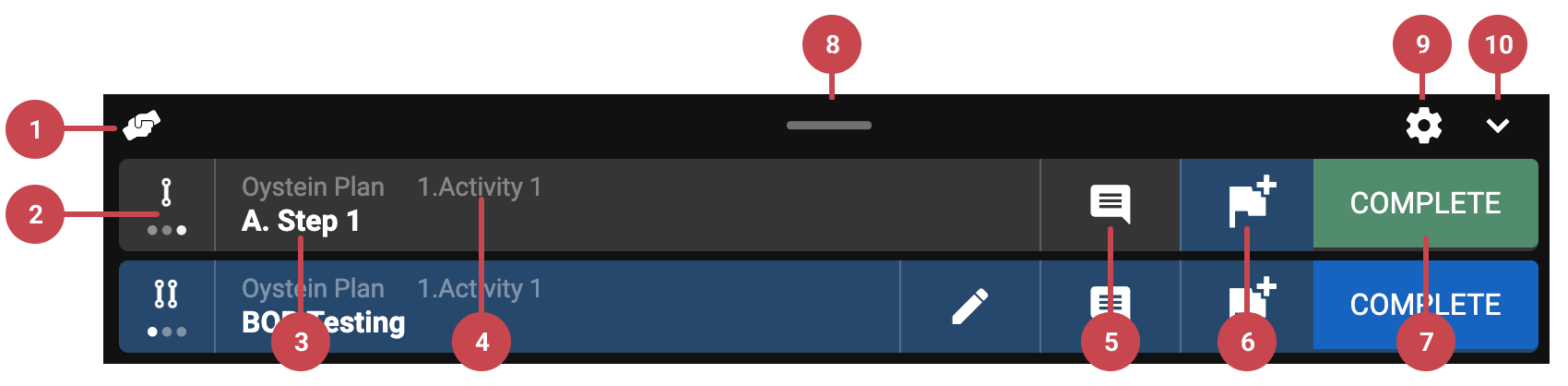
 Co-pilot: This feature allows other users to control steps, add actions, or temporarily modify plans. For more information, refer to Co-pilot.
Primary, secondary, or action lane: Categorizes operations into main tasks (primary), supporting tasks (secondary), and specific tasks (actions).
Step title: Displays the title for each task or action.
Breadcrumb to the step title: A clickable path that helps users navigate to a higher hierarchy level.
 Comments: Users can add comments or feedback on specific steps or actions. For more information, refer to Comments.
 Actions: Create unplanned steps (called actions) for immediate needs, like equipment checks or repairs. For more information, refer to Using actions.
Complete steps or plans: By clicking on this button, a step will be set as finished and move to the next. It can also be used to finalize a plan and continue on to the next plan. For more information, refer to Completing steps or plans.
 Move the bar vertically: By clicking and holding the line, you can see the next step in the Global Action Bar (GAB).
 Settings: The Global Action Bar can be repositioned within RigFlow. You can move it to the left or right side of the screen or place it in the centre as a floating layer.
 Minimize: Reduce the height of the Global Action Bar (GAB) to save view space in RigFlow.