IPT Global Well Integrity Assurance
This article provides an overview of viewing IPT Global’s well integrity applications within the RigFlow application.
What is IPT Global?
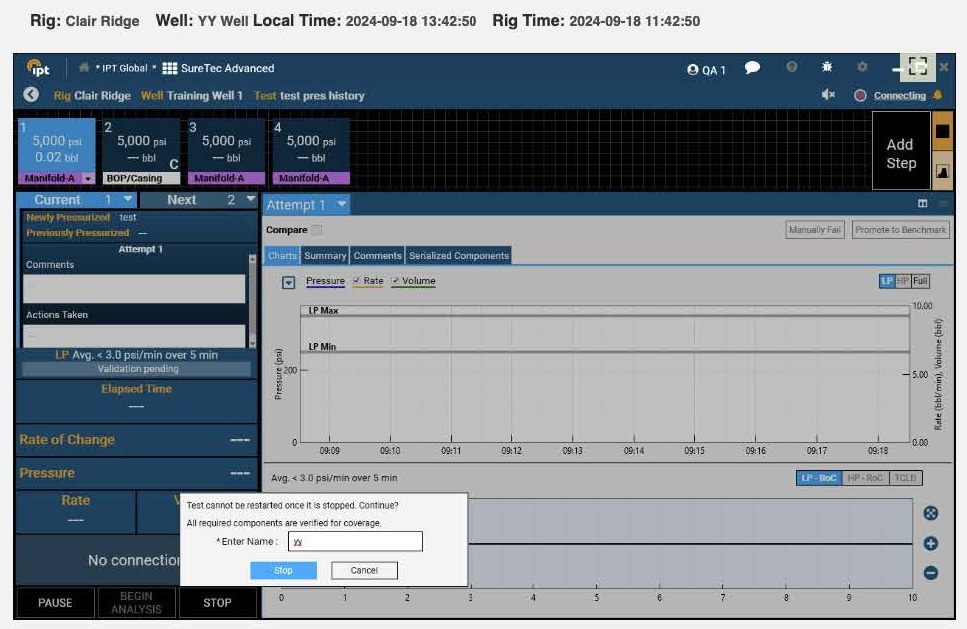
IPT Global provides tools and services for well integrity test planning and execution through SureTec, their test planning and execution product and SureView, their cloud-based application which provides remote viewing of active tests, in addition to providing integrity test data organization, retrieval, and analysis.
Active tests can now be viewed directly in RigFlow. The visual integration of well integrity testing into RigFlow streamlines operations by providing direct access to necessary information, progress, and results. This allows you to execute Plan's in RigFlow whilst monitoring IPT assurance software on a single screen without switching platforms.
Where can you find IPT in RigFlow?
To access IPT within RigFlow, follow these steps:
Find the
 App menu icon at the upper right corner of the RigFlow screen.
Click the icon to open the drop-down menu.
Click on the IPT icon in the Application Overview to open it.
This will open the IPT interface, where you can sign in using SSO or a token. For more information, refer to how to get SSO or token working.
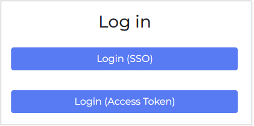
You can log in to SureView by following one of these steps:
Using SSO: On the login screen, choose the Login (SSO) option.
Using Access Tokens: On the login screen, select the Login (Access Token) option. You will be prompted to enter the Token text. After entering the token, click Login.
You will now have access to Active tests inside RigFlow.
Tips and tricks
How to get SSO or Token access working
First, access to SureView requires an active SureView account. For assistance, please contact IPT Global at +1 (281) 204-2912 ext. 1.
Users can access SureView’s remote viewing in two ways, Single Sign-On (SSO) or using access Tokens. SSO is the easiest, and preferred method, but it may not always be possible. In lieu of SSO, IPT Global can access login Tokens.
How to make the IPT view bigger
Ensure you are in the split-screen mode in RigFlow. You should see a vertical bar separating the two views.
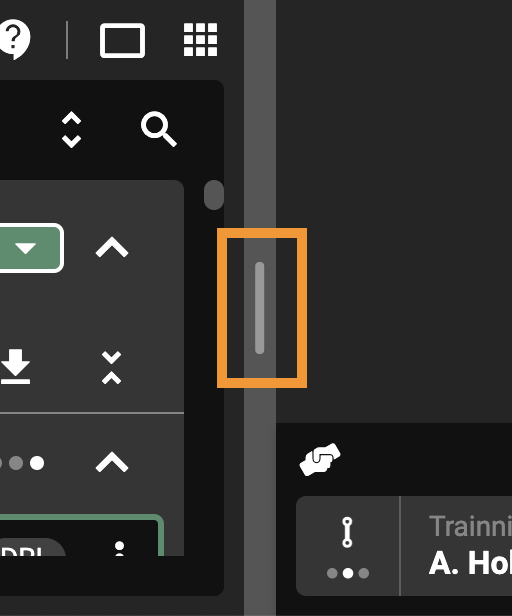
Click on the drawer icon at the center of the vertical bar and click and push it either to the left or to the right.
This will adjust the size of the IPT view, making it larger or smaller, depending on your preference.
Use the
 Full-screen mode icon, typically located in the top-right corner of the split-screen area.
This will expand the IPT view to occupy the entire screen, providing a more extensive workspace.
Troubleshooting
For SSO difficulties
Clear browser cache and cookies.
Try accessing through an incognito browser session.
For Token issues
Ensure the Token text is complete and includes no additional characters, including training spaces or punctuation.
Tokens can expire. Please contact IPT Global to request an updated access Token.