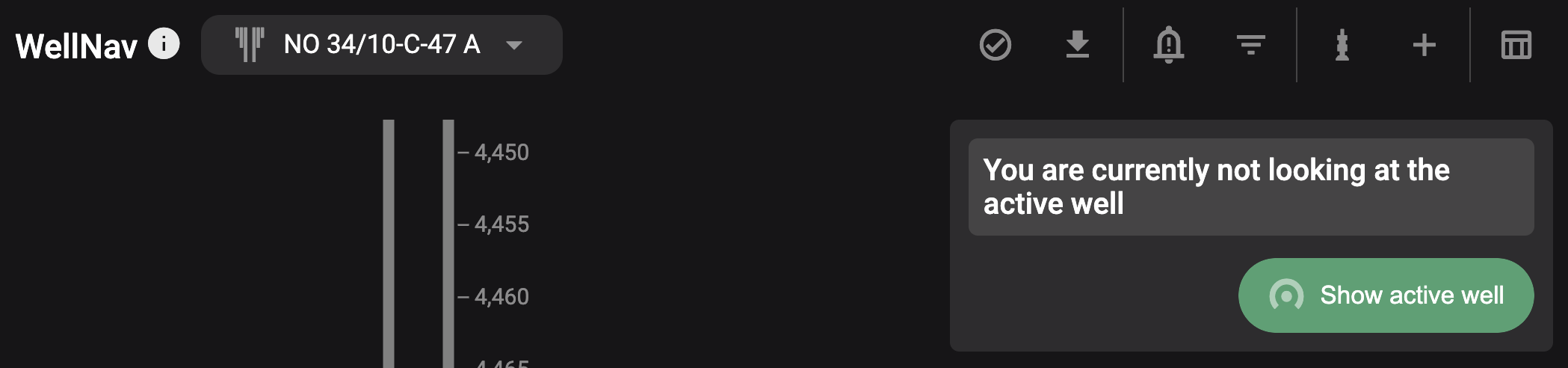
Select wellbore & navigate to active well
The wellbore selector allows you to easily navigate between different wells and wellbores. This can be used to preview upcoming wells and review past entries.
Change to another plan
Open the wellbore selector: At the top of both the Table view and Well view, you'll see the wellbore selector. Click on it to open a drop-down list.

View available wells: The drop-down list shows wells available from the geology team database. The active well is marked with three dots.
Select a wellbore: Find the well and wellbore you want to view, and click on it. The selected wellbore will load in WellNav and be highlighted in blue.
Return to the active plan
Open the wellbore selector: At the top of both the Table view and Well view, you'll see the wellbore selector. Click on it to open a drop-down list.
Return to the Active Well: Select the well marked with three dots from the drop-down list to navigate back to the active well.
Alternative Method: You can also return to the active well by clicking the Show active well button, which is available in both the Well view and Table view.