Notifications in WellNav
Understanding active entries
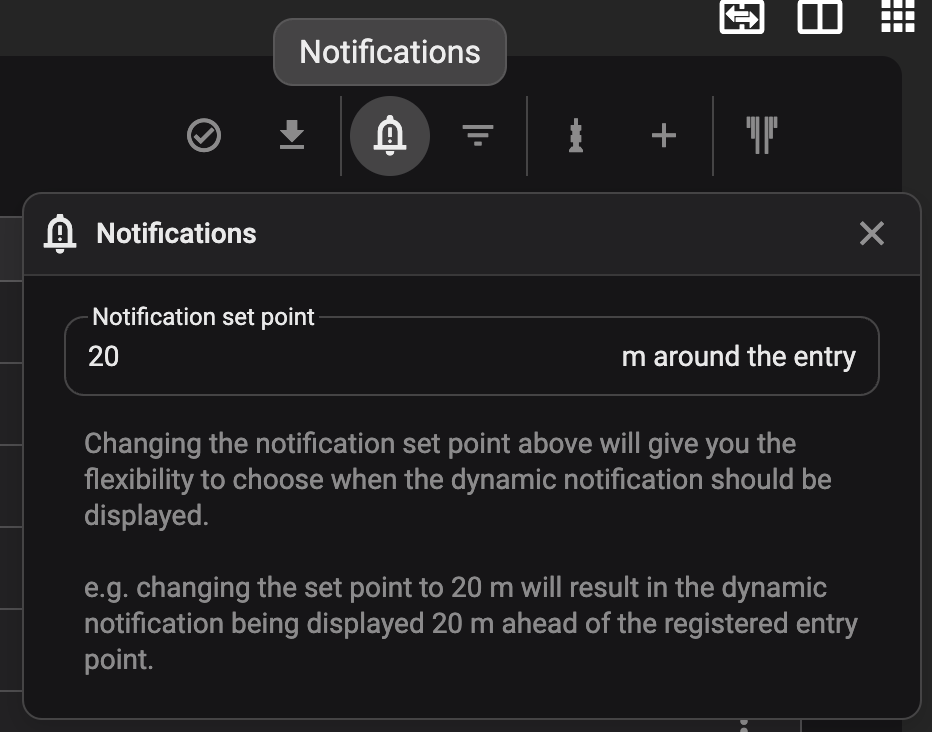
An entry becomes active when it falls within the notification range of the bottom of the string, providing timely alerts and visual confirmation in the well-view panel. The notification range can be adjusted flexibly at any time. Consider setting a broader notification range during fast-tripping to ensure you receive alerts promptly.
Notification display
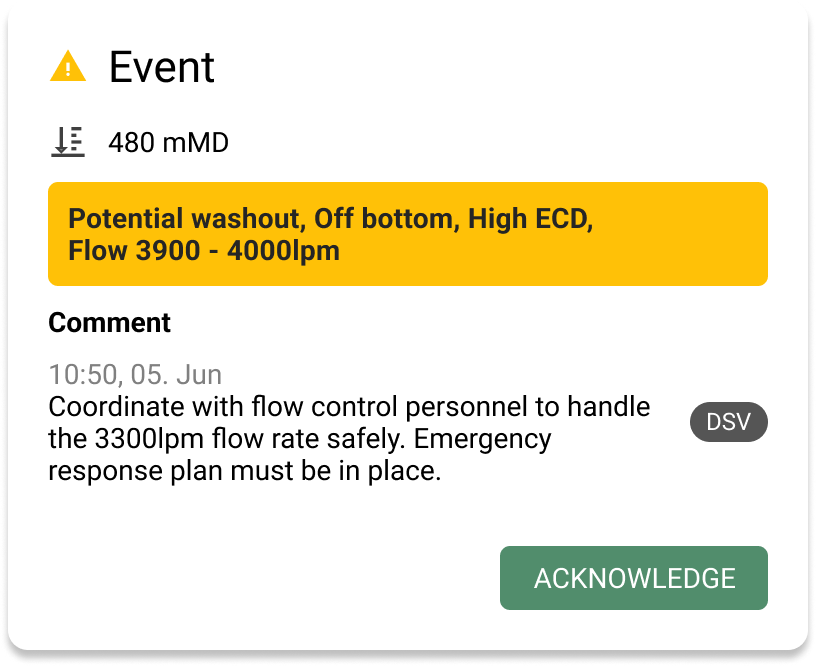
Notifications are displayed on the driller's Global Action Bar in RigFlow and linked to the bit depth provided by the control system.
Adjusting the open hole start point is essential since only entries in the open hole are flagged. Risks above this point are assumed to be mitigated by casing, so no notifications are generated for such entries, except for RigFlow entries. You can modify the open-hole start point value to suit your operational requirements.
Warning
Be cautious of potential inaccuracies in bit depth readings at low string weights.
Tip
When you acknowledge a notification, it will only disappear from the computer you are using. This will not hide the notification on other units.
Modify open hole start point
Adjusting the open hole start point is essential since only entries in the open hole are flagged. Risks above this point are assumed to be mitigated by casing, so no notifications are generated for such entries, except for RigFlow entries.
You can modify the open hole start point value to suit your operational requirements.
Locate the correct well and plan: Find the appropriate well and plan.
Access the open hole entry menu: Click on the
 More menu icon.
Update depth and save: Click
 Update depth, change the depth and description. Then, click
  Save to apply the changes.
Note
Notifications for RigFlow entries remain consistent, even if they are above the open hole start point, ensuring continuous awareness.
How to snooze notifications
During reaming operations, the bit's movement up and down the wellbore can trigger unnecessary notifications. Here is how to snooze that kind of notifications.
Locate the entry: Find the entry you want to snooze.
Access the entry menu: Click on the
More menu icon.Snooze the notifications on an entry: Click
 Snooze entry for 1 hour.
The snooze for notifications is available only for Geology Team and RigFlow entries.