Operation Log
The Operation Log is a tool that helps you keep track of all the activities and steps during an operation. It's like a diary where you can see what has been done and when.
Overview
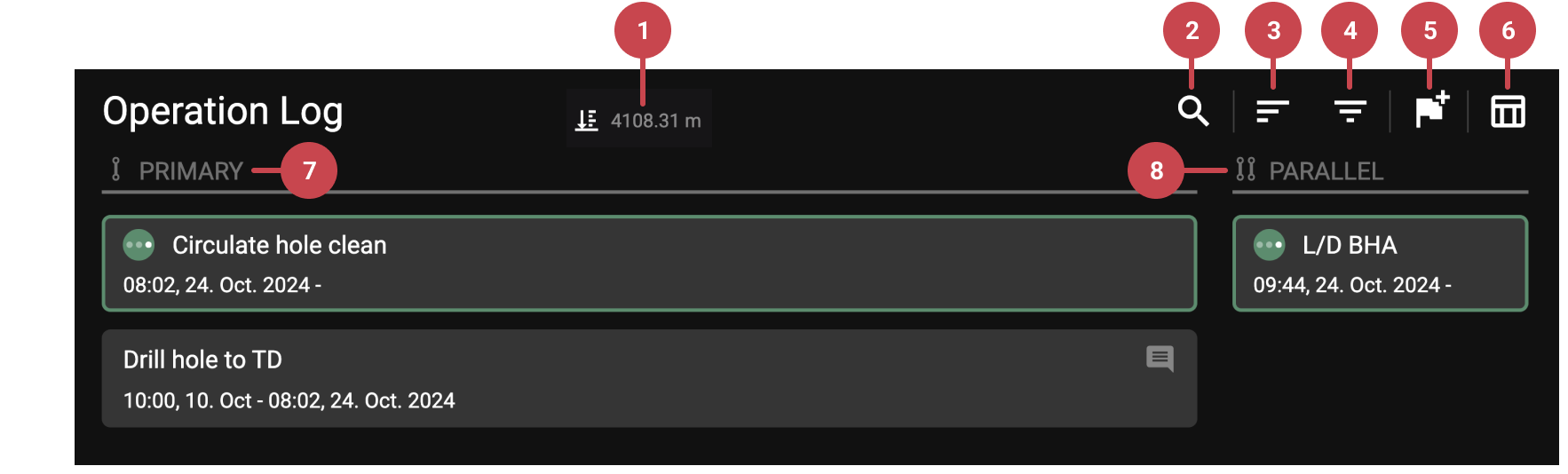
The Operation Log visually represents data collected during drilling operations, including sensor data, user inputs, and any actions or comments from RigFlow users. It consists of the following features:
Current Depth: Displays the current depth received from the rig's sensor.
 Search: This allows you to search the operations log for specific operations based on keywords within the steps.
 Sort Order: This enables you to change the order in which operations appear, either in descending or ascending order.
 Filter: Use filters to display data from a specific time range (default is 72 hours) and choose what information appears in the log. You can also select options like showing both Primary and Parallel lanes or only operations added by the rig team.
 Add Historical Action: You can add historical actions to the operations log (only with the correct permission). For more information, refer to the Create, edit or delete historical actions and steps.
 /
/ Toggle Table/Log View: This option allows you to switch between table and log formats for viewing the data.
 Primary Lane: This lane displays the main operational steps used as the source for the rig's operational reports. For more information, refer to Managing Primary and Parallel Activities.
 Parallel Lane: Used for tracking simultaneous actions alongside the primary operation. For more information, refer to Managing Primary and Parallel Activities.
Tip
Planned steps are shown in grey, and actions are represented in blue.