Team verifications
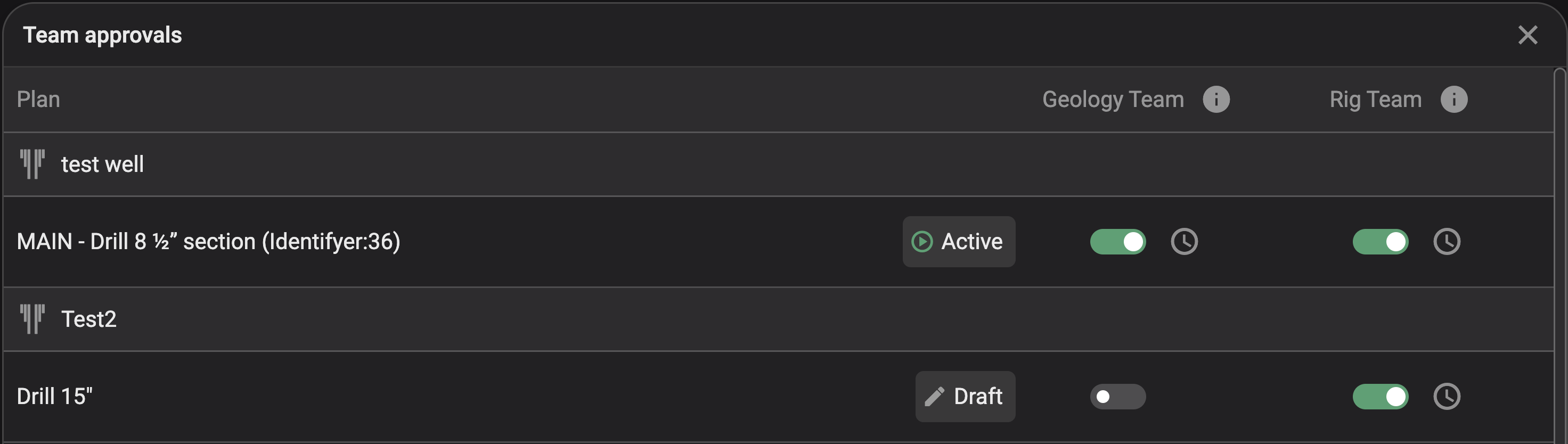
Team verifications offer a visual confirmation within RigFlow that WellNav is correctly configured for the current plan and well, ensuring the information and notifications are reliable.
Geology team verification: The geology team activates their verification once the geology database and entries for a specific well are fully prepared.
Trip-in: Wellbore is prepared in the geology database, pre-risks and formation top prognosis are added to the wellbore.
Trip-out: Pre-risks and prognosed formation tops are removed, all relevant risks and events with correct severity levels are added to the wellbore.
Rig team verification: The rig team provides their verification after the string point of interest, open hole start point, and notification range have been properly configured.
How to use Team verifications
Team verification confirm that a responsible person has verified the information as accurate and ready for use.
Verify geological entries for a plan
Navigate to team verifications: Click on
 Team verifications in the WellNav top navigation.
View verification definitions: To learn more about the definitions of Geology Team verification and Rig Team verification, click on the
 information icon.
Locate the correct well and plan: Find the appropriate well and plan. WellNav displays the plan status, allowing you to distinguish between active and upcoming plans.
Provide team verification: Click on the toggle to set your team’s verification. Note that only specific roles may have the authority to verify.
Verification confirmation: Once approved, the toggle will turn green. You can click on the clock icon to view the role, date, and time of the verification.
Withdraw verification on the geological entries for a plan
Navigate to team verifications: Click on
Team verifications in the WellNav top navigation.Locate the correct well and plan: Find the appropriate well and plan. WellNav displays the plan status, allowing you to distinguish between active and upcoming plans.
Remove team verification: Click on the toggle to withdraw the team verification. Note that only specific roles may have the authority to verify.
Withdraw confirmation: The toogle will turn grey once the verification is withdrawn.