Presenter mode
Presenter mode in Rig Page is a specialized display setting designed to cycle through multiple pages of widgets automatically. It's ideal for use in environments where a full-screen view of the latest data is needed without manual interaction.
When Presenter mode is activated, Rig Page transforms into a clean, distraction-free display ideal for passive viewing.
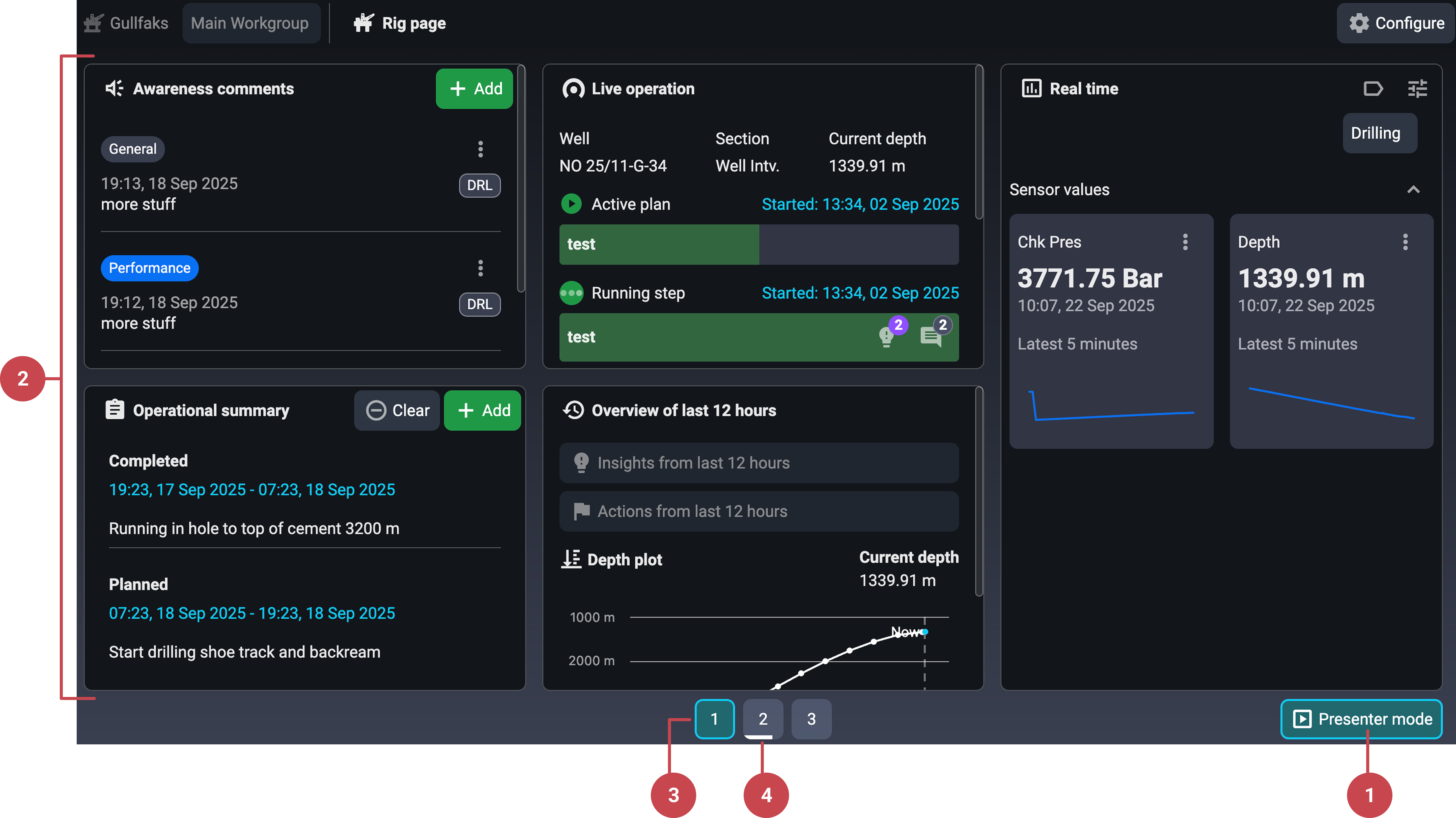
Active mode indicator: When Presenter mode is running, the Presenter mode button remains highlighted. Users can still interact with widgets, and Presenter Mode continues unless it is manually stopped or interrupted by a page click.
Widget layout: The number of widget columns automatically adjusts based on your screen size. When Fullscreen mode is enabled, the layout expands to fill the entire screen, removing all browser interface elements. This creates a clean, uncluttered view that uses the entire screen to showcase widgets and data.
Note
Presenter Mode also supports portrait displays. The layout will automatically adjust to show two rows of widgets instead of just one.
Pages: Presenter mode automatically cycles through all configured pages in sequence, displaying each one for a set interval. The currently active page is clearly shown, and a visual countdown indicates which page is coming up next.
Page countdown timer: A progress indicator bar appears at the bottom of each page number. This bar slowly fills to indicate the time left before the display automatically flips to the next page. Users can set this interval to 30 seconds, 1 minute, or 2 minutes.
How to activate Presenter mode
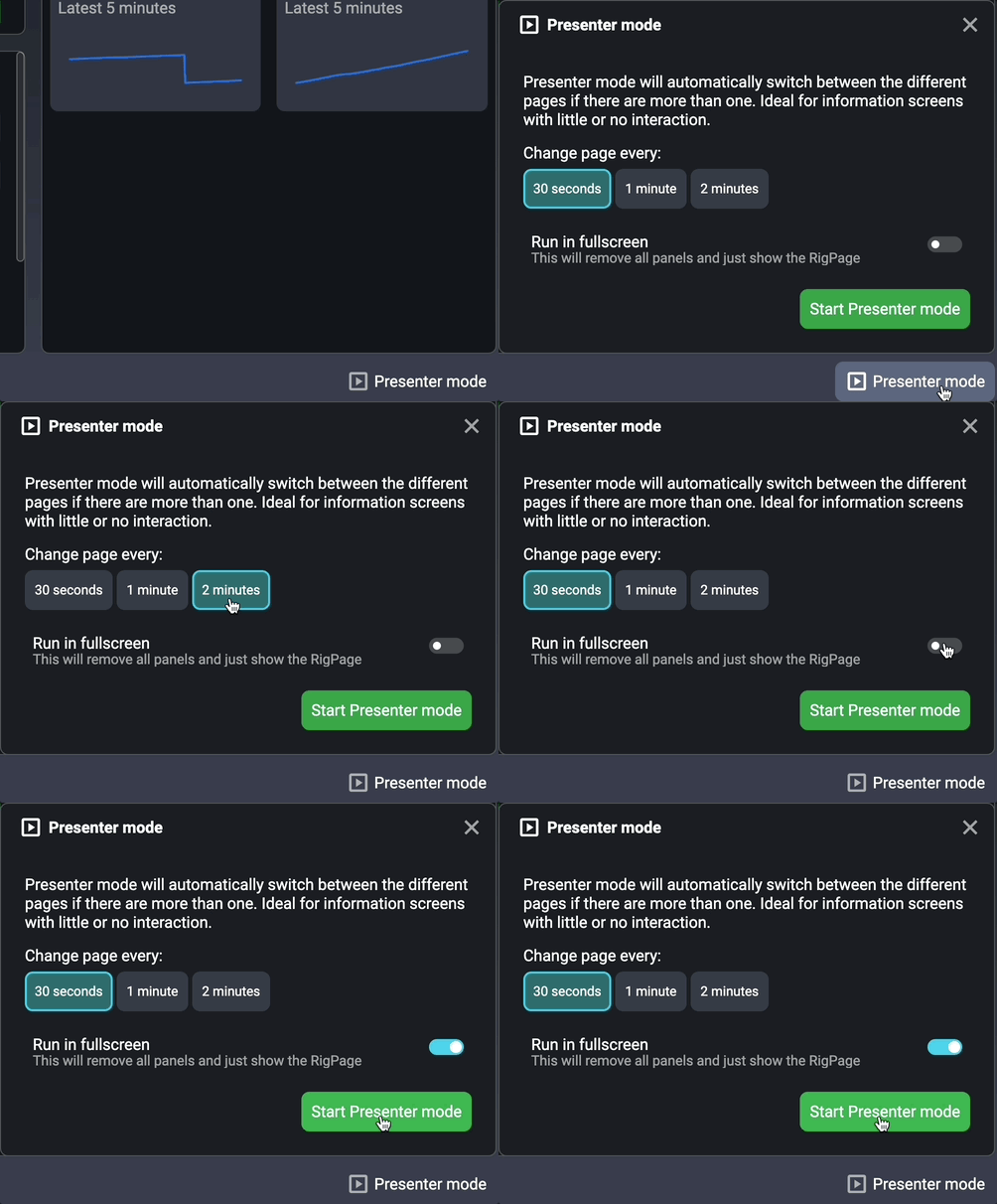
Open the presenter mode modal: Go to Rig Page and click the Presenter mode button at the corner of the screen.
Set the Page Rotation Interval: In the modal, choose how frequently the pages should rotate by selecting one of the available time intervals—30 seconds, 1 minute, or 2 minutes. Click on your preferred option to activate it.
Enable fullscreen (optional): To maximize visibility, toggle on Fullscreen mode within the modal. This removes browser elements and expands the layout to cover the entire screen.
How to exit Presenter mode
Reopen the Presenter Mode Settings: Click the highlighted Presenter mode button to reopen the configuration modal.
Stop Presenter Mode: In the modal, click the Stop Presenter Mode button to immediately exit the mode.
Operations support center: Rig Page in Presenter mode can be displayed in Operation Support Centers where users require a brief overview of the ongoing operation.
Shift handover briefings: During daily handovers, supervisors use Presenter mode on a shared screen to automatically cycle through all key widgets, giving the team a passive, continuous overview of recent activity.
Column Count: Presenter mode adapts to your screen size.
Portrait Mode: If the display height exceeds 1450 pixels, Presenter mode can show two rows of widgets, making better use of vertical space.
Configuration During Presentation: You can move widgets between pages even while Presenter mode is active.
Awareness Comments: These cannot be removed or moved off the first page to ensure vital information is always visible.