Export
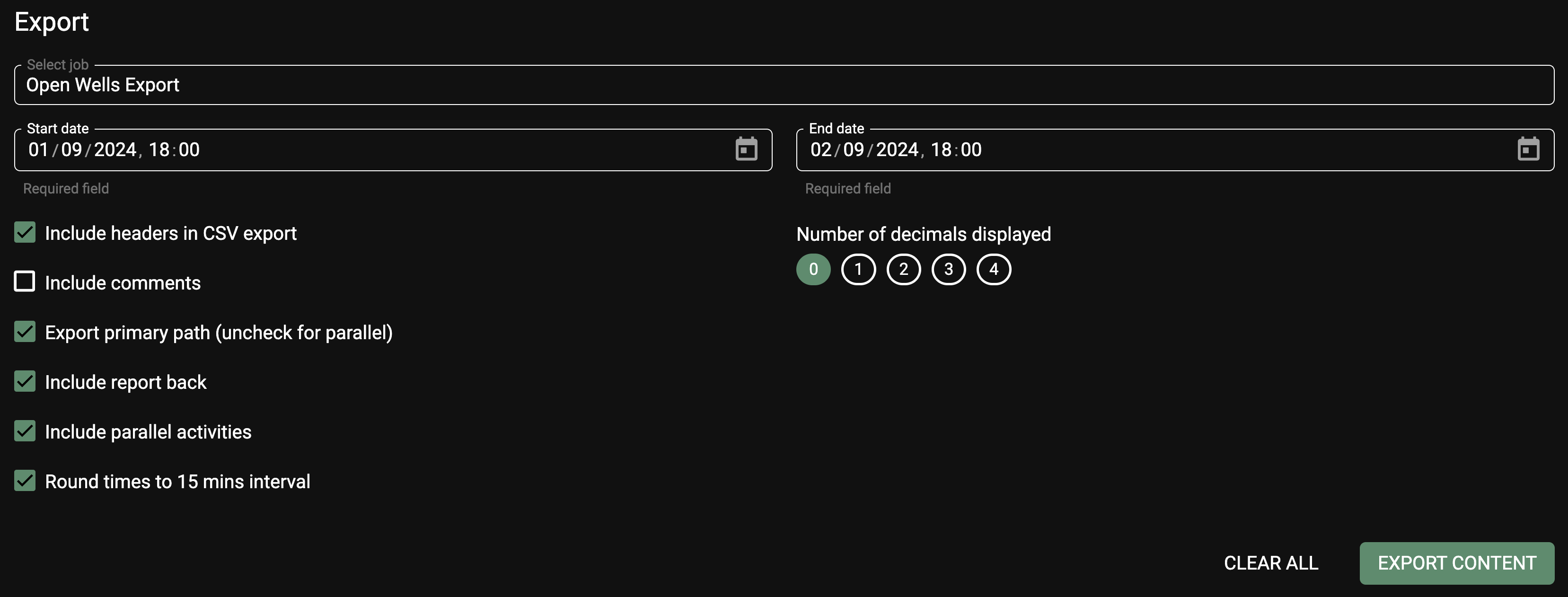
Exporting data from RigFlow allows you to save your data in a preferred format for further analysis or reporting. Follow the steps below to export data from RigFlow successfully.
How to export data from RigFlow
Click the export icon in the right sidebar.
Choose which Export type you want, like, e.g. Open Wells, Excel, EDRS or NDOR.
Choose which Start date and End date you would like to export content from.
Depending on the chosen Export type, you may need to configure additional settings. See more under How to use settings under export.
Click on the Export button to start the process. A dialog box may appear to confirm your settings and selections.
Once the export process is complete, you can be prompted to save the file to your local machine unless your browser does it automatically. Choose the desired location and save the file.
How to use settings under export
Include headers in CSV export: Add a descriptive header for each row in the export file.
Include comments: Add operational comments to each step or action getting exported.
Include timestamp on comments: If required, include a timestamp to a comment.
Include report back: Include the report back under each step.
Include parallel activities: Includes the steps that have been run outside the primary lane.
Round up time intervals: Round up the time in minutes, so e.g. 5 min. interval will round up 28 min. to 30 min.
Number of decimals displayed: How many digits is placed after the period, e.g. 10,00.
Tips for Successful Exporting
Ensure Data Accuracy: Double-check your data selections and filters before exporting to ensure the export includes all necessary information.
Check Format Compatibility: Ensure the chosen export format is compatible with the software you plan to use for further data manipulation or analysis.