Adding codes in RigBridge
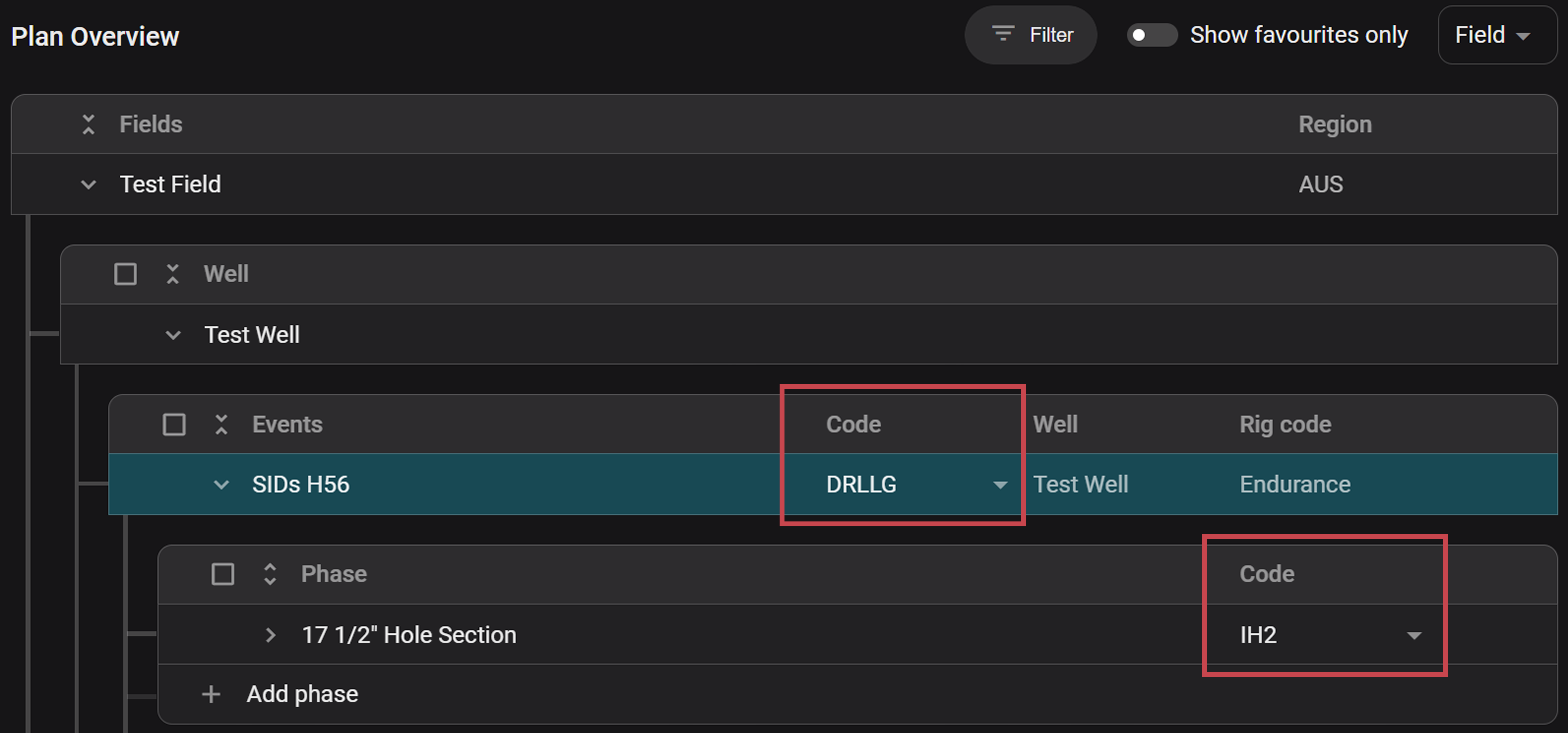
Select Event code: Create a new plan in RigBridge. At the Event level, select an event code. You can scroll through the list or use the search function by typing part of the code or description.
Note
Woodside does not use codes at the Plan or Task level in RigBridge.
Select Phase code: Add a Phase to the Event. Select the relevant phase code using the scroll or search function; both the short code and full description will be displayed.
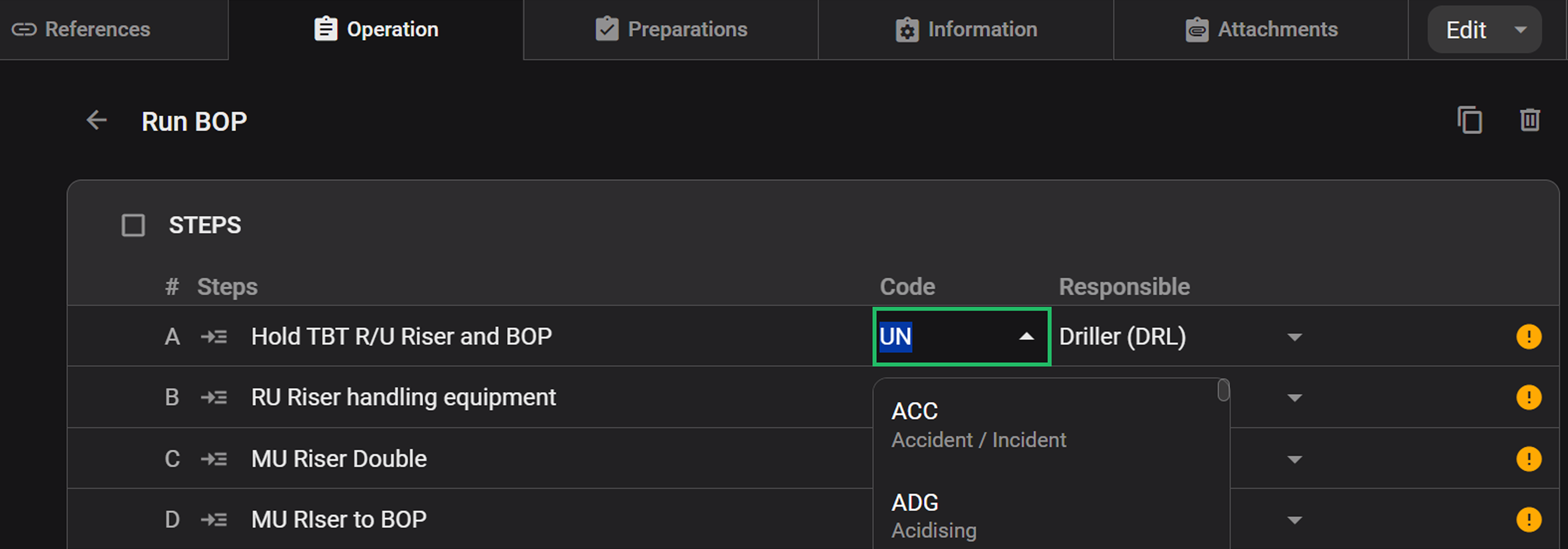
Select Step code: At the Step level, select the appropriate step code using the same method. If no code is selected, the system shows a warning and uses “UN” (undefined) as the default.
Approve the plan: Review and send the plan for approval. Once the plan is approved and executed, the selected codes will automatically transfer to the Operation report builder.
Important
Code selection is required for plan validation and approval. If there are any missing codes, you will get a validation issue warning sign.