How to start, pause, and return to a step in RigFlow
This article explains how to start a new step, pause an ongoing step, and return to a previous step in RigFlow.
Step-by-step instructions
How to start a new step
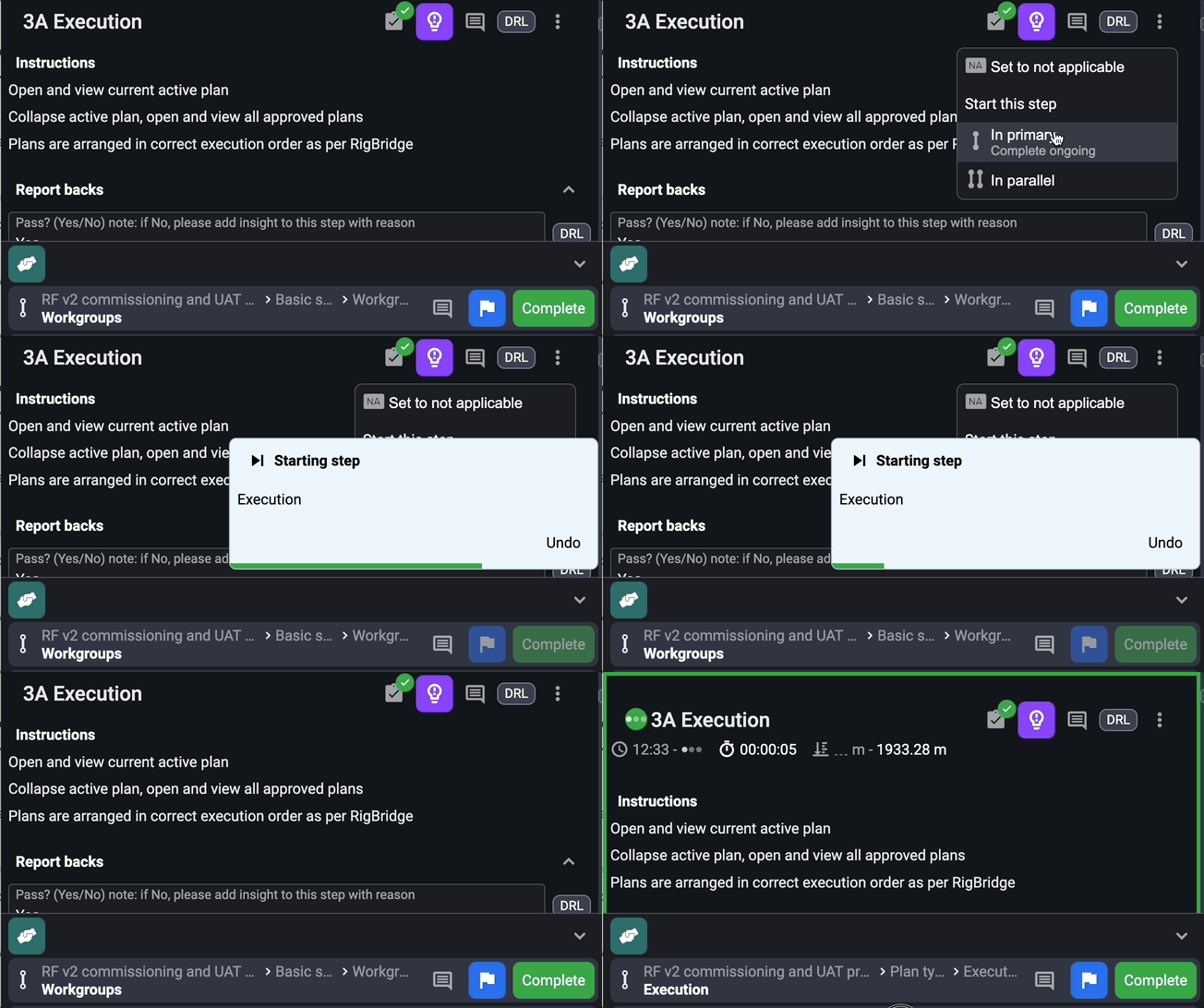
Open the operation panel: Go to Plan Overview, open the Execution panel, and navigate to the
 Operation tab.
Locate the step you want to start: Navigate to the
Operation tab and scroll down to find the step you want to start.Start the step: Click on the
 more menu and choose whether to start it as primary or parallel.
 Primary: Continues the main sequence of the plan.
 Parallel: Allows the step to run alongside another step (ideal for auxiliary or overlapping tasks).
How to pause a step
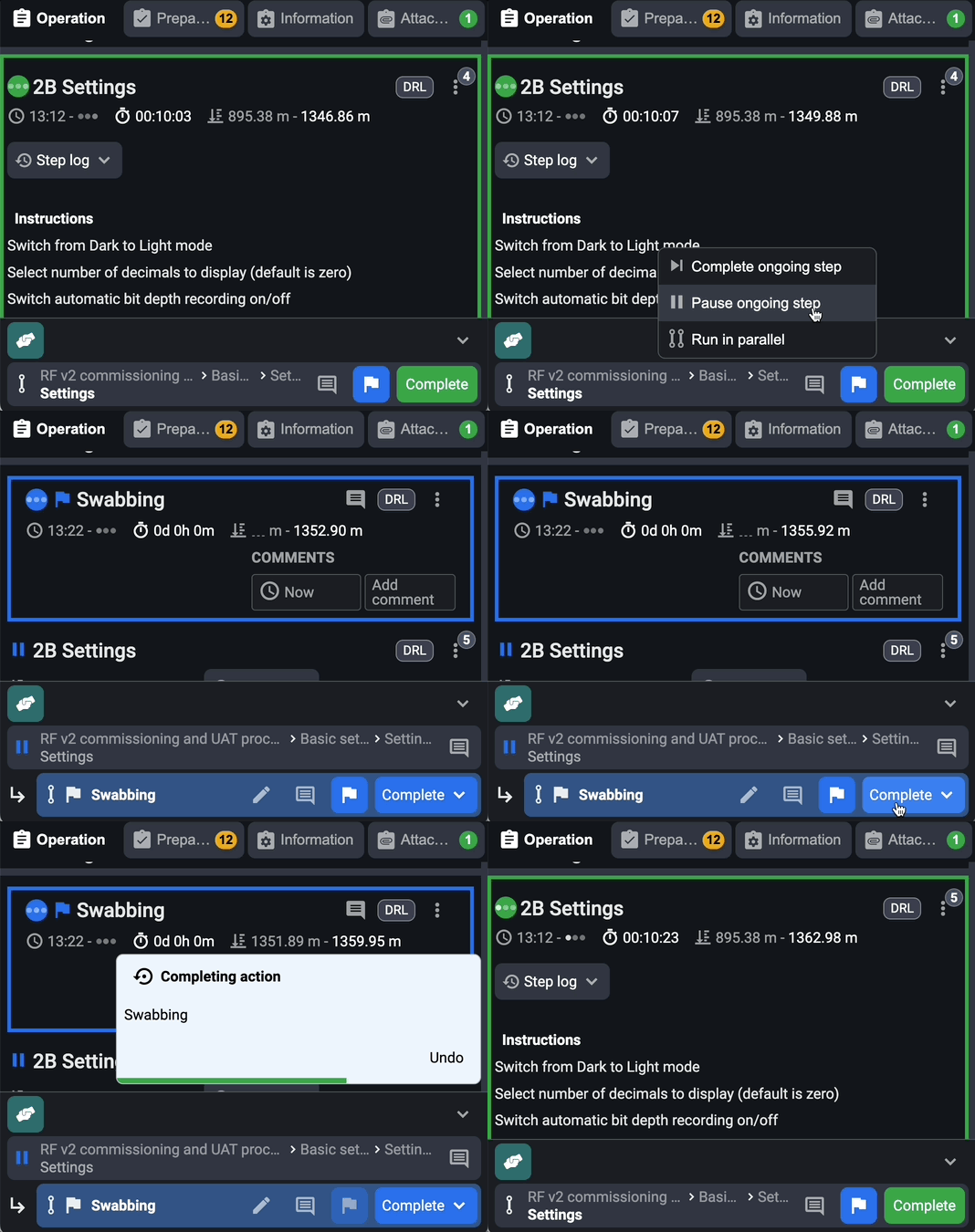
Find the step you want to pause: On RigFlow, go to the Global Action Bar and find the active step you want to pause.
Pause ongoing step: Click on the
 Actions icon and select
  Pause ongoing step. This logs an action and temporarily halts the step.
Resume the action: You can resume the step by clicking on the complete dropdown menu and selecting the
 Resume paused step option.
How to return to a previous step
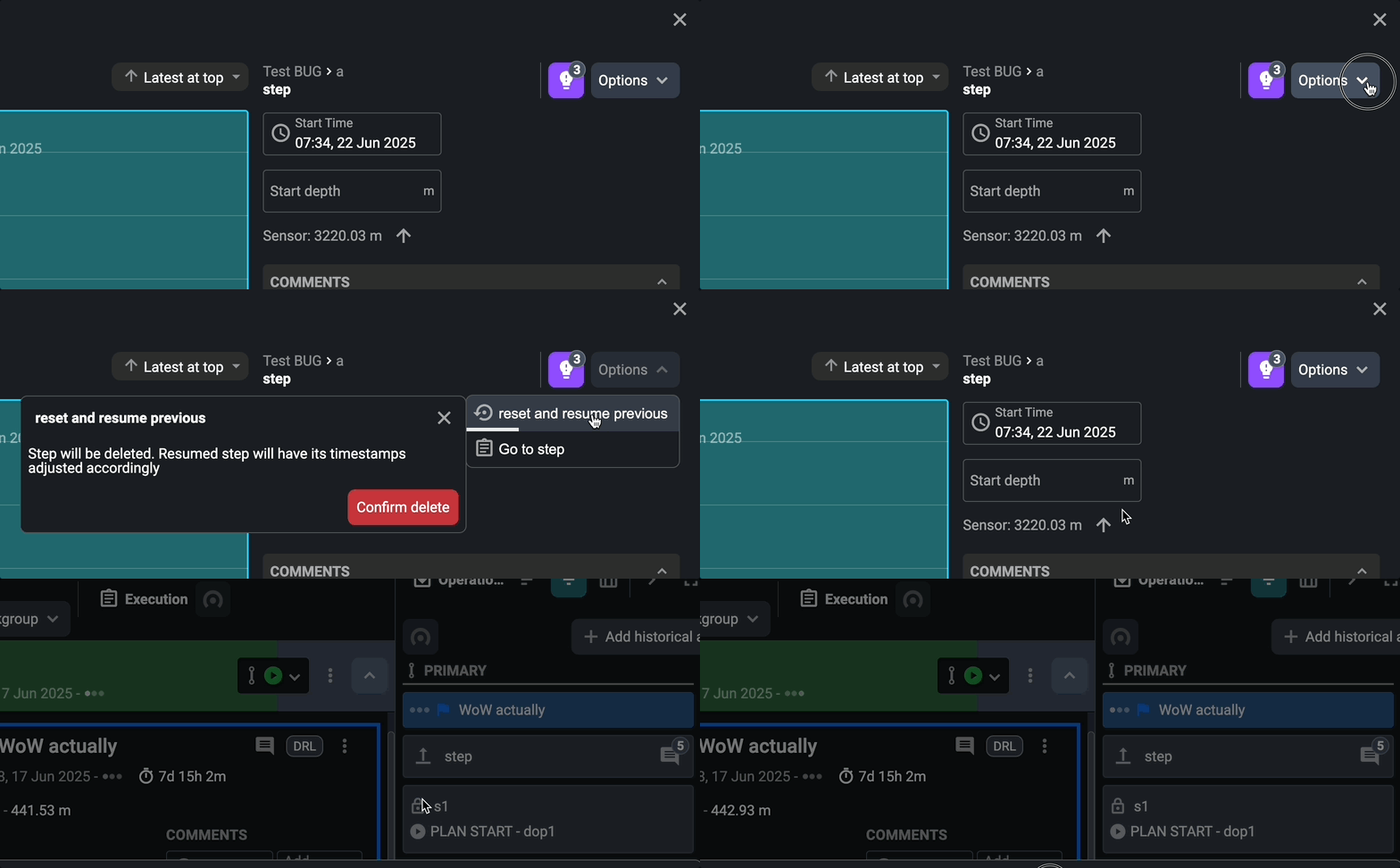
Open the active step: Go to the
 Operation Log from the Right sidebar and click on the active step to open its details view.
Set back to not started: Click on the options dropdown menu and select
Reset and resume previous.